If you can't get into WordPress's control panel, it's typically one of three things: a white screen (a plugin or theme is failing), a login loop (WordPress doesn't know its own address correctly) or a forgotten password. Find the one that fits and follow the route.
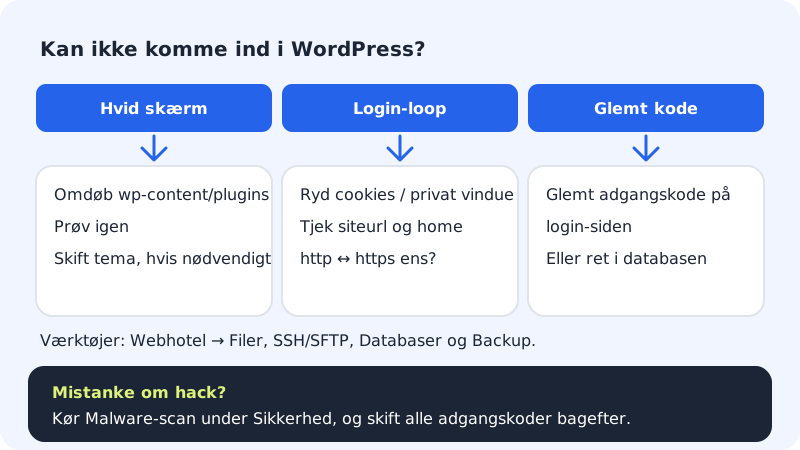
White screen or error at login
Step 1: Turn off all plugins
Open the files and rename the folder
public/wp-content/pluginsto e.g.plugins-slaaet-fra. Try signing in again.Step 2: Find the plugin that is failing
If you get in, give the folder its old name back. Go to Plugins in WordPress and activate them one at a time until the error returns. The last one you activated is the culprit.
Step 3: Try a default theme
If plugins didn't help, rename the folder for your theme under
public/wp-content/themes. WordPress switches to a default theme if one is installed.
Login loop: you're sent back to the login
Step 1: Clear cookies
Clear cookies for your domain, or try in a private window. Old cookies from before a switch to
https://are a classic cause.Step 2: Check WordPress's address
WordPress stores its address in two places:
siteurlandhomein thewp_optionstable in the database. Open the database from Web hosting → Databases in Database tool (see Open and manage your database) and check that both read e.g.https://ditfirma.dk, with the samehttpsand the samewwwor without it.Step 3: Check cache and security plugins
A cache or security plugin can also cause a loop. Temporarily rename its folder under
wp-content/plugins.
Forgotten password
Click Lost your password? on the login page. WordPress sends a link to the administrator's email address. If the email doesn't arrive, follow Change the password or email for the WordPress administrator.
If nothing works
- Restore the site from a backup from before the problem under Web hosting → Backup, choosing Alongside (safe – nothing is overwritten) first.
- If you suspect hacking (unknown administrators, strange redirects), run a Malware scan under Security and read Cleaning up after a hack. Malware scan requires Pro.
- Write to support with the address of the site and what you've tried.
Frequently asked questions
Is the WordPress login the same as my Sitewig login?
No. Sitewig's control panel and WordPress each have their own login, and Sitewig doesn't store your WordPress password.
Do I lose content when I rename the plugin folder?
No. Settings and content are in the database. You just need to activate the plugins again afterwards.
Why do I get "too many login attempts"?
A security plugin has temporarily locked logins from your IP address. Wait for the time the plugin states, or rename the plugin's folder.