With an FTP program you can move many files at once between your computer and your web hosting. Here we use FileZilla, which is free for Windows, Mac and Linux. The connection runs over SFTP, which encrypts both your password and your files.
What you need
- An FTP user with SFTP turned on, and its password. If you do not have one, create an FTP user first.
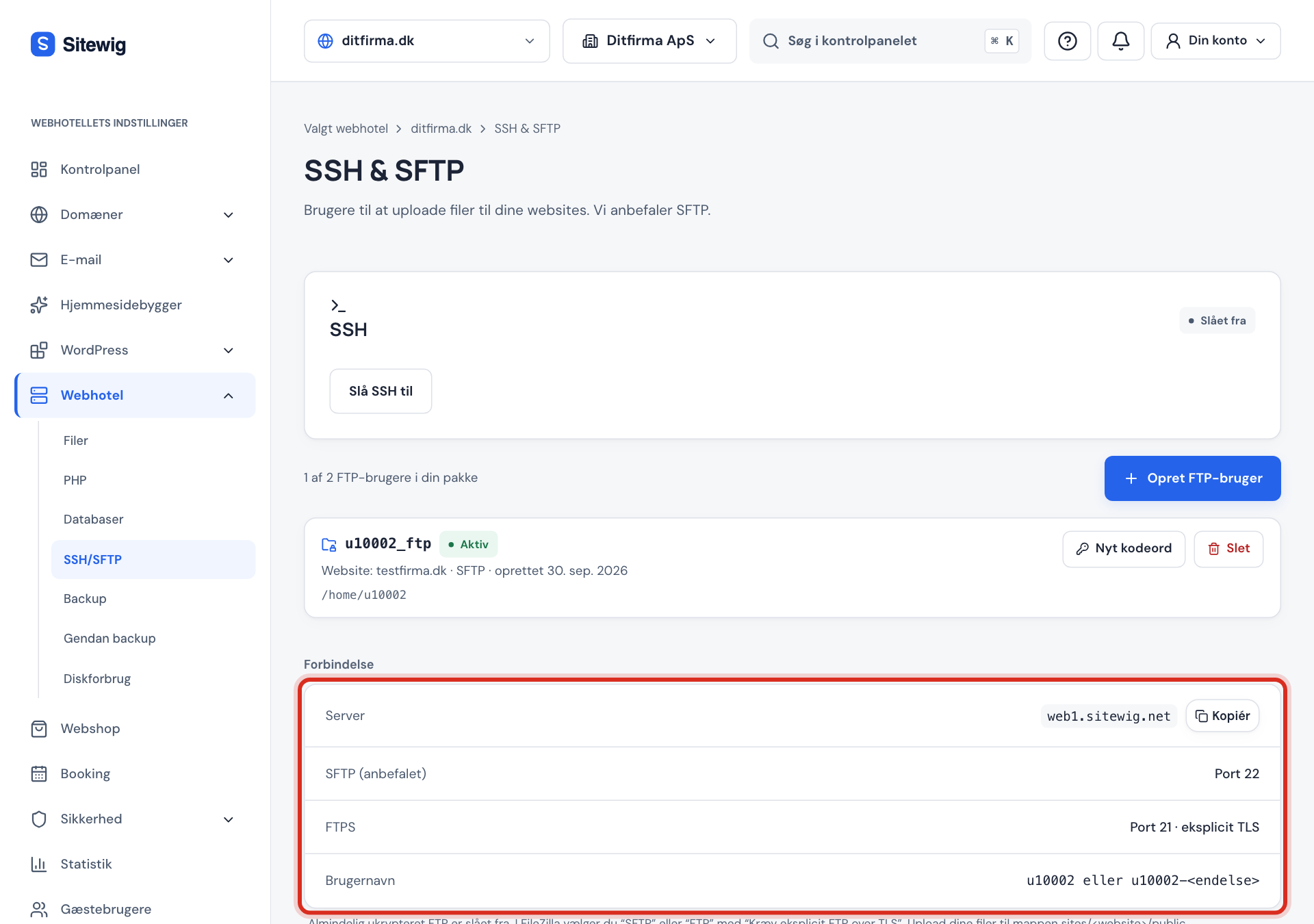
- The values from the Connection card under Web hosting → SSH/SFTP in the control panel.
Connection to the web hosting (SFTP)
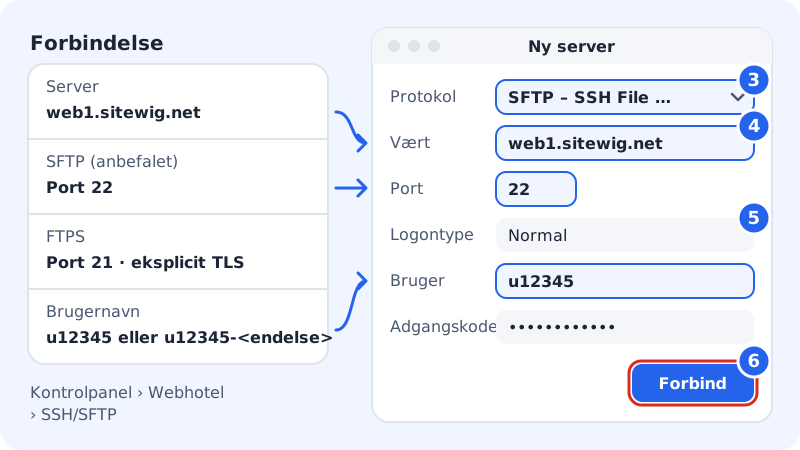
- Protocol
- SFTP – SSH File Transfer Protocol
- Host
- The value next to Server in the Connection card
- Port
22- Logon type
- Normal
- User
- Your FTP user name, for example
u12345oru12345-designer - Password
- The FTP user's password
Set up FileZilla
The menu names below follow the English version of FileZilla. In other languages the wording can vary with the version.
Step 1: Download FileZilla
Download FileZilla Client from the official site filezilla-project.org (opens in a new window), and install the program. Choose the client version – not FileZilla Server.
Step 2: Open the Site Manager
Open File → Site Manager (shortcut
Ctrl+S, on MacCmd+S), and click New site. Give the connection a name, for example Sitewig yourcompany.com.Step 3: Choose SFTP
Choose SFTP – SSH File Transfer Protocol under Protocol. Do not choose ordinary FTP without encryption – it is turned off at Sitewig.
Step 4: Enter host and port
Under Host, enter the address from Server in the control panel. Under Port, enter
22.Step 5: Enter user name and password
Set Logon Type to Normal. Enter your FTP user name under User and the password under Password.
Step 6: Connect and accept the server's key
Click Connect. The first time, FileZilla asks whether you trust the server's key (Unknown host key). Tick the option to always trust this host, and click OK. The question only comes back if the server changes its key.
Step 7: Upload your files
On the left you see your computer, on the right the web hosting. Open
sites/main/publicon the right, and drag the files in there. Other websites are insites/<name>/public.
Frequently asked questions
FileZilla says "Authentication failed". What is wrong?
The user name or password does not match. Check that the user name is written in full, for example u12345-designer, and that the user has the status Active under Web hosting → SSH/SFTP. If you cannot remember the password, click New password next to the user and try again with the new one.
The connection hangs or times out. What do I do?
Check that you have chosen SFTP and port 22, and that the host is the address from Server. Some company or school networks block outgoing connections. Try from another network, or use the file manager in the browser.
Can I use port 21 instead?
Yes, if your FTP user has FTPS turned on. You then choose FTP with explicit TLS required on port 21. See FTPS, Cyberduck and WinSCP.
Can I use the FTP login for SSH?
No. FTP users can only transfer files. If you need to run commands, turn on SSH, which has its own login and its own port.