A completely white page, the message Internal Server Error (error 500) or WordPress's own message about a critical error almost always means that the PHP code in a plugin, a theme or WordPress itself has hit an error. It most often happens right after an update, a new plugin or a change of PHP version. Go through the steps in order – most problems are solved after the first three.
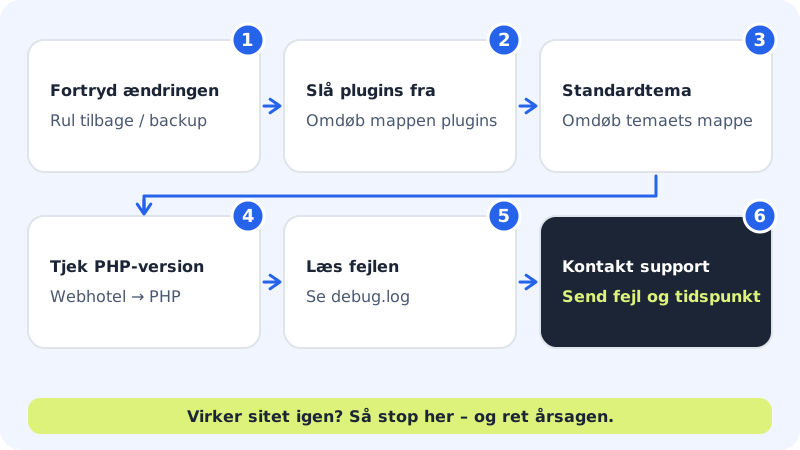
Step 1: Undo the latest change
If the error appeared right after an update or a new plugin, this is the quickest route:
- If you know which plugin or theme was just updated, disable exactly that one as described in the next step.
- Otherwise you can restore last night's backup under Web hosting → Backup: press Restore next to a backup from before the error. Choose Alongside (safe – nothing is overwritten) if you want to look at it first.
Step 2: Turn off all plugins
Open the files, and go to the website's folder
public/wp-content/. Rename thepluginsfolder to, for example,plugins-disabled. WordPress can now find no plugins and runs without them. If the site works now, a plugin is the culprit: give the folder its old name back, and then rename one plugin at a time inside the folder until you find the one causing the error.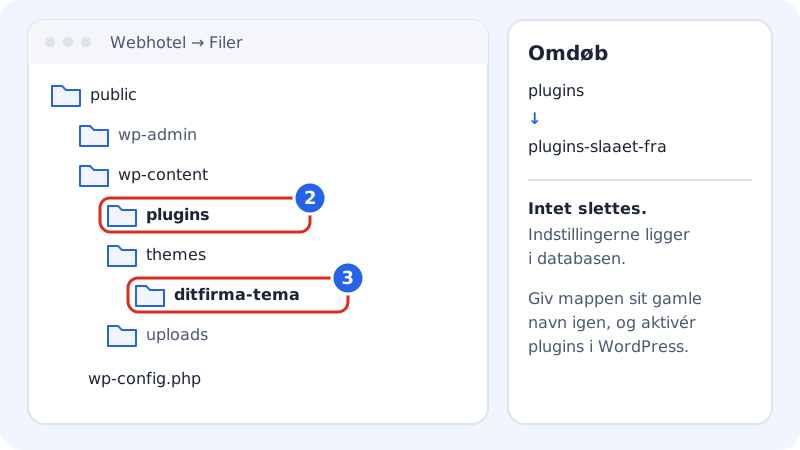
Rename the plugins folder or the theme's folder to turn them off Step 3: Switch to a default theme
If that did not help, try the theme. Go to
public/wp-content/themes/, and rename the folder of the theme you use. WordPress then switches to one of the default themes (for example Twenty Twenty-Five), if it is installed.Step 4: Check the PHP version
If you have recently changed the PHP version, change it back under Web hosting → PHP and press Save. You can choose between PHP 8.2, 8.3 and 8.4. Remember that the version applies to all websites on the web hosting.
Step 5: See the actual error message
Open the file
public/wp-config.php, and find the line withWP_DEBUG. Set it totrue, and add the linedefine( 'WP_DEBUG_LOG', true );just below. Reload the page, and then open the filepublic/wp-content/debug.log. The last error usually tells you which plugin or theme – and which file – is the problem.Step 6: Check WordPress's files
If you cannot find an explanation, the files may have been changed – for example by a hacker attack. In WordPress, go to Dashboard → Updates and press Re-install version, which puts clean copies of the WordPress core files in place without touching your content. You can also restore files from a backup from before the problem started.
Step 7: Contact support
If the site still does not work, open a case with support. Include the site's address, when the error started, what you have tried, and preferably the last error from
debug.log.
Other errors you may see
What does "Error establishing a database connection" mean?
WordPress cannot reach the database. Check that the database still exists under Web hosting → Databases, and that the name, user and password in wp-config.php match. If you have just moved the site, this is most often where the error is.
Why does the site say it is under maintenance?
If it says that the site is briefly unavailable for scheduled maintenance, an update has got stuck. Delete the .maintenance file in the public/ folder, and the site comes back.
Why can I not see the error in the control panel?
Sitewig's control panel does not show PHP's error log. Use WP_DEBUG_LOG as described above – WordPress then writes the errors itself to a file you can open.
Can I break anything by renaming folders?
No. Renaming the plugins folder or a theme folder deletes nothing – the settings are stored in the database. When you give the folder its old name back, everything is as it was. You do, however, have to activate the plugins again under Plugins in WordPress.