With two-factor sign-in you need two things to sign in: your password and a code that changes every 30 seconds in an app on your phone. Even if someone gets hold of your password, they can't get in without the phone. It takes 3 minutes to turn on.
What you need
- Your phone with an authenticator app, e.g. Google Authenticator, Microsoft Authenticator, 1Password or another app that supports TOTP codes.
- Access to the control panel on a computer (or a screen other than the phone, so you can scan the QR code).
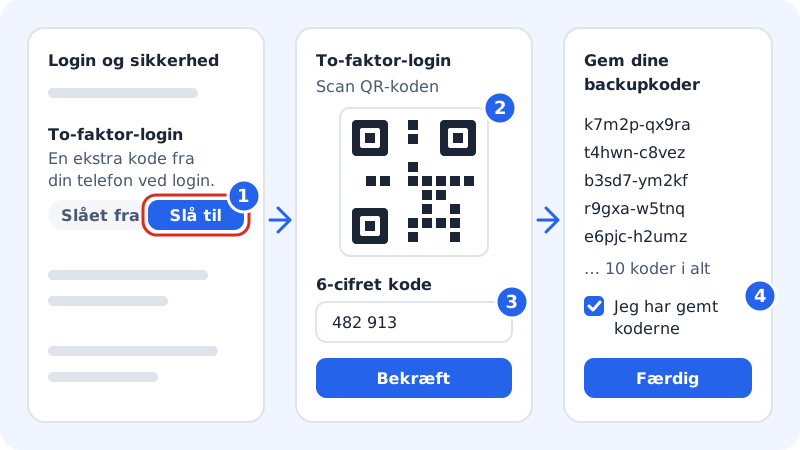
Turn on two-factor sign-in
Step 1: Open Sign-in and security
Click Settings at the top of the control panel. Find the Sign-in and security card.
Step 2: Press Turn on
In the Two-factor sign-in row it says Off. Press Turn on.

The Two-factor sign-in row under Settings → Sign-in and security Step 3: Scan the QR code
Open the authenticator app on your phone and choose to add a new account. Scan the QR code on the screen. If you can't scan it, enter the code under Secret into the app instead.
Step 4: Enter the 6-digit code
The app now shows a code for Sitewig. Enter the 6 digits in the 6-digit code field and press Confirm. If it says Enter the 6 digits from the app, you've entered too few or too many characters.
Step 5: Save your backup codes
If the Save your backup codes window appears, save the 10 one-time codes somewhere safe: press Copy or Download. Tick I've saved the codes somewhere safe and press Done. The codes are shown only this once.
How to sign in from now on
- Enter your email and password as usual.
- Open the authenticator app and enter the 6-digit code shown next to Sitewig.
- The code changes every 30 seconds. If it's about to expire, wait for the next one.
The status of two-factor sign-in is also shown on the Security page, where it says On when it's active.
Frequently asked questions
Can I get the code by text message instead?
No. Sitewig only uses codes from an authenticator app, because it's more secure than text messages.
Does two-factor sign-in also apply to my guest users?
Two-factor sign-in is turned on for each individual user. Ask your guest users to turn it on for their own account.
The code is rejected even though I enter it correctly – why?
Check that your phone's clock is set to update automatically. The codes are based on the time, and a clock that's wrong gives wrong codes.