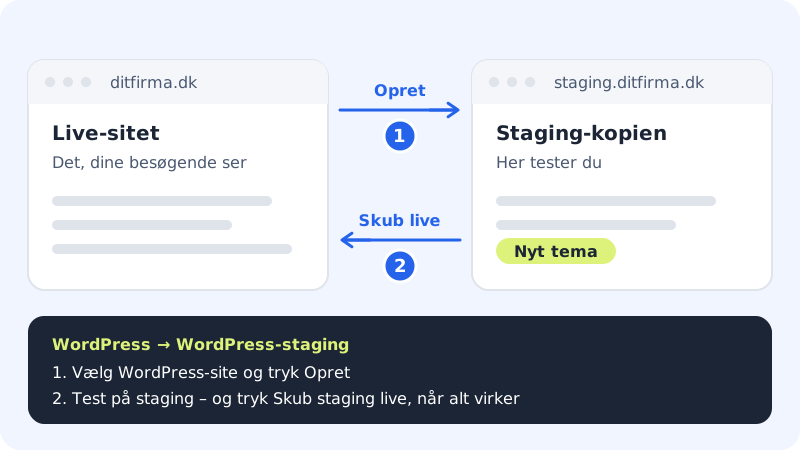
A staging environment is a copy of your WordPress site that your visitors do not see. Here you can try out a new theme, major updates or a new plugin without risking the real site. When everything works, you push the copy live. Staging is included in all web hosting plans.
What you need
- A website with WordPress installed.
- A domain from your Sitewig account connected to the website, for example
yourcompany.com. The copy gets the addressstaging.yourcompany.com, and Sitewig creates the DNS record for it. - The copy is created as an extra website (for example
yourcompany-staging) with its own database. You can see both under WordPress → Overview and Web hosting → Databases.
Create and use a staging environment
Step 1: Open WordPress staging
Choose WordPress → WordPress staging in the control panel menu.
Step 2: Choose the site and create the copy
Choose your site in the WordPress site field, and press Create. Sitewig copies all files and the database to a new website and changes the addresses to
https://staging.yourcompany.com. When the copy is ready, it appears in the list with the status ready.Step 3: Test your changes
Open
https://staging.yourcompany.com/wp-admin, and log in with the same user name and password as on the live site. Install plugins, change the theme, update – and check that everything works. The copy is set up so that it is not shown in search engines.Step 4: Push the changes live
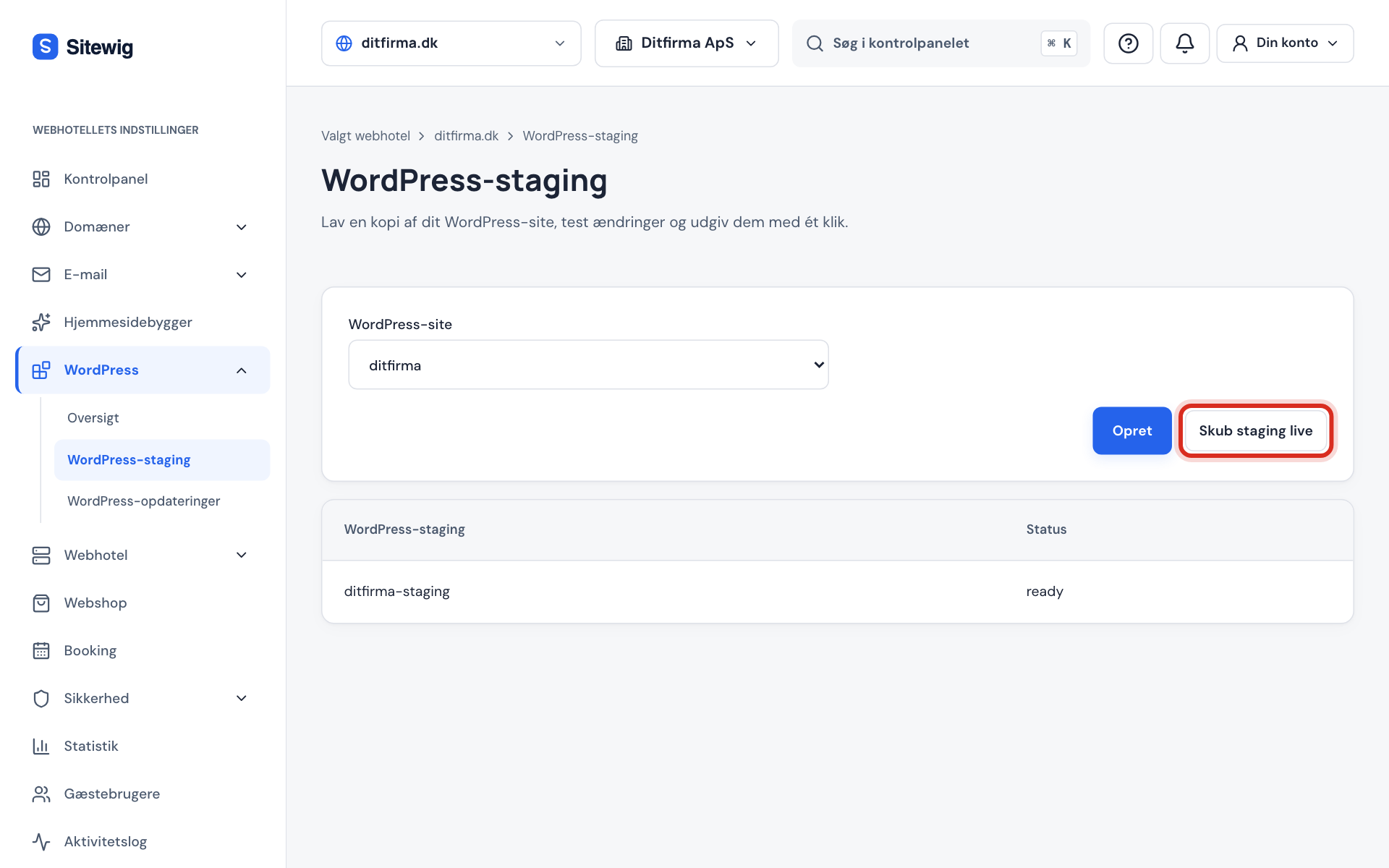
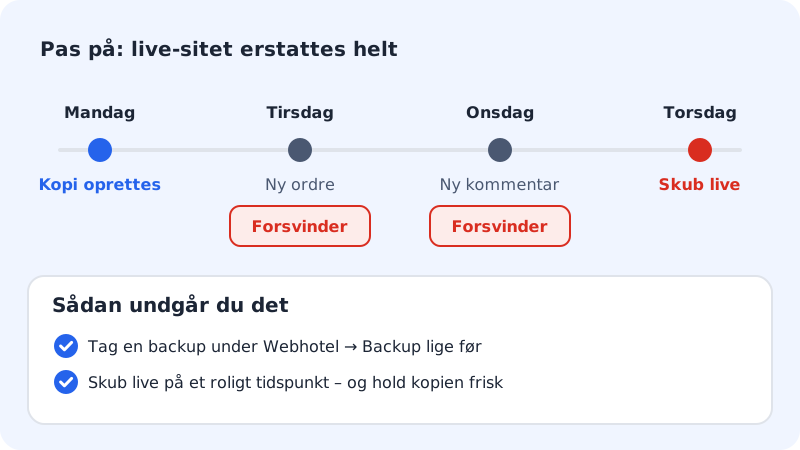
When you are happy, go back to WordPress → WordPress staging and press Push staging live. Confirm that you want to overwrite the live website with the staging copy. The live site's cache is cleared automatically afterwards.
Step 5: Check the live site
Open
https://yourcompany.com, and check that everything is as it should be. Log in to WordPress, go to Settings → Reading, and check that the option to discourage search engines from indexing the site is not ticked.
What staging cannot do yet
- One staging environment per site. If the site already has a staging copy, you cannot create another one alongside it.
- The copy cannot be deleted or recreated from the control panel yet. If you need a fresh copy of the live site, write to support, and we will help.
- Only domains from your Sitewig account. If the website only uses a domain that is not with Sitewig, no staging address can be created.
Frequently asked questions
Does staging cost extra?
No. Staging is included in all web hosting plans. The copy uses space on your web hosting, and its database counts when you see how many databases you have used.
Can my visitors see the staging environment?
Only if they know the address staging.yourcompany.com. The copy is set up so that search engines do not index it. If you want to close it completely, you can use a maintenance plugin on the copy.
Is my email affected when I push live?
No. Only the WordPress site's files and database are replaced. Your email, your DNS records and other websites are not touched.
How long does it take?
It depends on the size of the site. An ordinary site is typically ready within a few minutes. The list on the page shows the status while it runs.