Everything you do in the editor is saved automatically as a draft that only you can see. When you click Publish, the draft becomes the website your visitors see. Later changes only become visible when you publish again.
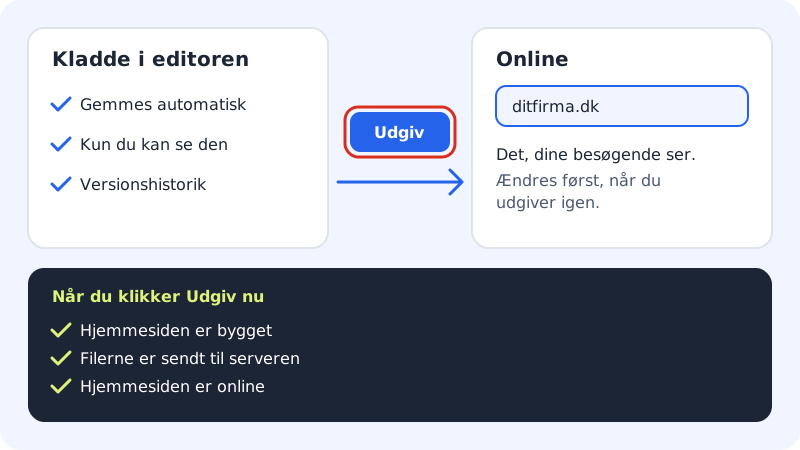
Publish the website
Step 1: Click Publish
Click the blue Publish button in the top right corner of the editor. The Publish website window opens.
Step 2: Check where the site will be visible
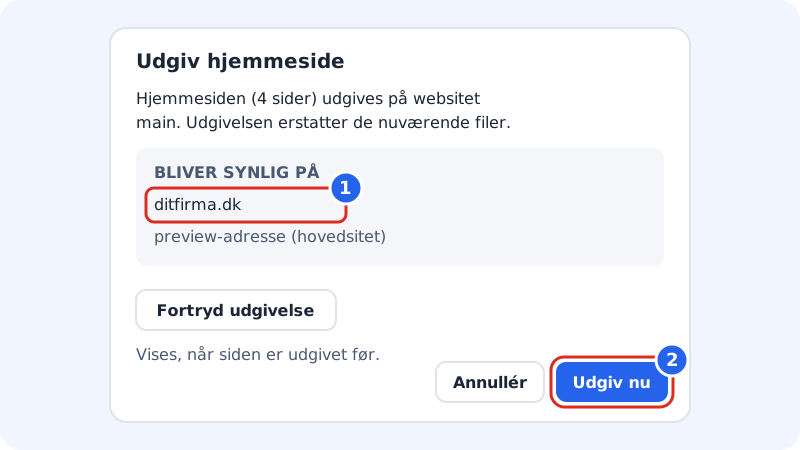
The window tells you how many pages will be published, and on which website. Under Will be visible on you see the addresses where the website can be seen – your domains on the website and, for the main site, the preview address. If it says The site has no active addresses yet, see Show your website on your own domain.
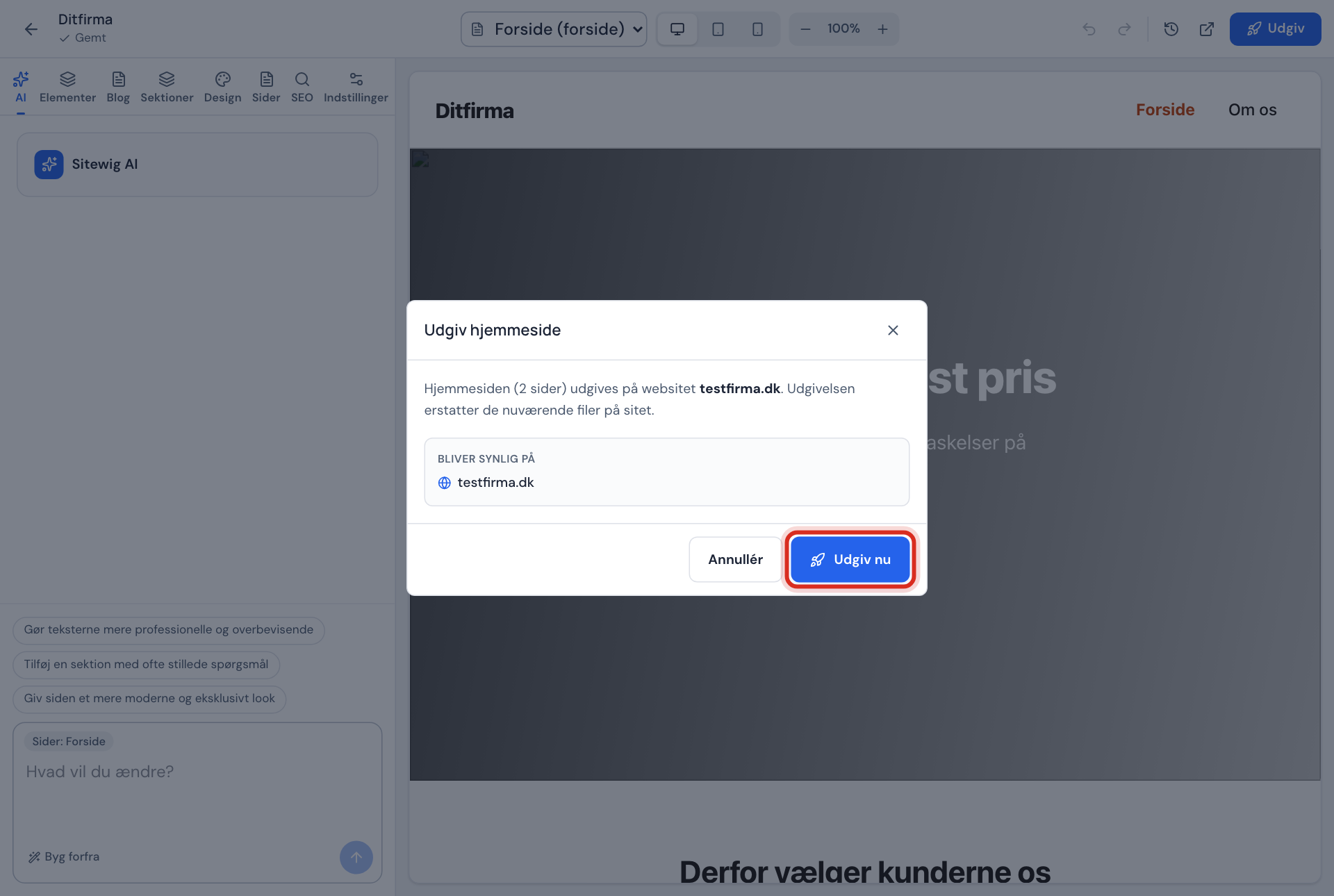
The Publish website window Step 3: Click Publish now
Click Publish now. You see three steps: The website has been built, The files have been sent to the server and The website is online.
Step 4: Open the site
When the last step is green, a link to the website appears. Click it, and check that everything looks right. Click Done to close the window.
Update the website later
- Open Website builder, and click Edit on the website.
- Make your changes – they are saved automatically.
- Click Publish and Publish now again.
In the Your websites list it says Published when the website is online. If it says Draft, it has never been published.
Undo a publish
If you have published something wrong, open Publish again and click Undo publish. Confirm, and the previous publish is put online again. The button is only shown if the website has been published before. If you want to go further back, use Version history and then publish.
If publishing does not go through
- Choose the right web hosting and an active domain before publishing. – The website has no address to be shown on, or you have chosen a different web hosting in the control panel. Check the web hosting, and add a domain to the website.
- Fix the errors before publishing – a field is invalid, for example a link without
https://. The message shows the first errors so you can find them. - The website is too large to publish (max. 8 MB). – make the images smaller, and try again. See Add and change images.
- Publishing failed – try again in a moment. Your changes have been saved.
Frequently asked questions
How long does it take before the site is online?
Usually a short time – you can follow the three steps in the window. If you use a new domain, it can take longer before the domain points to Sitewig and the SSL certificate is ready.
Why do I still see the old version?
Your browser may be showing a saved copy. Reload the page with Cmd+Shift+R (Mac) or Ctrl+F5 (Windows), or open it in a private window.
Is the website published automatically when I save?
No. Saving and publishing are two different things. This is deliberate, so you can work in peace without visitors seeing half-finished changes.
Can I schedule a publish for later?
Not for the whole website. Publish when you are ready.