The AI does what you ask, so the clearer your message is, the better the result. A good message also saves you AI edits, because you do not have to correct the same thing several times.
A good message has four parts
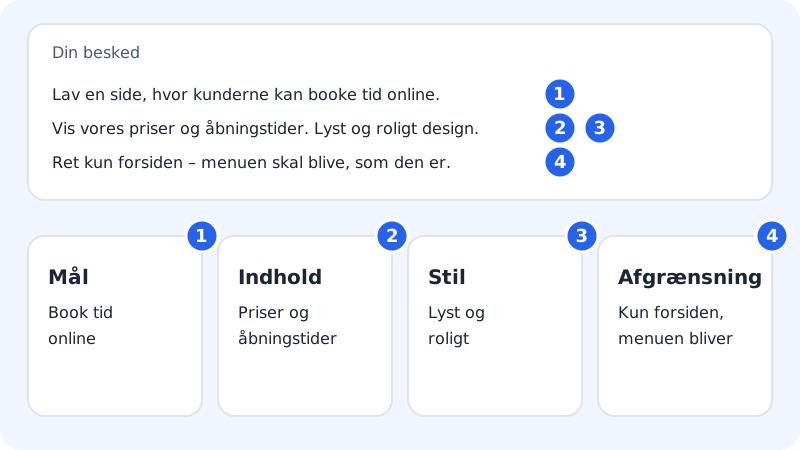
What your message should contain
- Goal
- What should the page or feature do? Who is it for?
- Content
- Which text, fields, prices or steps should be included?
- Style
- What should it look like, for example light, calm, playful or exclusive?
- Scope
- Where on the page, and what should not be changed?
How to write to the AI
Step 1: Put the task in one message
Write everything that belongs to the task in the same message. The field has room for 4,000 characters. On a computer you send with Enter (Shift+Enter gives a new line); on mobile you tap the arrow button. In the app builder, the empty field says Tell Sitewig AI what to change….
Step 2: One task at a time
Every message counts as one AI edit. Ask for one thing per message, and wait for the answer before you write the next. That makes it easier to see what was changed, and to undo it if it did not turn out well.
Step 3: Point to the specific element
In the app builder you can click Edit above the preview and select an element on the page, for example a heading or an image. Click Ask Sitewig AI about this. The chat field now says What should Sitewig AI change about this element?, and the AI knows exactly what you mean.
Step 4: Save fixed facts once
The What Sitewig AI knows tab in your app shows what the AI knows about your business: name, company number, address, phone, opening hours, products and notes. Correct the details here and click Save, so you do not have to repeat them in every message.
Step 5: Fix small texts yourself
If only a word or a phone number needs changing, it is quicker and free to do it yourself: click Edit, select the text, and click Edit text.
Examples
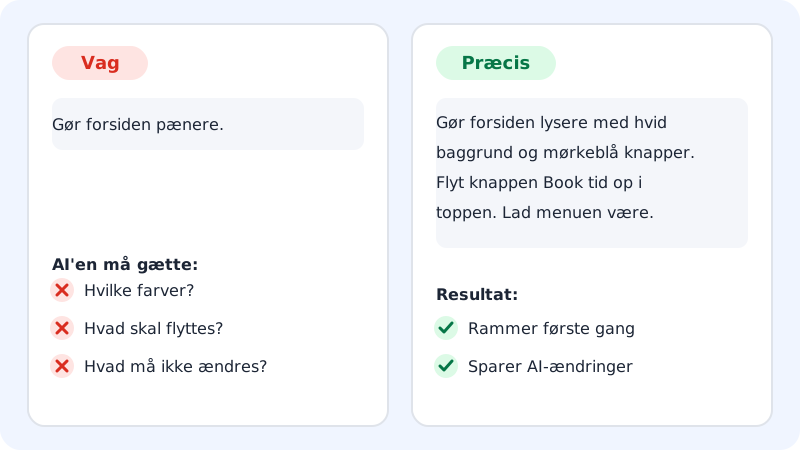
Vague: Make the front page nicer. The AI has to guess what you mean by nicer, and you often need several messages to get there.
Precise: Make the front page lighter with a white background and dark blue buttons. Move the "Book a time" button to the top so it is seen straight away. Leave the menu and the images as they are.
Vague: Make a price calculator.
Precise: Make a price calculator on the Prices page for window cleaning. The customer chooses the number of windows (1-50) and whether the inside should be cleaned. Price: £15 per window, double for inside cleaning. Show the price incl. VAT and an "Order" button that sends an email to contact@yourcompany.com.
Start a new app with a good description
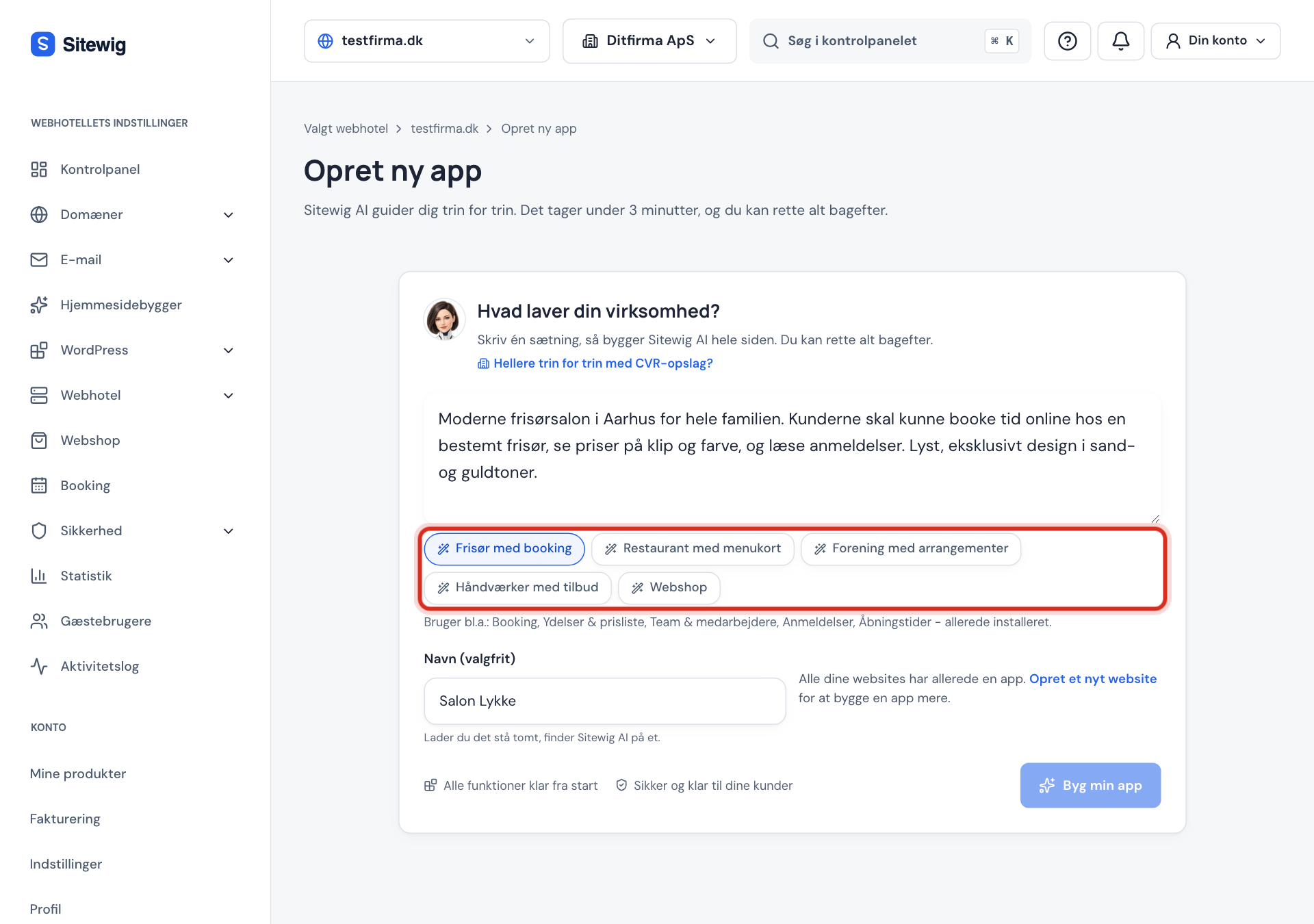
On the Create new app page, click I would rather describe it all myself if you want to write it yourself under What does your business do?. Below the field there are examples, such as Hairdresser with booking, Restaurant with menu and Tradesperson with quotes. Click an example to see what a good description looks like, and adapt it to your own business.
Frequently asked questions
Which language should I write in?
Just write in your own language. If the page needs to be in a different language, say so clearly in the message.
What do I do if the result is not what I wanted?
Click Undo under the answer, and try again with a more precise message. See Undo an AI edit.