If you want to look at your tables, change a single value or run an SQL query, you use Database tool. It runs in the browser, and you don't need to install anything. The tool is built on Adminer, which does the same as phpMyAdmin for everyday use but is lighter and faster.
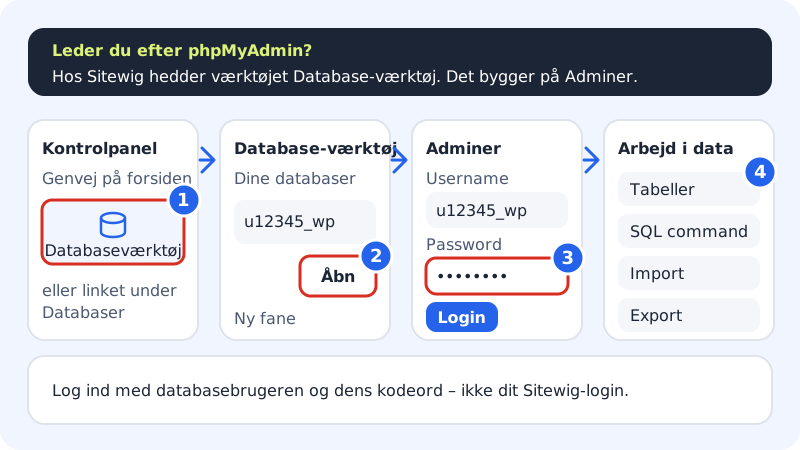
Sign in to Database tool
Step 1: Find Database tool
Click the Database tool shortcut on the front page of the control panel. You can also go to Web hosting → Databases and click the Database tool link in the text under Connection.
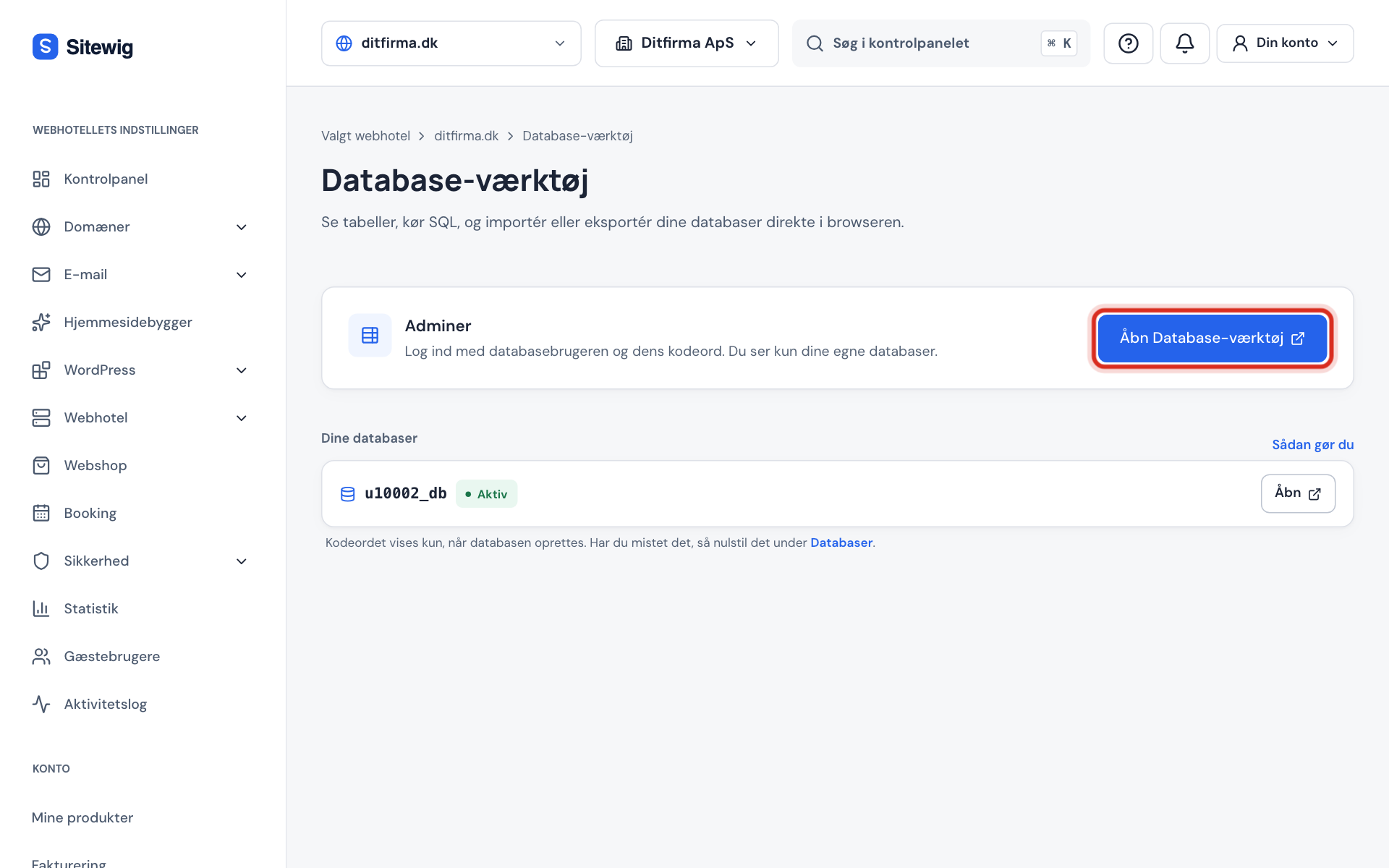
The Database tool page in the control panel Step 2: Click Open next to the database
Under Your databases you see all active databases. Click Open next to the one you want to work with. The tool opens in a new tab, with the username and database already filled in. You can also click Open Database tool at the top and type the username yourself.
Step 3: Enter the password and sign in
Enter the database password in the Password field and click Login. This is the password for the database, not your Sitewig sign-in.
Step 4: Work with your data
On the left you see the database's tables. Click a table to view or edit rows. Use SQL command to write your own queries, and Import or Export to move data in and out.
Step 5: Log out when you've finished
Click Logout in Database tool, especially if you are on a shared computer.
What you can do in Database tool
| Task | Where |
|---|---|
| View and edit rows in a table | Click the table on the left |
| Run an SQL query | SQL command |
| Load an SQL file | Import – see Import a database |
| Take a copy as a file | Export – see Export your database |
| Create or delete tables | Create table or the table's own page |
Frequently asked questions
Why can't I see my other databases?
You sign in with one database user, and it only has access to its own database. To view another database, log out and click Open next to it.
Why does it say that Database tool isn't ready yet?
That message appears while the server for a new web hosting account is being prepared. Try again in a little while.
Why does it say that Database tool is closed?
The tool is closed while the web hosting is suspended. It opens again when the account is active again.
I'm being refused even though the password is right. What do I do?
Check that the username is the full name, e.g. u12345_wp. If you have tried many times in a short space of time, wait a minute before trying again – the tool slows down repeated attempts.