Most hacked WordPress sites were attacked through a plugin or theme that wasn't up to date. The most important thing you can do for your site's security is therefore to keep WordPress, plugins and themes up to date. You can do it yourself, or you can let Sitewig do it.
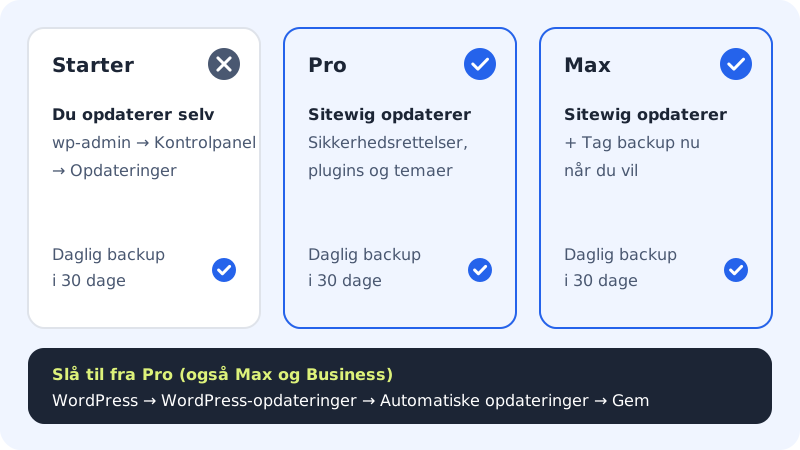
Update yourself in WordPress
This works on all plans.
Step 1: Take a backup
Sitewig automatically backs up your web hosting every day and keeps the backup for 30 days. If you want to be completely sure before a big update, click Back up now under Web hosting → Backup. The button works in Business and Max; on the other plans, you use last night's backup.
Step 2: Sign in to WordPress
Go to
https://yourcompany.com/wp-admin, and sign in.Step 3: Open Updates
Choose Dashboard → Updates in WordPress's menu. It shows whether there is a new version of WordPress, or whether plugins, themes and translations can be updated.
Step 4: Update
Update plugins and themes first and WordPress afterwards. Tick what you want to update, and click the button to update.
Step 5: Check the site
Open the front page and a few important pages, for example the contact form or the basket in an online shop, and make sure that everything works.
Switch on automatic updates
If you have Pro, Business or Max, Sitewig can update for you.
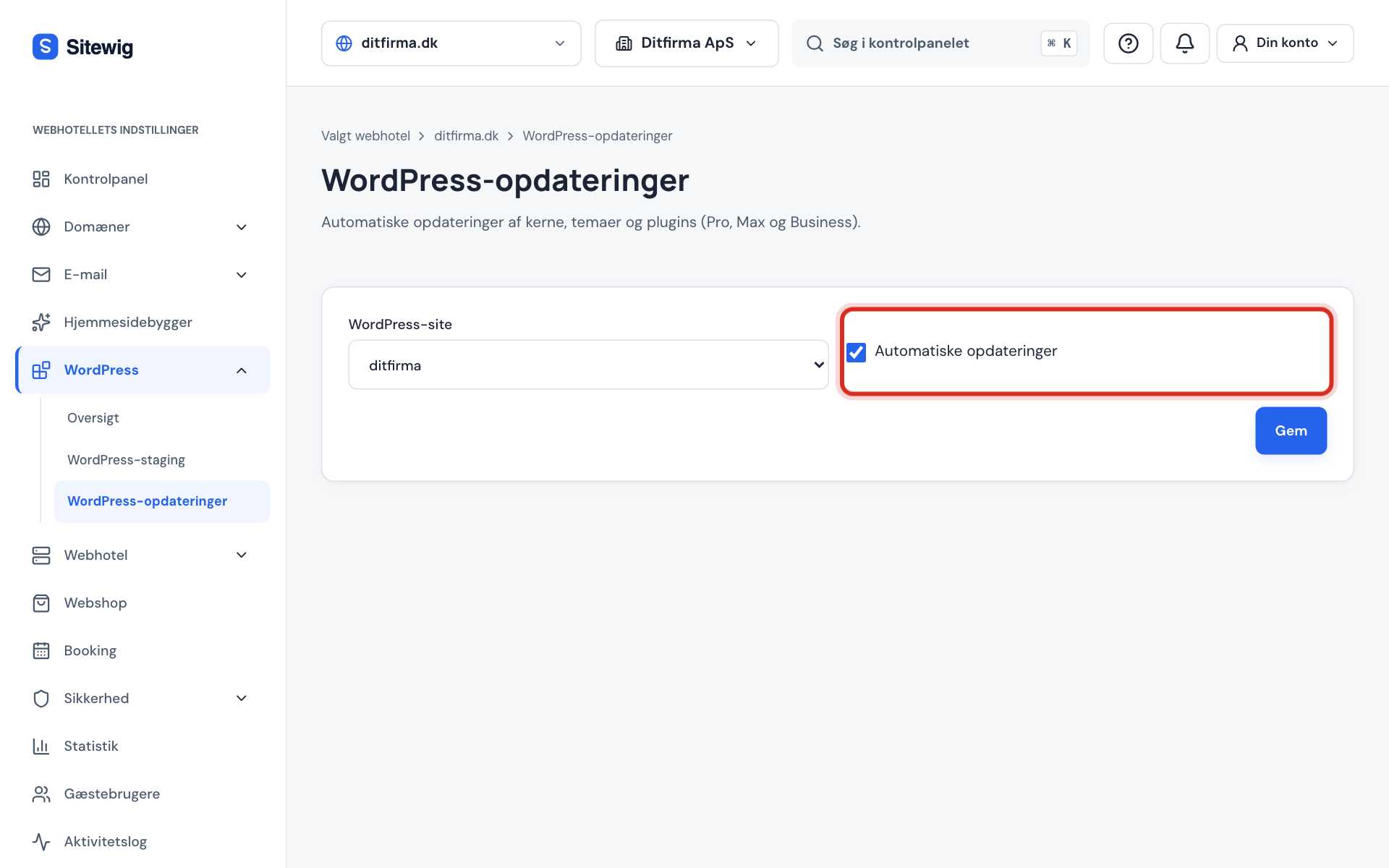
Step 1: Open WordPress updates
Choose WordPress → WordPress updates in the control panel's menu.
Step 2: Choose the site
Choose your site in the WordPress site field.
Step 3: Tick the box and save
Tick Automatic updates, and click Save.
Once the box is ticked, security and bug-fix releases of WordPress are installed automatically, together with updates of plugins and themes. You install new major versions of WordPress (for example from 6.8 to 6.9) yourself in wp-admin, when you're ready.
If you have Starter, the page instead shows that the feature requires a larger plan. You then update yourself as described above, or upgrade your plan.
Safe updates with automatic rollback
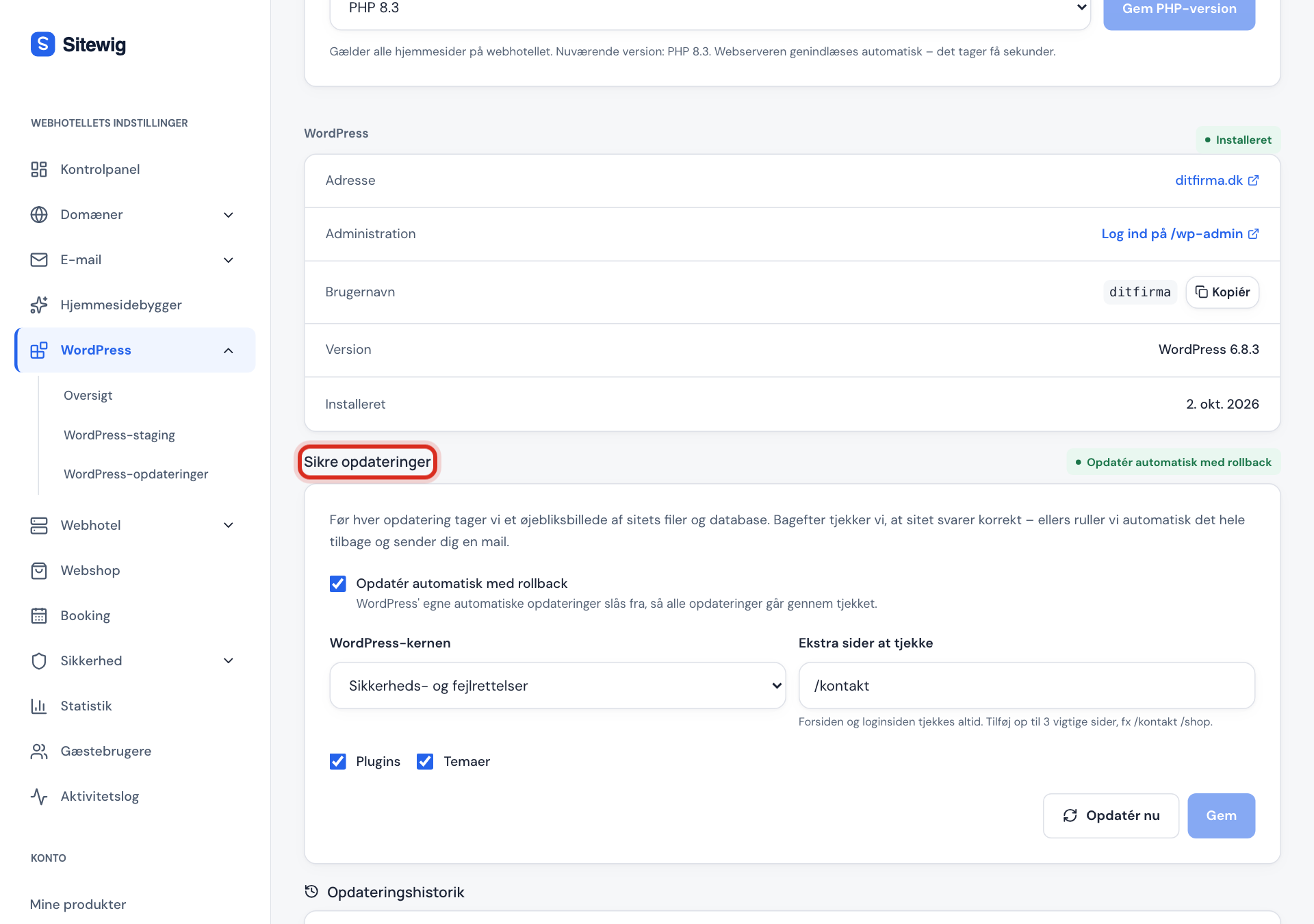
The Safe updates card is on the website's page (WordPress → Overview → click the website). It takes a safety backup before every update, which you can restore with one click:
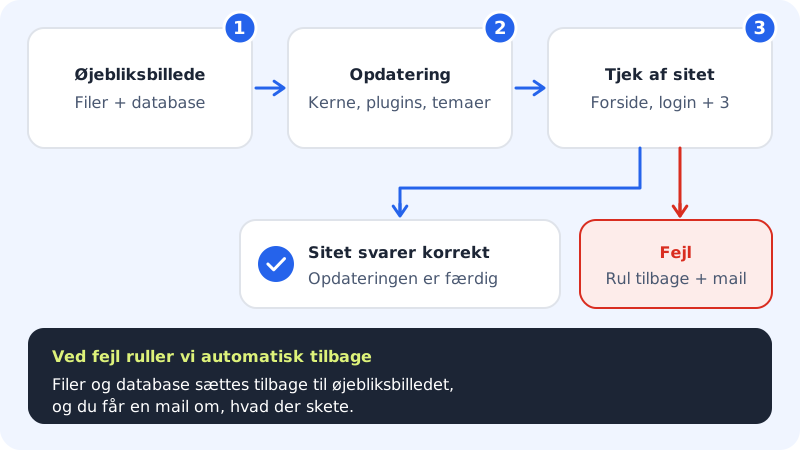
- Before every update, Sitewig takes a snapshot of the site's files and database.
- Then WordPress, plugins and themes are updated according to your choices.
- Afterwards we check that the front page and the sign-in page respond correctly, along with up to three extra pages that you choose yourself.
- If the site doesn't respond correctly, we automatically roll everything back and send you an email.
On the card, you choose:
Safe updates
- Update automatically with rollback
- Switches on safe updates. WordPress's own automatic updates are switched off, so everything goes through the check
- WordPress core
- Not automatic · Security and bug fixes · All new versions
- Plugins and Themes
- A tick box for each
- Extra pages to check
- Up to 3 paths starting with /, for example
/contact/shop
Click Save. If you want to update straight away, click Update now. Under Update history you can see every update, what was changed, and whether it went well.
Frequently asked questions
Which plans have automatic WordPress updates?
Pro, Business and Max. On Starter, you update yourself in wp-admin.
Can an update break my site?
It rarely happens, but a plugin may be incompatible with a new version. That is why Sitewig takes a backup every night, and with safe updates a safety backup is taken just before the update, which you can restore with one click under Update history. If something went wrong after a manual update, you can restore last night's backup under Web hosting → Backup.
Do I also need to update PHP?
Over time, new versions of WordPress and plugins require a newer PHP. You change the PHP version under Web hosting → PHP (8.2, 8.3 or 8.4). The version applies to all websites on the web hosting, so check all of them afterwards.
Why is there a WordPress update that isn't installed automatically?
Automatic updates only cover security and bug-fix releases of WordPress itself. You choose to install a new major version yourself, or you choose All new versions under safe updates, if you have them.