You edit all the content of a WordPress site (pages, posts, menus, plugins and themes) in WordPress's own control panel, wp-admin. It is separate from Sitewig's control panel, where you manage domains, email and web hosting. There are three ways in.
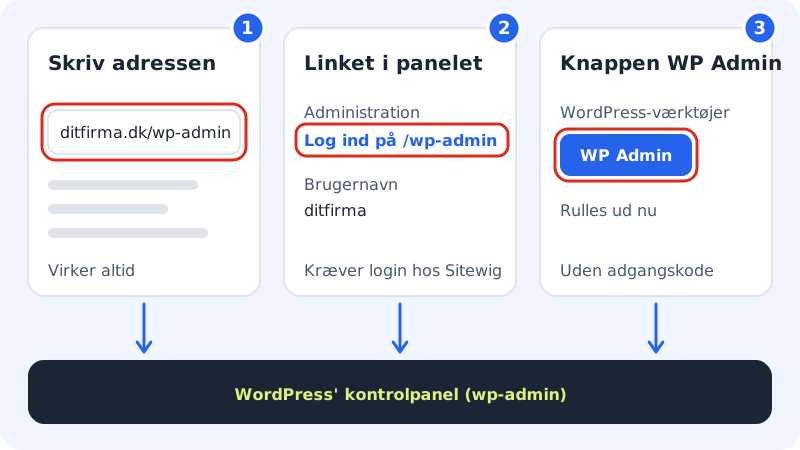
1. Type the address in the browser
This always works, even when you aren't signed in to Sitewig.
Step 1: Open the sign-in page
Type your domain followed by
/wp-adminin the browser's address bar, for examplehttps://yourcompany.com/wp-admin.Step 2: Sign in
Enter the username and password you were given when WordPress was installed, and click Log in. You land on WordPress's Dashboard.
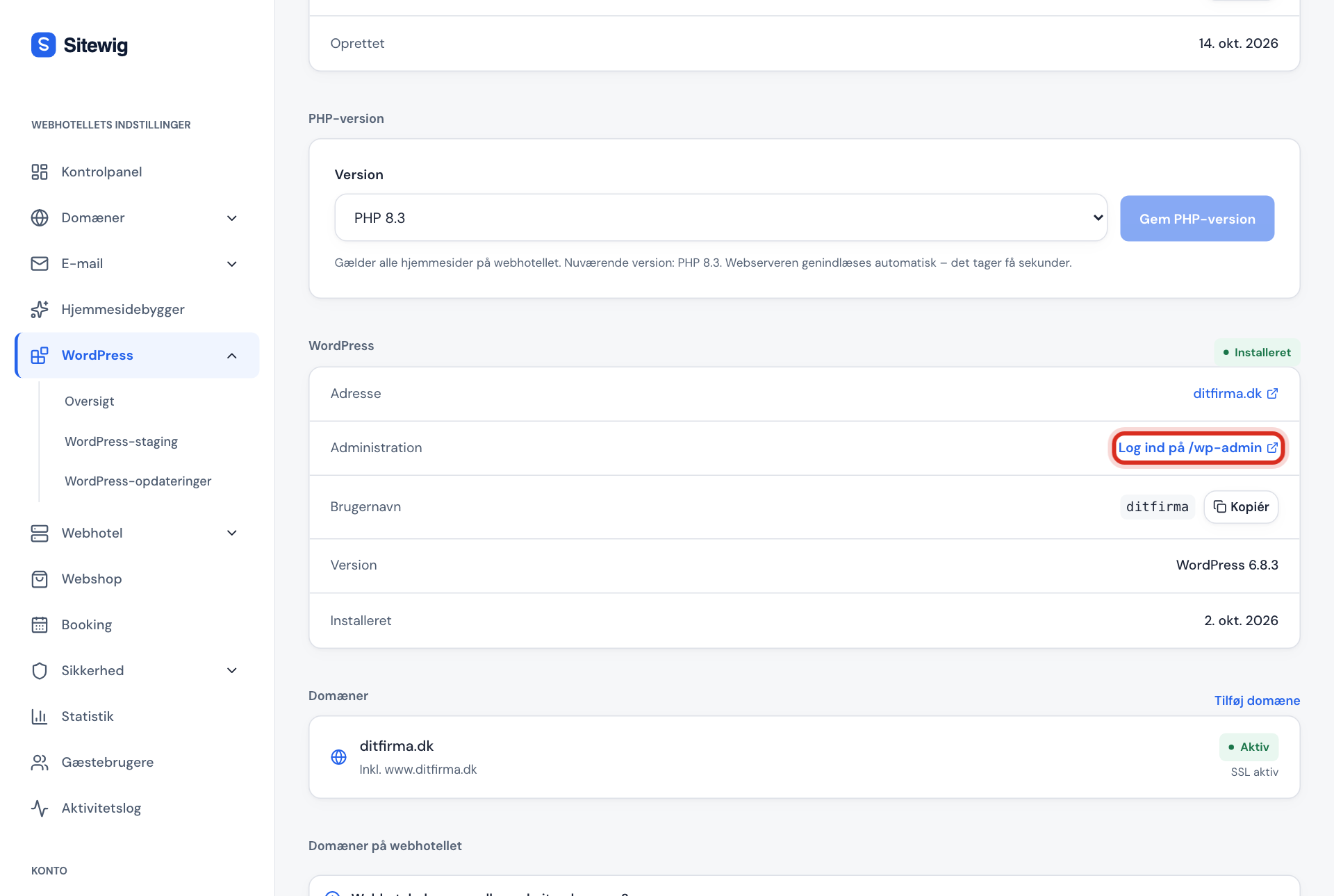
2. Use the link in Sitewig's control panel
Step 1: Open the website
Sign in to Sitewig, choose WordPress → Overview, and click the website.
Step 2: Click Sign in at /wp-admin
The WordPress section shows the address, username and version. Next to Administration, click Sign in at /wp-admin. WordPress's sign-in page opens in a new tab. The username is shown under Username, and you can copy it from there.
3. Sign in without a password with WP Admin
With the WordPress tools card on the website's page, you can sign in directly from Sitewig's control panel without typing a password.
Step 1: Find WordPress tools
Open the website under WordPress → Overview, and scroll down to the WordPress tools card. If it says the tools aren't installed, click Install the tools first.
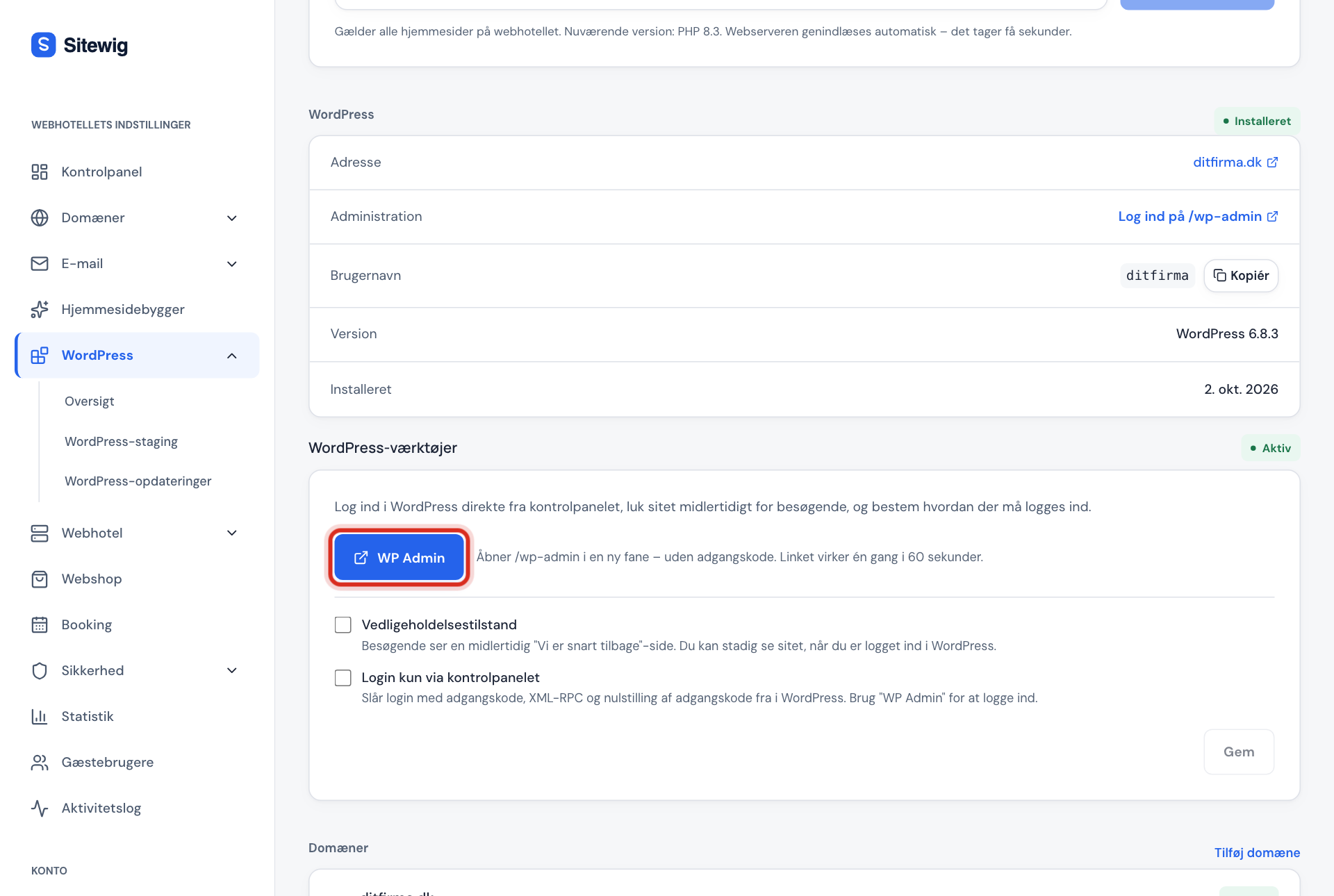
Step 2: Click WP Admin
Click WP Admin. WordPress opens in a new tab, and you're signed in as administrator.
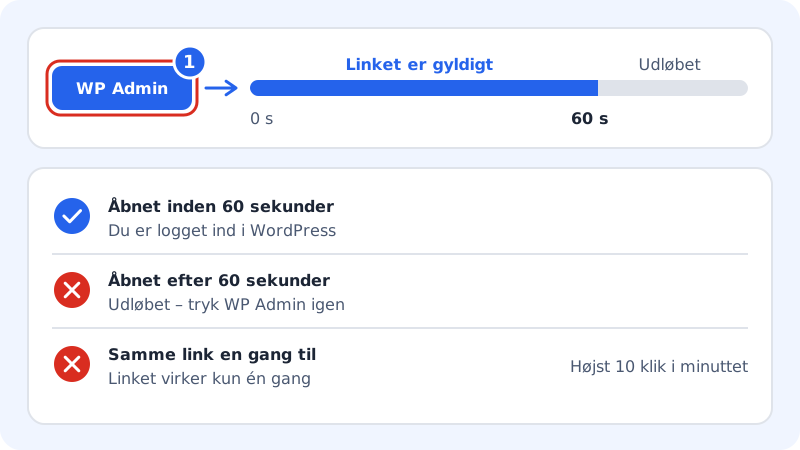
The link behind the button works once and only for 60 seconds. If it isn't used in time, just click the button again. If it says Password-free sign-in isn't ready yet, use one of the other two ways for now.
Frequently asked questions
I've forgotten my WordPress password. What now?
Click Lost your password? on the sign-in page, and WordPress sends a link to the administrator's email. If you can't get the email, read Change the password or email for the WordPress administrator.
Is my WordPress sign-in the same as my Sitewig sign-in?
No. Sitewig's control panel and WordPress each have their own sign-in. Sitewig doesn't store your WordPress password.
Why do I get "too many sign-in attempts"?
The WP Admin button can be used up to ten times a minute per website. Wait a minute and try again.
Can I sign in while the site is in maintenance mode?
Yes. Maintenance mode only closes the site to visitors. Once you're signed in to WordPress, you see the site as normal.