It's unpleasant to discover that your website has been hacked, but by following a fixed order you can usually get it clean again in an hour or two. The most important thing is to lock the intruder out first and then remove the malicious code.
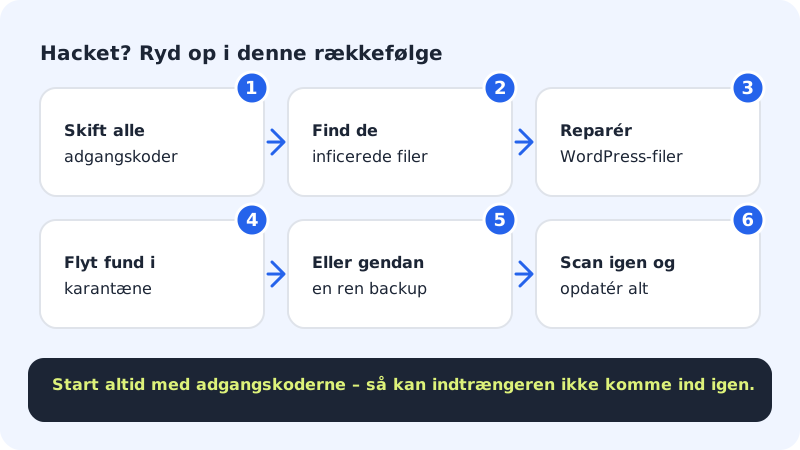
Clean up in six steps
Step 1: Change all passwords
Start here, so an intruder can't simply get back in:
- SSH/SFTP: Go to Web hosting → SSH/SFTP. If SSH is turned on, press New password in the SSH card. The new password is shown only once.
- Databases: Go to Web hosting → Databases and press New password next to the database. The new password is shown only once. If you use WordPress, it must also be entered in
wp-config.php, otherwise the site can't connect to the database. - WordPress: Change the password for all administrators, and delete users you don't recognise.
- Control panel: Change your own password under Settings → Sign-in and security, and turn on two-factor sign-in.
Step 2: Find the infected files
Go to Security → Security and look at the Latest scans card. Run a new scan with Scan now under Security → Malware scan if the latest one is old.
Step 3: Repair the WordPress files
If you have WordPress, open WordPress → Overview in the left-hand menu and choose the website. If you see the Safe updates card with the Check WordPress files section, press Check files. We compare your WordPress and plugin files with the official ones. If any differ, you can press Repair, and we put clean copies of the same version in place. Your uploads, themes and settings aren't touched.
Step 4: Move detections to quarantine
In the same area you'll find the Quarantine card with detections from the latest scan. Press Move to quarantine next to a file. It can then neither be viewed nor run, but you can always press Put back if it was a mistake.
Step 5: Or restore a clean backup
If there are many detections, it's often quicker to restore the whole website and the database from a backup from before the infection. Choose a date that's before the changed files. See Restore your web hosting or database from a backup.
Step 6: Scan again and close the gap
Run Scan now again and check that the result is Clean. Then update WordPress, themes and plugins, and delete plugins and themes you don't use. Otherwise the attacker can get in the same way again.
Frequently asked questions
How did the hackers get in?
Most often through an out-of-date plugin or theme, a reused password or an administrator user without two-factor sign-in. Keep everything up to date, and use unique passwords.
Should I restore files and database from the same day?
Yes, when it's WordPress. The files and the database go together, so restore both from the same date to avoid errors.
My visitors get a warning from Google that the site is dangerous – what do I do?
Clean up first, as described above. Then request a new review in Google's tools for website owners. The warning typically disappears within a few days once the site is clean.