Sitewig doesn't store your WordPress password. If you've forgotten it, it therefore has to be reset: either by WordPress itself via email or from Sitewig's control panel. Which way you choose depends on whether you can receive email at the administrator's address.
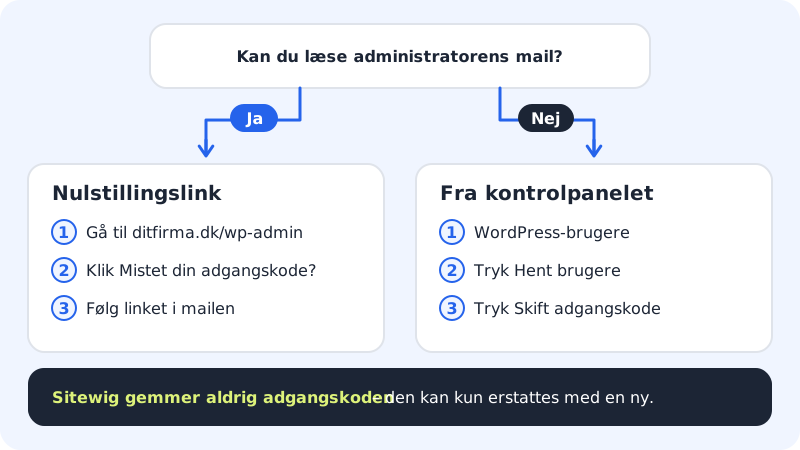
Reset the password from WordPress's sign-in page
This works for every WordPress site, as long as you can read email at the administrator's address.
Step 1: Open the sign-in page
Go to
https://yourcompany.com/wp-admin.Step 2: Click Lost your password?
The link is below the sign-in form. Enter your username or email address, and click the button to get a new password.
Step 3: Follow the link in the email
WordPress sends an email with a link. Open it, choose a new, strong password, and save it. If you can't find the email, check your spam folder.
Change the password from Sitewig's control panel
The WordPress users card is on the website's page. It lets you get an administrator back in, even if the email doesn't work.
Step 1: Load the users
Choose WordPress → Overview, click the website, and scroll down to WordPress users. Click Load users. You'll see a table with User, Email and Role.
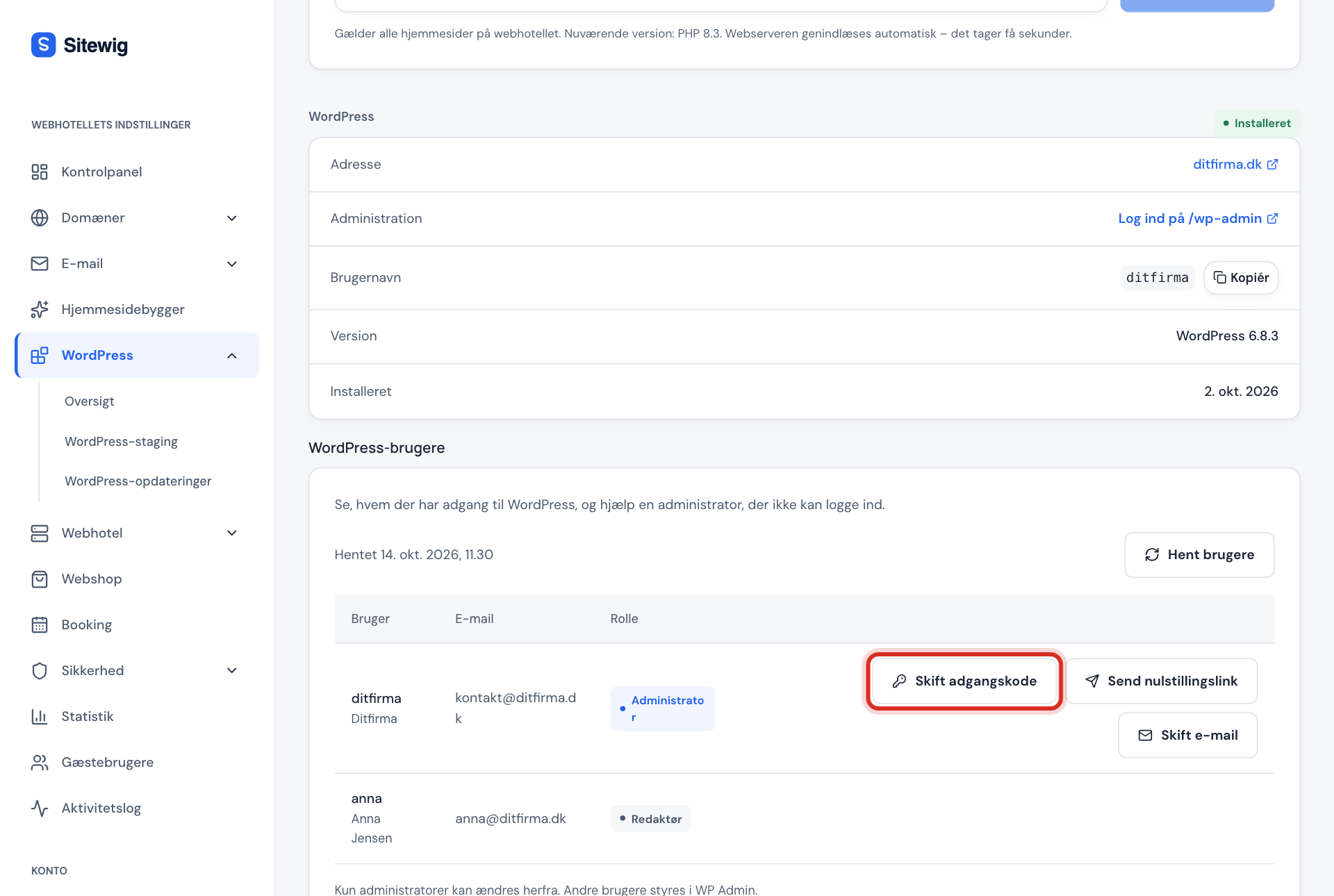
Step 2: Click Change password
Next to the administrator, click Change password. The New password for … window opens.
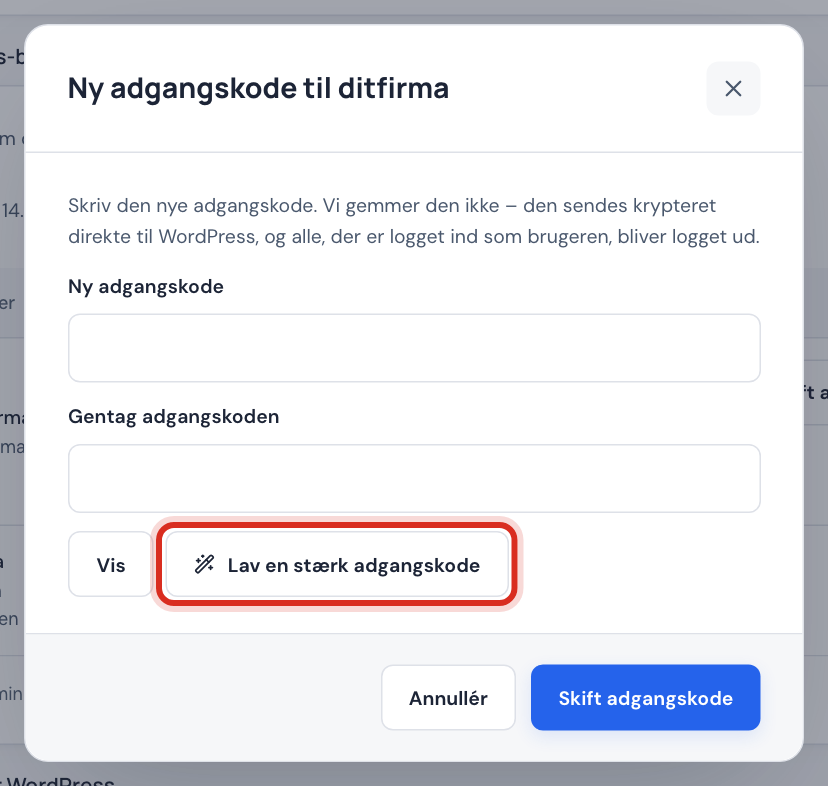
Step 3: Choose a new password
Enter the new password in New password and again in Repeat the password. It must be between 12 and 128 characters. Click Create a strong password if you'd like a random one, and Show to see what you've typed. Store it in your password manager.
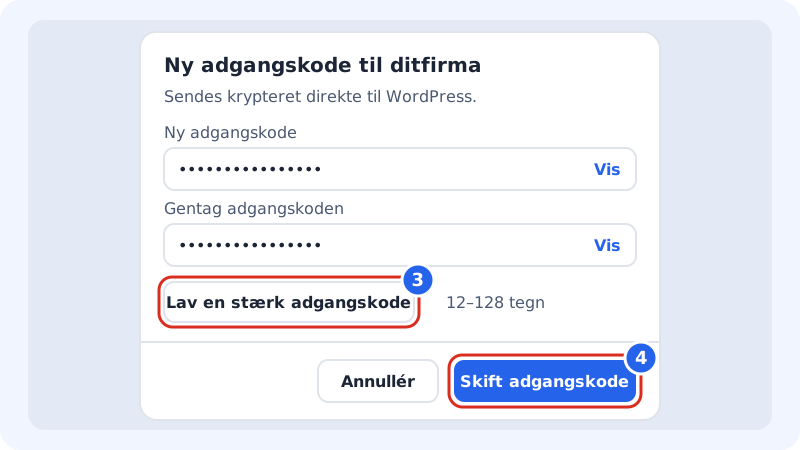
The password is sent encrypted directly to WordPress Step 4: Save
Click Change password. The password is sent encrypted directly to WordPress and isn't stored at Sitewig. Everyone who was signed in as that user is signed out.
If you'd rather have WordPress send a link, click Send reset link next to the user and confirm with Send link. WordPress then sends an email to the user's address.
Change the administrator's email
- Click Load users under WordPress users, and click Change email next to the administrator.
- Enter the address in New email address, for example
contact@yourcompany.com. - Tick Also use as the site's administration email if WordPress should also send its notifications (for example about updates) to the new address.
- Click Change email. The old address receives a message from WordPress about the change.
Without the card, you change the email in WordPress: Users → Profile for your own user, and Settings → General for the site's administration email.
If you have neither the card nor the email
If you don't have the WordPress users card yet, and the email from WordPress doesn't arrive, the password can be changed directly in the database with the Database tool under Web hosting → Databases. This requires some technical experience. If you're in any doubt, open a case with support and we'll help you.
Frequently asked questions
Why am I signed out everywhere?
When the password is changed from the control panel, all of the user's sessions are signed out. It's a security feature: if someone else has got hold of your old password, they're thrown out.
How many times can I send a reset link?
From the control panel, you can send up to five reset links an hour per website, and you can make up to ten user changes a minute.
Can Sitewig tell me my old password?
No. Neither WordPress nor Sitewig can read the password. It can only be replaced with a new one.