Every page on your website is made up of sections – horizontal blocks stacked on top of each other, e.g. a hero banner, a list of services, a gallery and a contact box. You manage them in the Sections tab and directly in the preview.
The sections you can use
The section library
- Hero banner
- Large heading, short text and button
- Benefits
- Icons with short selling points
- About us
- Tell your story
- Services
- Services with description and price
- Gallery
- Images in a grid
- Reviews
- Quotes from happy customers
- Pricing
- Plans and prices side by side
- Questions and answers
- Frequently asked questions
- Contact
- Contact details, form and map
- Call to action
- Short message with a clear button
- Text
- Free text with paragraphs
- Team
- Staff with picture and role
- Logos
- Customers, partners or certifications
In the library you'll also see Video, Map, Timeline, Newsletter, Social links and Blog. They're greyed out because they're not open yet.
Add a section
Step 1: Open the Sections tab
The tab shows Sections on "…" for the page you're on. Switch page in the page selector in the top bar if you want to work on a different page.
Step 2: Choose where the new section goes
Click the section the new one should go after, in the list or in the preview. If you haven't selected anything, the new section is added at the bottom of the page.
Step 3: Click Add
Click Add at the top of the tab. The Add section library opens with a small drawing of each section.
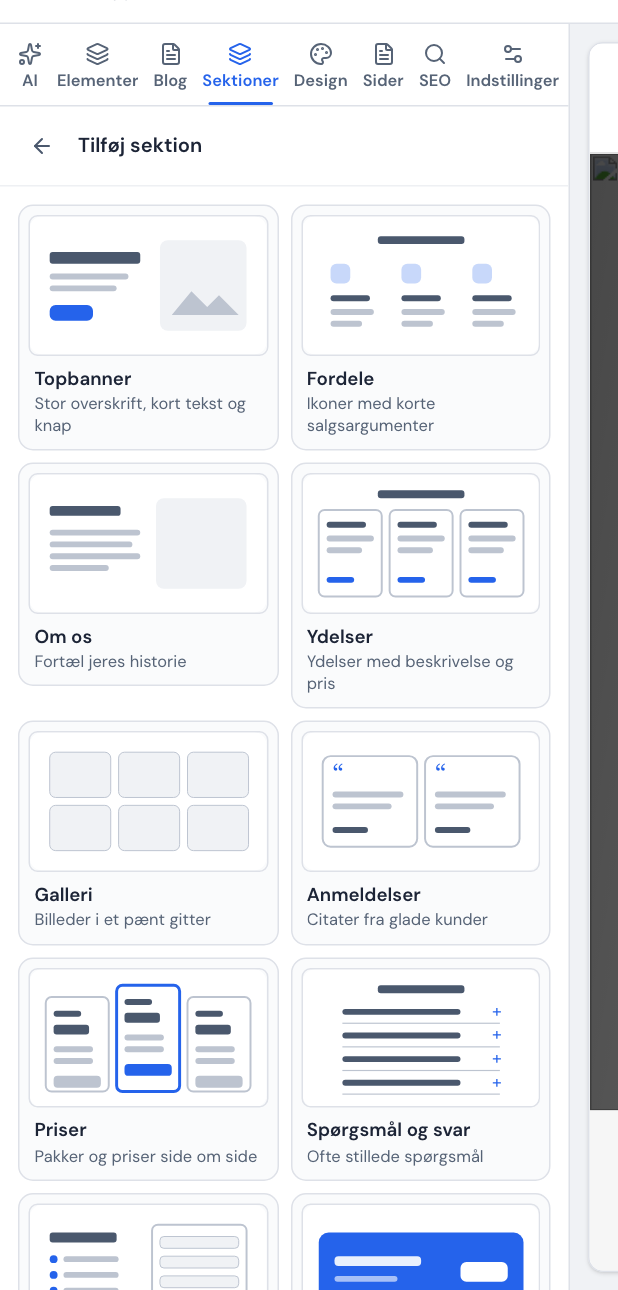
Choose a section in the library Step 4: Choose the section
Click the section you want. It's inserted with sample content and selected, so you can edit it straight away.
Move, hide, copy and delete
Point at a section in the preview. A toolbar appears above it:
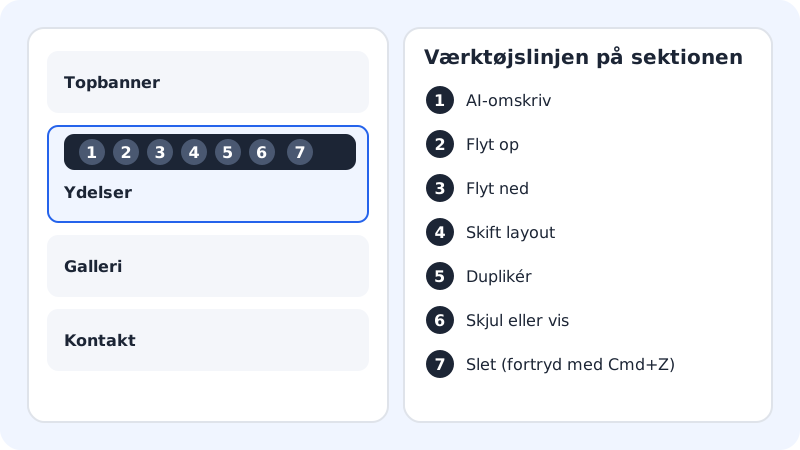
- AI rewrite: opens the AI tab so you can ask for new text for this particular section.
- Move up and Move down: moves the section one place.
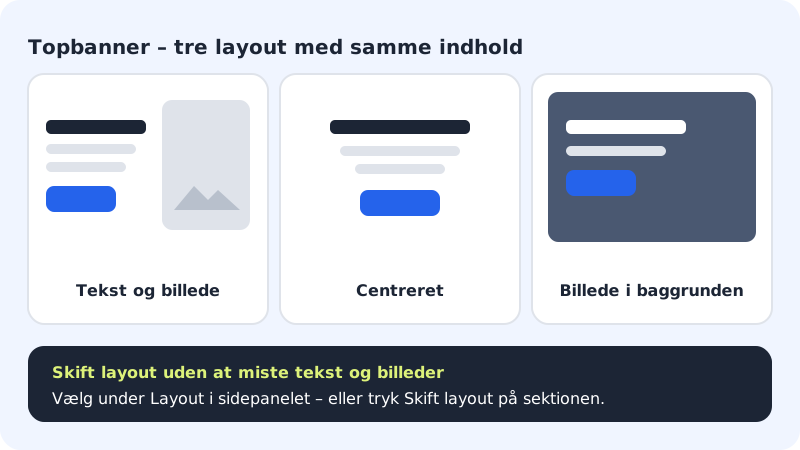
- Change layout: switches to the section's next layout.
- Duplicate: makes a copy right below.
- Hide or show: hides the section on the published page without deleting it. In the editor it says Hidden on the page on it.
- Delete: removes the section. You see the message The section has been deleted, and you can undo with Cmd+Z / Ctrl+Z.
In the Sections tab you can also drag a section up or down in the list. On a phone or tablet you use the arrows instead of dragging.
Edit content and layout
Click a section in the list to open it. You see two parts:
- Layout: choose between the section's looks. The hero banner has, for example, Text and image, Centred and Image in the background.
- Content: the fields for heading, texts, buttons, images and items. You can add to, move and delete items in lists such as services or questions.
Click the arrow Back to all sections to return to the list.
Frequently asked questions
Can I make my own section from scratch?
Use the Text section for free text, or Call to action for a short message with a button. You'll find individual texts, images and buttons under the Elements tab.
Why does it say "Requires Business" on a section?
Some sections, e.g. webshop and booking, come with certain plans. Click See plans to see what your plan includes.
Can I hide a section on mobile only?
Not yet. A hidden section is hidden on all devices. See How your website looks on mobile and tablet.
Why doesn't the contact form work?
Check that the switch Show contact form is turned on in the Contact section, and that you've published the website afterwards. The messages land in the inbox and are sent to your email – see Contact form and inbox.