There are three ways to change text: type directly in the preview, edit the fields in the side panel, or ask the AI for help. Everything you write yourself is free and unlimited. Only when the AI works for you does it count towards the monthly AI limit.
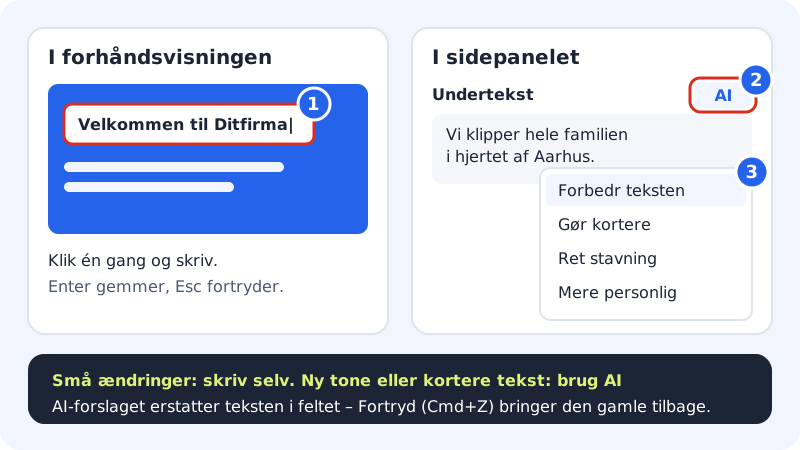
Type directly on the page
Step 1: Click the text
Click a heading, a button text or a paragraph in the preview. The text gets a frame, and you can type.
Step 2: Write your text
Type or paste the new text. Formatting from e.g. Word is removed, so the text follows the website's fonts.
Step 3: Save the text
Press Enter or click somewhere else. In texts with several paragraphs, Enter gives a line break – there you just click outside when you're done. Press Esc to undo what you've just typed in the text.
Edit in the side panel
Some texts can't be seen directly, e.g. a button's link. Click the section and edit the fields under Content in the Sections tab. This is also where you find lists such as services, questions and reviews.
Let the AI improve a text
Larger text fields in the side panel have a small AI button above the field. Click it and choose:
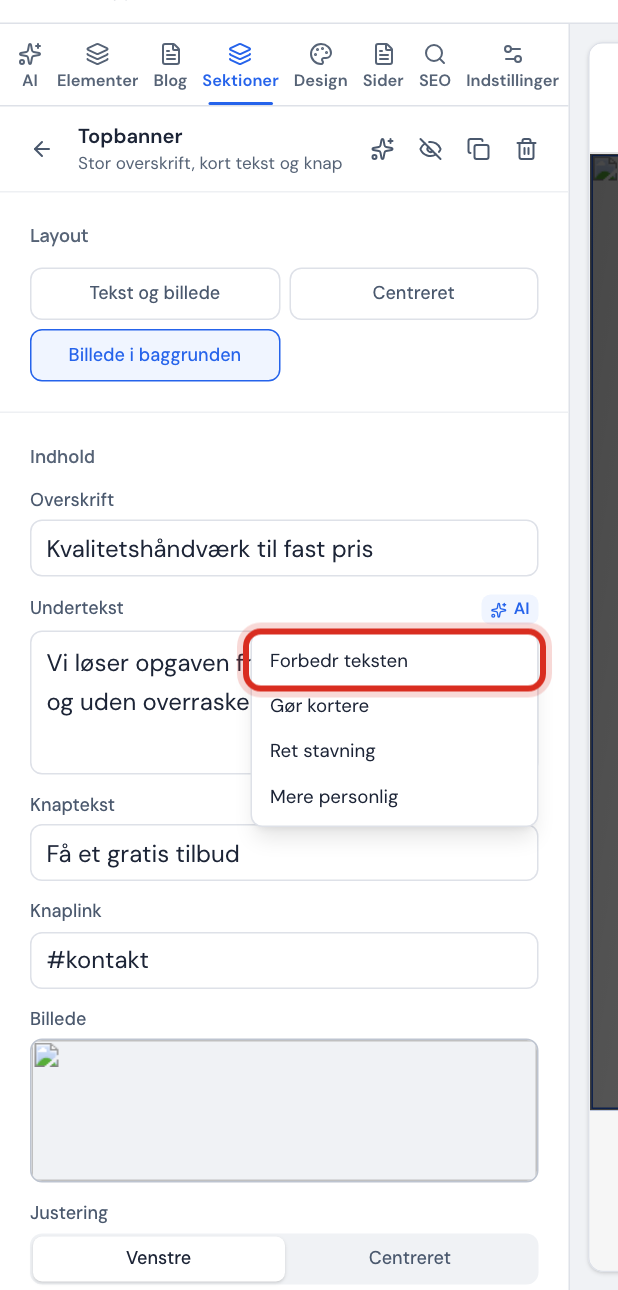
- Improve the text: clearer and more convincing, same meaning.
- Make shorter: much shorter and more precise.
- Fix spelling: corrects spelling and grammar mistakes and changes nothing else.
- More personal: warmer and on an equal footing.
The AI's suggestion replaces the text in the field. If you don't like it, press Cmd+Z / Ctrl+Z when the cursor isn't in a field, or use the Undo arrow in the top bar.
Use the AI tab for bigger changes
The AI tab is for changes that cut across the site, e.g. a completely new tone or a new section.
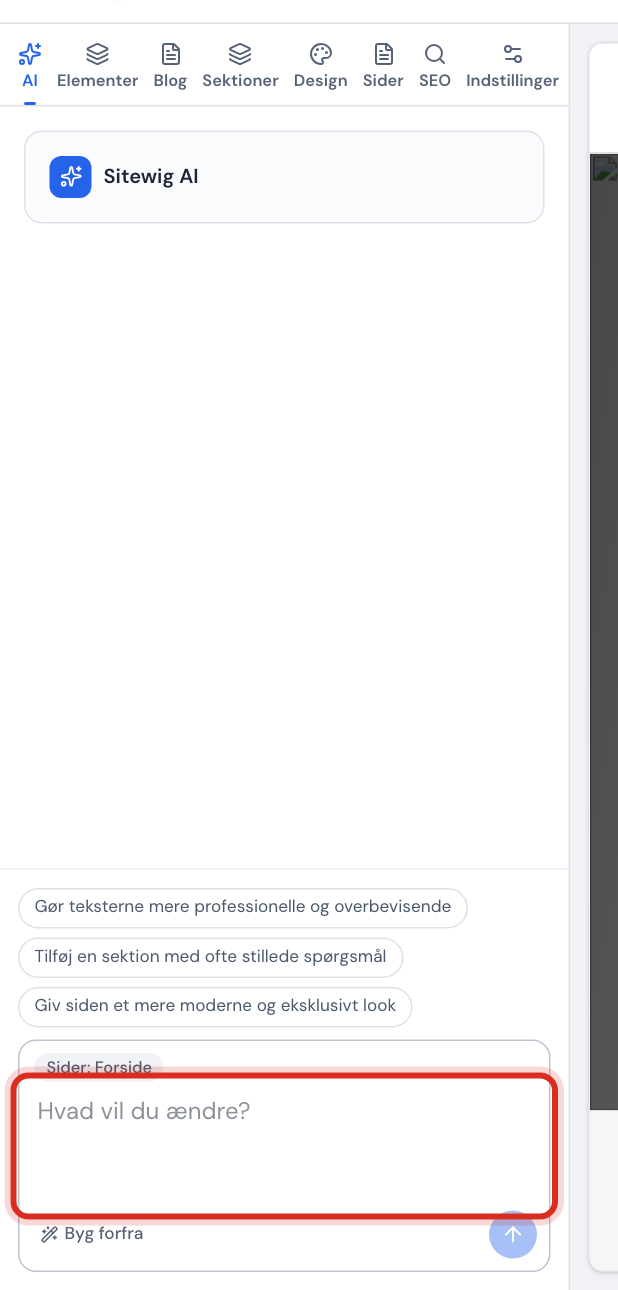
- Click the AI tab.
- Above the text field it says what the AI may change – normally Pages: Home page (the page you're on).
- Write what you want changed in the field What do you want to change?, or click one of the suggestions, e.g. Make the texts more professional and convincing or Add a section with frequently asked questions.
- When the AI is finished, it says The change has been made. Click Undo if you want to go back, and Apply again if you change your mind about undoing.
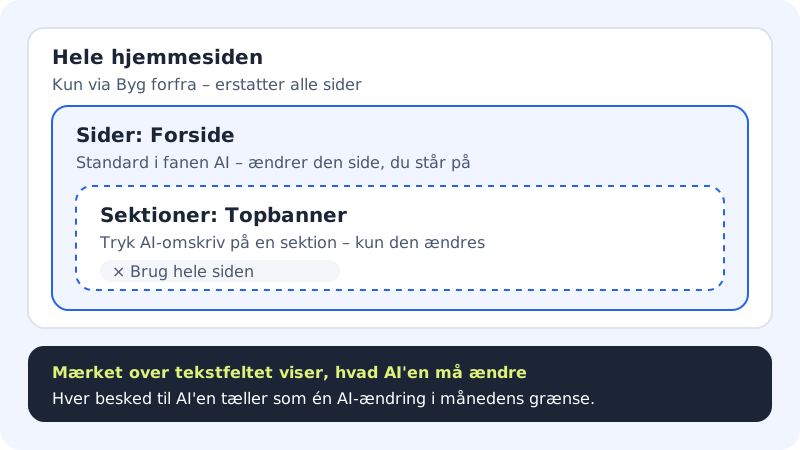
If you only want to change one section, click AI rewrite on the section's toolbar. The label changes to e.g. Sections: Hero banner. Click the cross in the label to go back to the whole page.
The monthly AI limit
Your plan has a fixed number of AI edits per month. Each time you send a message in the AI tab or use an AI button on a field, it counts as one AI edit. The limit resets on the 1st of every month.
AI edits per month
- Free
- 10
- Starter
- 50
- Pro
- 100
- Business
- 150
- Max
- 300
- Extra
- +100 AI edits as a one-off purchase
If you've used up the month's AI edits, the AI tab shows a button to buy more. You can still edit all the texts yourself in the meantime.
Frequently asked questions
Why is the AI button on the field grey?
The field is empty. The AI needs a text to work with – write a few words first.
What does "The AI couldn't rewrite the text" mean?
The AI couldn't respond just now. Try again in a little while. Your original text hasn't been changed.
What do I do if it says "AI isn't set up yet"?
Then the AI isn't available right now. You can still edit everything yourself – click a text in the preview to edit it.
Can I change the font size or colour of a single word?
No. The texts follow the website's design, so the page looks consistent everywhere. Change fonts and colours for the whole website under the Design tab.