Customers can only book times that fall within your opening hours and follow your booking rules. You set the opening hours under Booking → Availability and the rules under Booking → Settings.
Set opening hours
Step 1: Choose whose hours you are editing
Go to Booking → Availability. In the Opening hours for field, choose Shared opening hours (applies to the whole business) or a specific staff member.
Step 2: Set the hours for each day
Enter the from and to times for each weekday in the format HH:MM, e.g.
09:00and17:30. If a day has no time range, it says Closed. Tap Add time range to open a closed day.Step 3: Add a lunch break
Tap Split time range next to a day. The time range is split in two, e.g.
09:00-12:00and12:30-17:30. Adjust the times so the break fits. Remove a time range you don't need with Remove time range.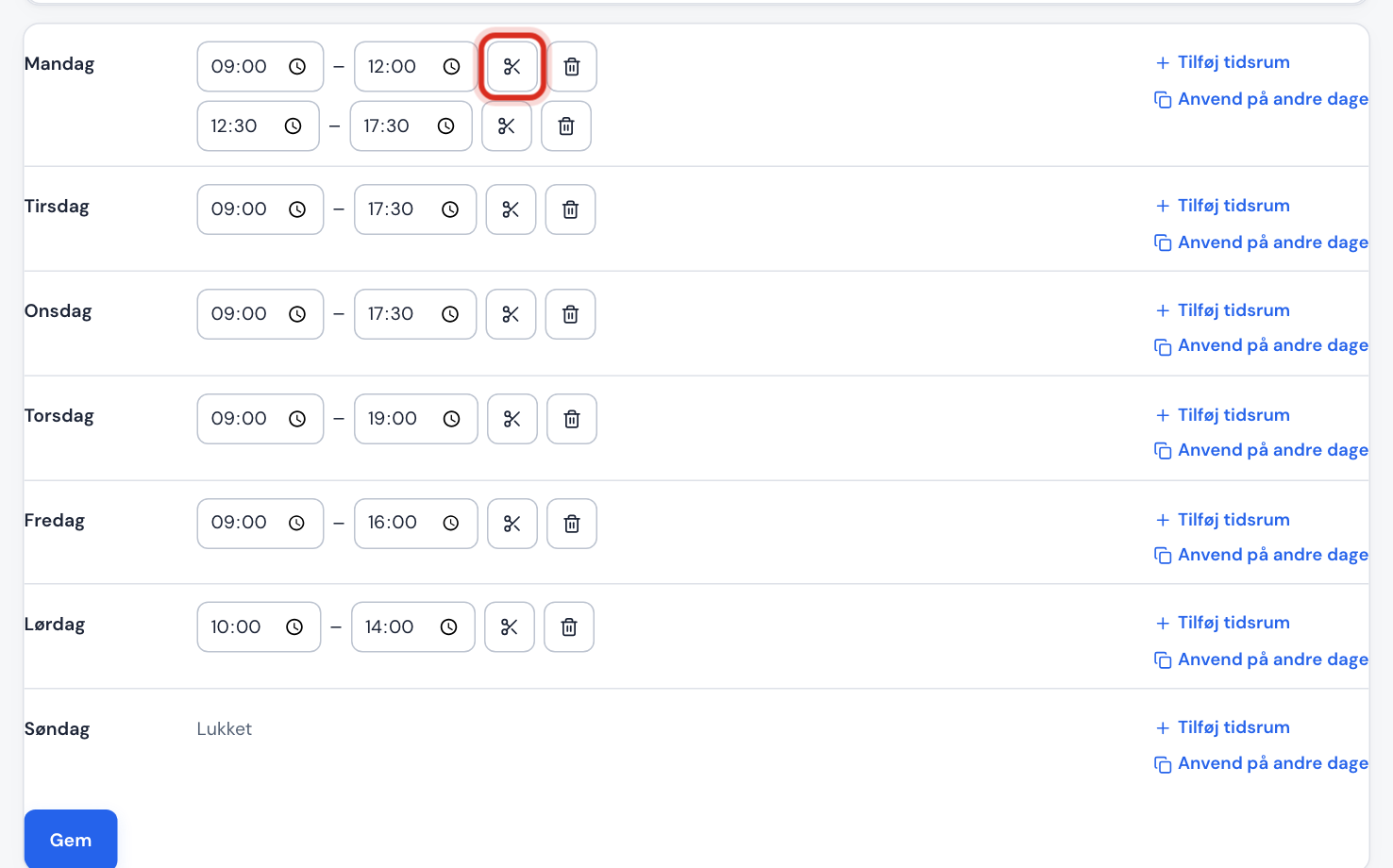
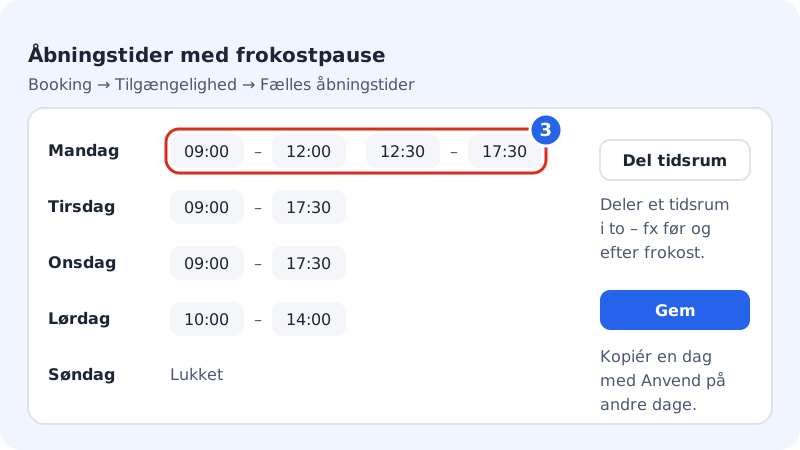
Split time range gives you a break in the middle of the day Step 4: Copy to other days
If several days are the same, tap Apply to other days next to the day you have set up. In the Copy Monday to window, tick the other days and tap Apply.
Step 5: Save
Tap Save. The new hours apply immediately to new bookings. Bookings that have already been made are not moved.
Set the booking rules
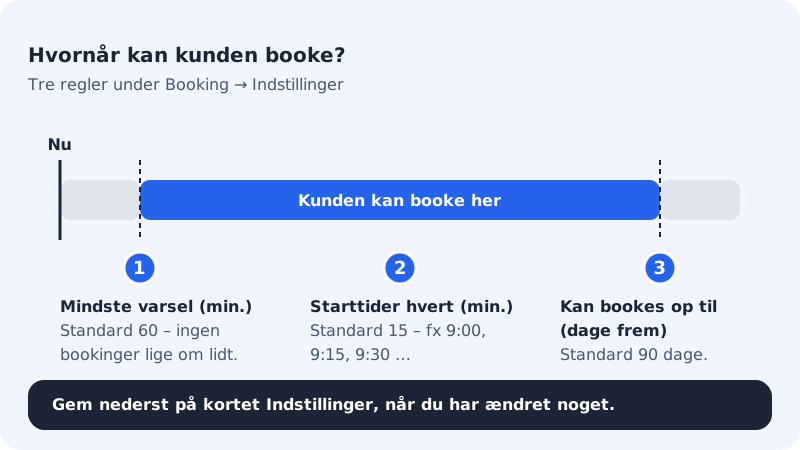
Go to Booking → Settings. Here you decide how soon and how far into the future customers can book.
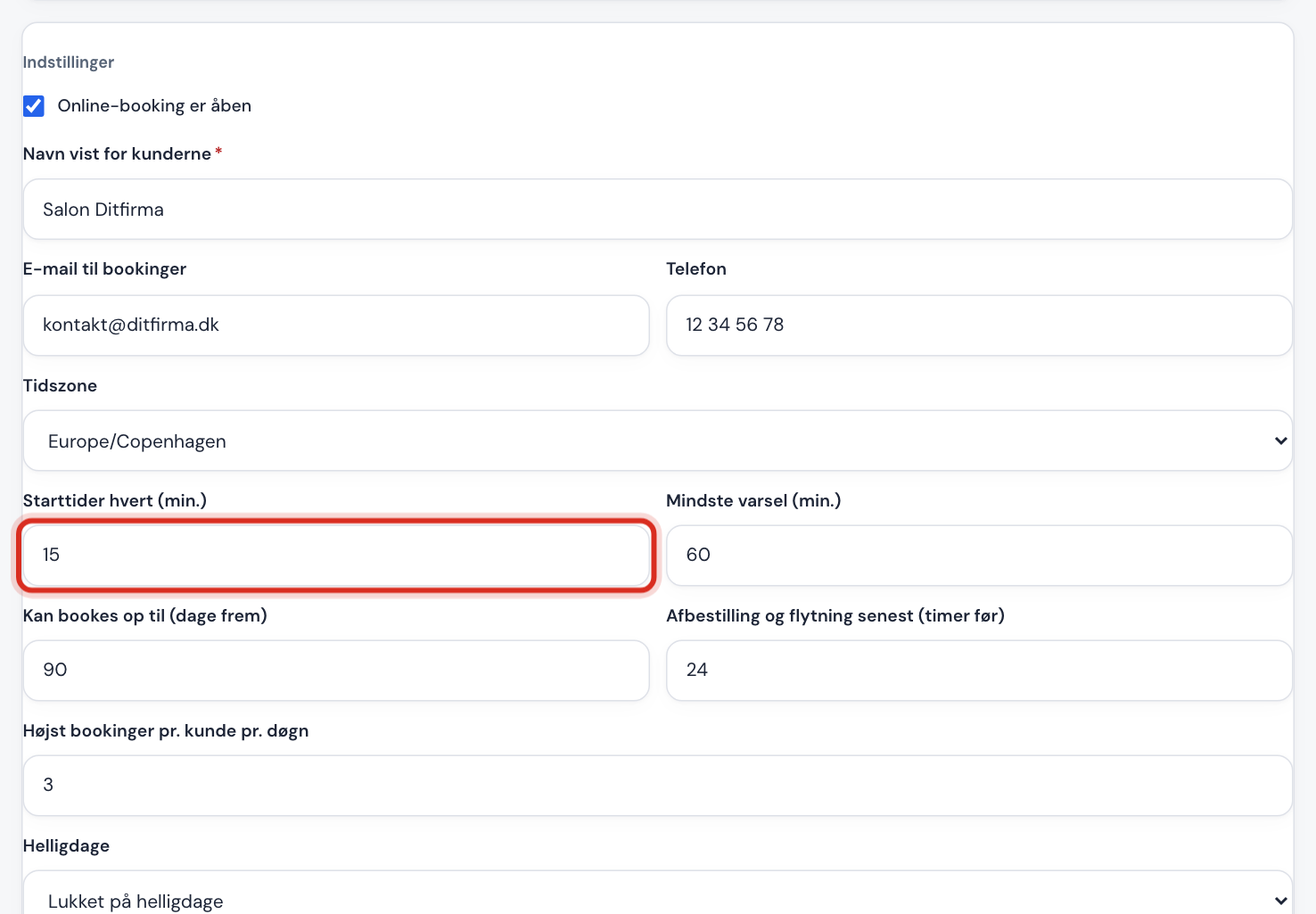
Booking rules (default values)
- Start times every (min)
15, from 5 to 240- Minimum notice (min)
60, from 0 to 43200 (30 days)- Bookable up to (days ahead)
90, from 1 to 730- Cancel and move no later than (hours before)
24, from 0 to 720- Business bookings per customer per day
3, from 1 to 50- Time zone
- Europe/Copenhagen
- Public holidays
- Open as usual
- Start times every (min) decides how often a time can start. With 15 minutes, the customer can choose 9:00, 9:15, 9:30 and so on. If your services always last an hour, you can set 60 to make the calendar easier to read.
- Minimum notice (min) prevents someone from booking a time that starts in five minutes. Enter e.g.
1440for a day's notice. - Bookable up to (days ahead) decides how far into the future the calendar is open.
- Business bookings per customer per day limits how many times the same email address can book in one day.
- Public holidays: Choose Closed on public holidays so customers can't book on public holidays, without you having to close each day separately.
Tap Save at the bottom of the card when you have made your changes.
Frequently asked questions
Are my booking opening hours shown automatically on the website?
No. The Opening hours section in the website builder is a text you write yourself. It isn't taken from booking. Remember to update both places when your hours change.
Can I have different hours in odd and even weeks?
Not in the standard weekly schedule, but you can with a rota over several weeks under Availability. For individual days, use days off and special opening hours.
Why does the field say "Use the format HH:MM."?
The time must be written with hours and minutes separated by a colon, e.g. 08:30. If you get the message "From" must be before "to"., the end time is earlier than the start time.
Why can't customers see any available times?
Check that the service has Bookable online ticked, that there are opening hours on the days the customer is looking at, that Online booking is open is turned on, and that Minimum notice isn't set very high.