Customers need neither a login nor a password to change their booking. The confirmation and the reminder contain personal links that only work for that one booking. You decide how late the customer may make changes.
Set the deadline
Step 1: Open the settings
Go to Booking → Settings.
Step 2: Enter the number of hours
In the Cancel and move no later than (hours before) field, enter how many hours before the appointment the customer can still change it themselves. The default is
24. You can choose anything from0(right up to the start time) to720(30 days).Step 3: Save
Tap Save. The deadline applies immediately, including to bookings that have already been made.
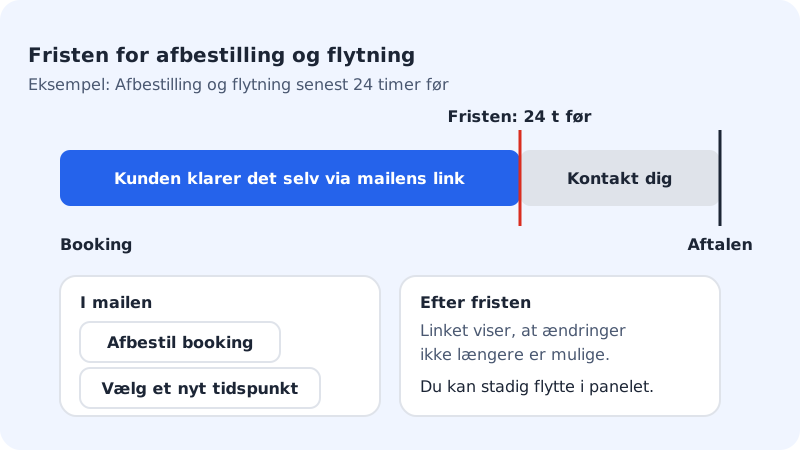
What the customer does
- The customer opens the confirmation or the reminder and taps the link to cancel or reschedule.
- The page shows the service and the time, with the button Cancel booking or Choose a new time, where the customer picks a new available time.
- The customer receives an email with the new time or a confirmation of the cancellation, and you are notified too.
When an appointment is cancelled, it is immediately available to other customers. If you have turned on the waitlist, the first person on the list automatically gets an offer. See Waitlist when the time or class is full.
After the deadline
Once the deadline has passed, the link shows Changes are no longer possible and asks the customer to contact you directly. You can always reschedule or cancel the booking yourself in Calendar – see View, create, move and cancel bookings in the calendar.
Frequently asked questions
Can the customer log in and see all their bookings?
No. There is no customer account for booking. The customer changes each booking using the links in the email.
The customer has deleted the email. What now?
The customer can contact you, and you then move or cancel the appointment in the calendar. The reminder also contains the links, as long as the deadline hasn't passed.
Can a customer move a single date on a course?
No. Courses that are booked as a complete series can't be moved date by date. If one date is cancelled, the whole course is cancelled.