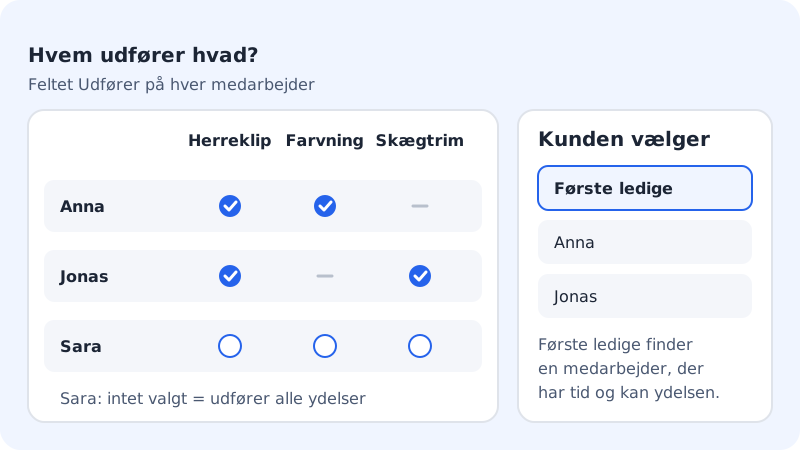
If there are several of you seeing customers, you can create each staff member in Booking. Customers can then choose a specific person, or First available, so Sitewig finds a staff member who has time and can perform the service.
If you have no staff, all bookings go to the business, and the shared opening hours apply.
Create a staff member
Step 1: Open Staff
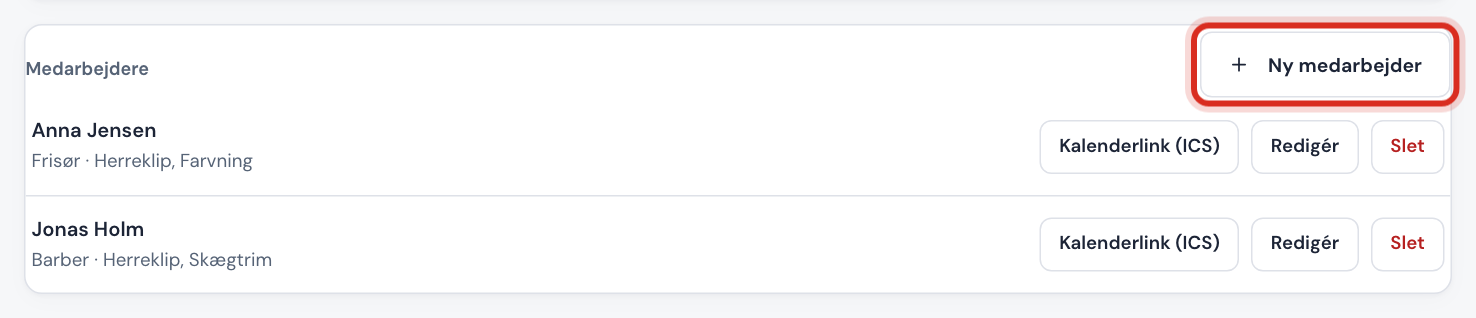
Go to Booking → Services and scroll down to the Staff card. Tap New staff member.
Step 2: Name, title and email
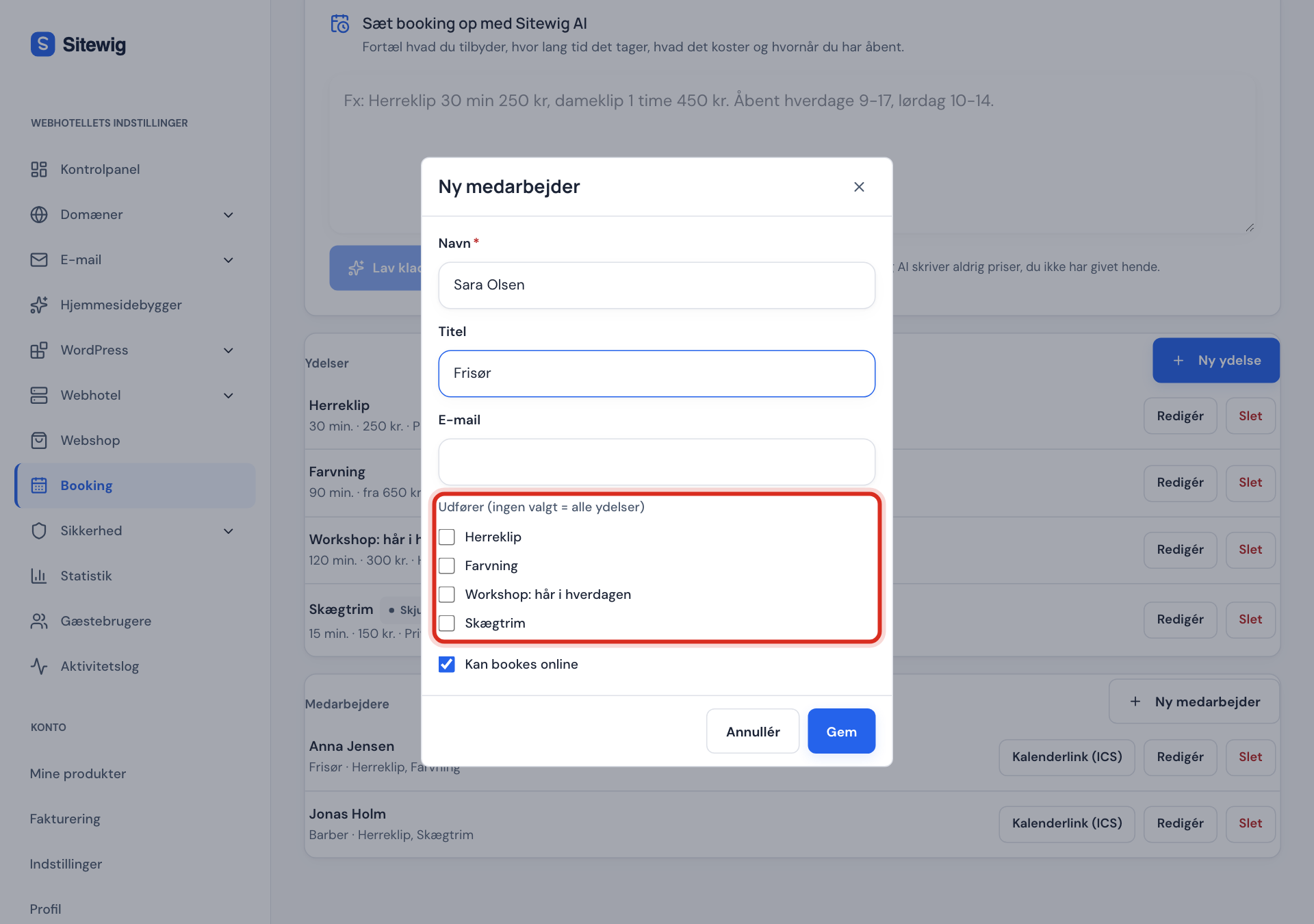
Enter the staff member's Name. Title (e.g. Hairdresser or Physiotherapist) and Email are optional.
Step 3: Choose services
Under Performs (none selected = all services), tick the services the staff member can take. If you don't tick any, the staff member can be booked for all services.
Step 4: Save
Make sure Bookable online is turned on, and tap Save.
Step 5: Own working hours (optional)
If the staff member doesn't work all of the business's opening hours, go to Availability, choose the staff member in Opening hours for, and set the times. A staff member without their own hours follows the shared opening hours.
How many staff members can I have?
| Plan | Staff in booking |
|---|---|
| Starter | 1 |
| Pro | 3 |
| Business | Unlimited |
| Max | Unlimited |
If you need more staff than your plan allows, switch to a larger plan in the control panel.
Give the staff member the bookings in their own calendar
Each staff member has a private calendar link that can be added to Google Calendar, Outlook or Apple's calendar. The staff member then sees their bookings alongside their other appointments.
- Tap Calendar link (ICS) next to the staff member.
- Copy the link. It is shown only this once – if you tap again, a new link is created and the old one stops working.
- Add the link in the calendar app as a calendar you subscribe to via an address.
If a staff member loses their phone or leaves, tap Calendar link (ICS) again and then Revoke link. The old link no longer works.
Frequently asked questions
Can the customer choose a specific staff member?
Yes. The customer can choose a staff member who performs the service, or First available. The same applies when you create a booking yourself in the calendar.
I work alone in the business – do I need to create myself?
It isn't necessary in order to take bookings. But the calendar link only exists on staff members, so if you want the bookings in your own calendar, you can create yourself as a staff member.
What happens to bookings if I delete a staff member?
If the staff member has had bookings, they aren't deleted but hidden (marked Hidden), so the history is kept. Upcoming bookings aren't moved automatically – look in Calendar and move them to another staff member with Move before you delete.