A service is what the customer books: for example a men's haircut, a massage, a consultation or a place in a class. Each service has its own duration and price, and Sitewig uses the duration to find available times in your calendar.
Create a service
Step 1: Open the Services tab
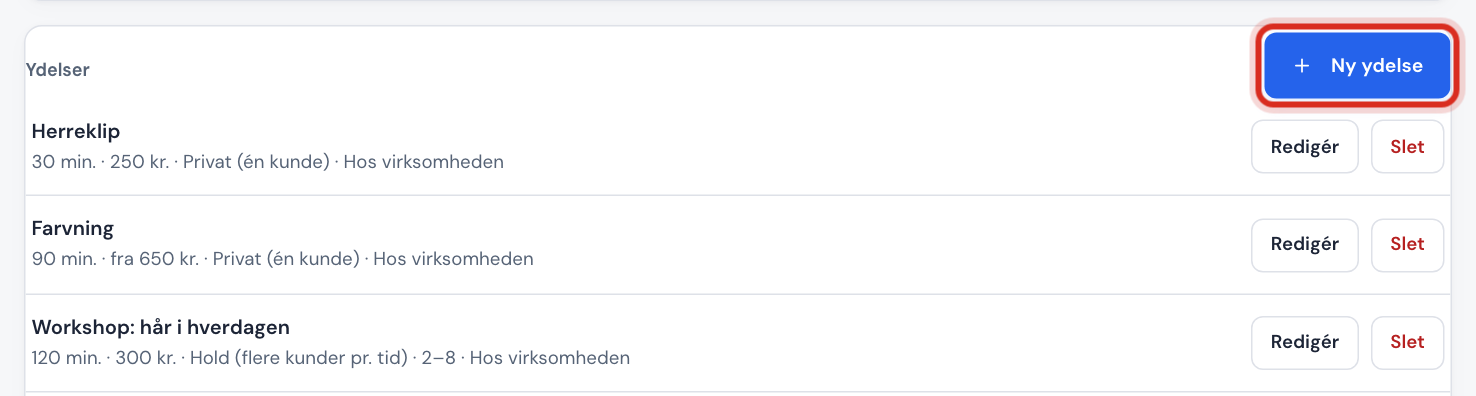
Go to Booking → Services and tap New service. If you have no services yet, it says No services yet. Add the first one so customers can book.
Step 2: Name and description
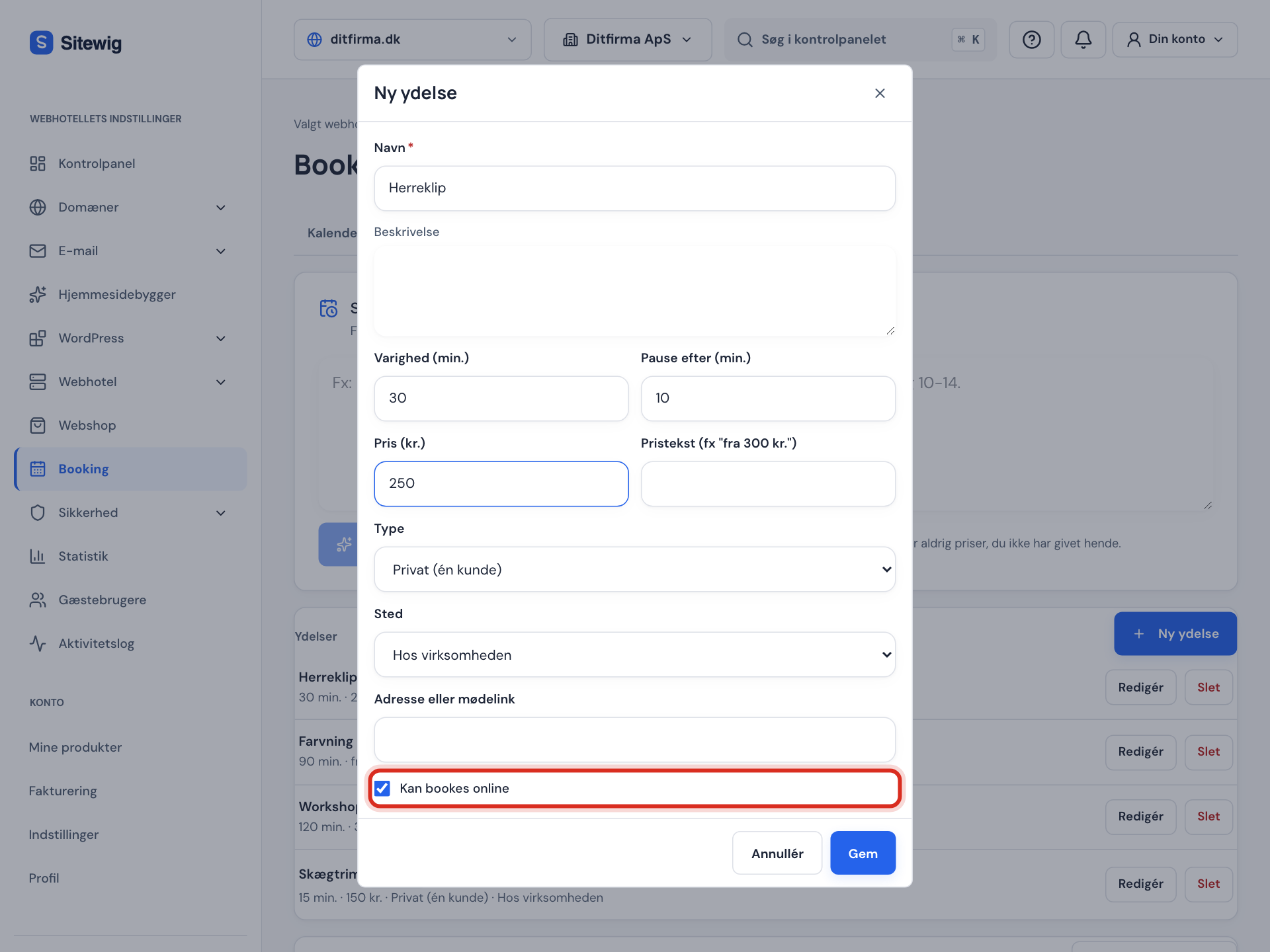
Enter a Name that customers understand, e.g. Men's haircut. In Description you can say what is included, e.g. Wash, cut and styling.
Step 3: Duration and break
Enter the Duration (min), from 5 to 720 minutes. If you need time to tidy up or get ready afterwards, enter it in Break after (min) (0-240). The break isn't shown to the customer, but the next customer can only book once the break is over.
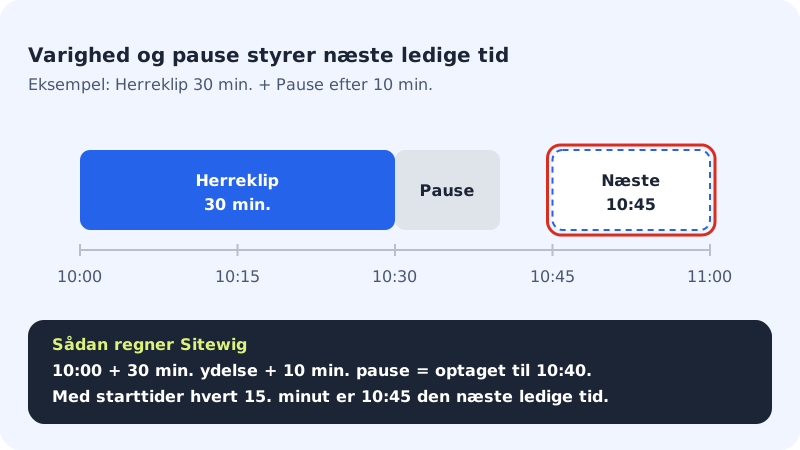
Duration and break decide when the next customer can come Step 4: Price
Enter the price in Price, e.g.
250or349.50. If you would rather show a text, e.g. from 300, use the Price text field. The price text is shown instead of the price. Leave both fields empty if the service is free or the price is agreed individually.Step 5: Type and location
Choose the Type:
- Private (one customer): one customer per time.
- Class (several customers per time): several customers can book the same time, e.g. yoga. Enter Minimum participants and Maximum participants.
- Private group (one booking for several): one person books for a whole group. Under Price, you choose whether the price is Per person or Per booking.
Then choose the Location: At the business, Online (meeting link) or At the customer's. In the Address or meeting link field, enter the address or the link to your online meeting.
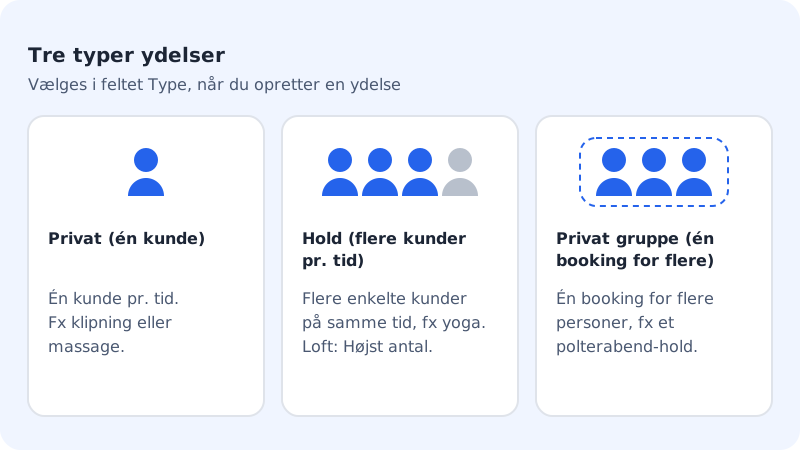
Choose the type that fits how customers turn up Step 6: Save
Tick Bookable online and tap Save. The service can now be booked on the website.
Hide, edit or delete a service
- Hide: Tap Edit, untick Bookable online and tap Save. The service is marked Hidden and disappears from the website. It also can't be chosen when you create a booking yourself in the calendar, but existing bookings stay.
- Edit: Tap Edit. Changes apply to new bookings; existing bookings keep their time.
- Delete: Tap Delete and confirm. Existing bookings are kept. If the service has been booked, it is hidden instead of deleted, so the history adds up.
Get suggestions from NinaAI
At the top of the Services tab you'll find Set up booking with NinaAI. Write e.g. Men's haircut 30 min 25, women's haircut 1 hour 45. Open weekdays 9-17, Saturday 10-14. NinaAI suggests services and opening hours, and you save them with Save as drafts. The drafts are saved as hidden services – review them, and turn on Bookable online when they are ready. Nothing is shown to customers until you do.
Frequently asked questions
Can a service last several hours or a whole day?
Yes, up to 720 minutes (12 hours). If something needs to be on fixed dates or span several days, create it as an event or a course instead of an ordinary service.
Can the customer pay when they book?
Yes, with a deposit or full prepayment on the Pro, Business and Max plans. The service must have a price. See Take a deposit or full prepayment when booking.
How do I choose who performs the service?
You do that on the staff member, not on the service. See Add staff and choose who does what.