If you have a WordPress site with your old provider, you do not need to build it again from scratch. With the Move WordPress here card, Sitewig installs a fresh, official WordPress and puts in your themes, plugins, uploads and database. Addresses in the database are automatically corrected to the new address.
Before you start
- Create an empty website at Sitewig. The card only appears on a website where WordPress is not installed yet.
- Have either the files or the SFTP login ready from the old provider.
- Let the domain keep pointing to the old site until you have checked the new one.
Limits for self-service moves
- Zip with wp-content
- At most 400 MB
- Database
- At most 256 MB unpacked (.sql or .sql.gz)
- The whole site
- At most 2 GB unpacked and 60,000 files
- WordPress multisite
- Cannot be moved automatically – contact support
Move the site
Step 1: Open the Move WordPress here card
Go to WordPress → Overview, and open your empty website. Under WordPress you will find the Move WordPress here card.
Step 2: Choose how you want to move
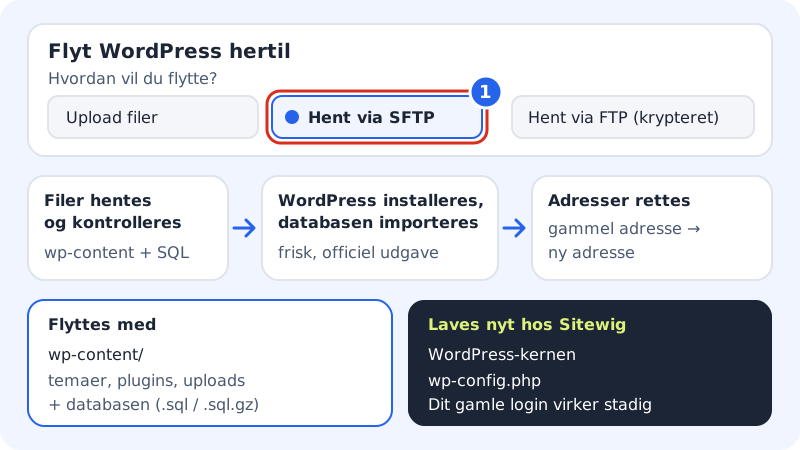
Under How do you want to move?, choose:
- Upload files: you upload a zip of the
wp-contentfolder and an export of the database (.sql or .sql.gz), for example from phpMyAdmin → Export. - Fetch via SFTP: Sitewig fetches
wp-contentdirectly from the old server. - Fetch via FTP (encrypted): requires the old server to support FTPS. Unencrypted FTP is never used.
- Upload files: you upload a zip of the
Step 3: Fill in the details
Enter the Site's current address, for example
https://www.yourcompany.com. It is used to correct links and images. If you fetch via SFTP or FTPS, you also fill in Server, Port (empty = default), Username and WordPress folder on the server, for example/public_html. If a database export is on the server, you can enter its path in Database export on the server (optional) – otherwise you upload it in the next step.Step 4: Start the move
Enter the Password for the old server (it is only used for this move and is not stored), and tap Start the move. The page shows three steps: Files are fetched and checked, WordPress is installed and the database is imported and Addresses are corrected.
Step 5: Sign in and check the site
When it says WordPress has been moved here, sign in with your old WordPress username and password. Go through the site: front pages, forms, images and any web shop.
Step 6: Point the domain here
Only when everything works do you point the domain to your new site. If you use Move here, choose Sitewig website in step 4. See Keep your website or switch.
Frequently asked questions
What is moved, and what is made new?
The wp-content folder (themes, plugins and uploads) and the whole database are moved. The WordPress core and wp-config.php are made new at Sitewig, so you get a clean, up-to-date installation.
Does it say "The website is not empty"?
The move requires an empty website. Create a new website, or remove the content from the one you have chosen.
Does it say "The site is too large for a self-service move"?
Then the zip file or the database is over the limits. Contact support – moving help is free in the web hosting plans.
Will my plugins work afterwards?
Normally, yes. Plugins that are tied to a particular server or licence domain may require you to activate the licence again.