You do not have to move everything at once. In step 4 The website in the moving guide, you decide what your domain should show once the name servers have been changed. Your email runs at Sitewig whatever you choose.
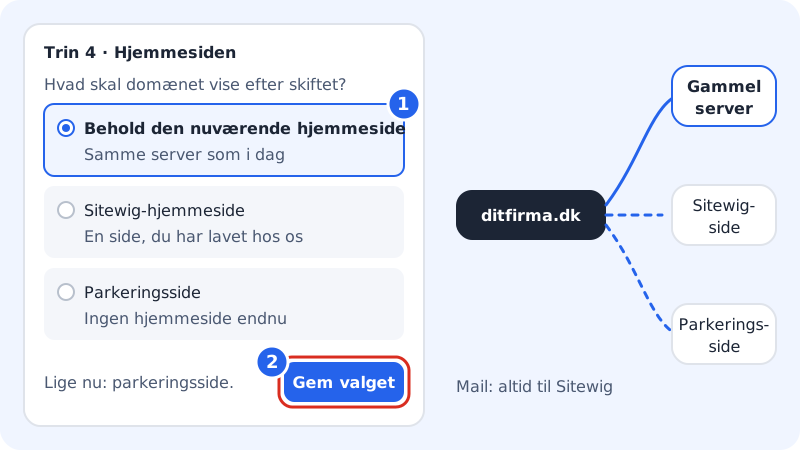
The three choices
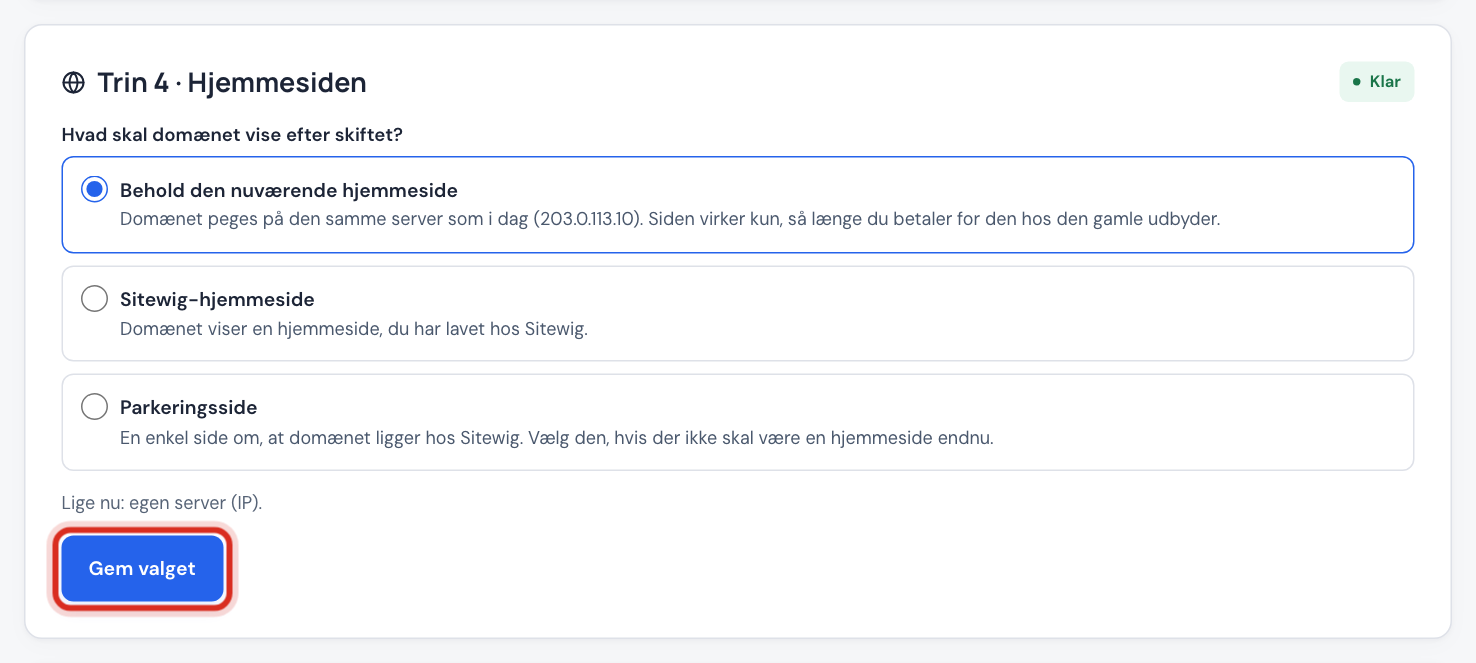
What should the domain show after the switch?
- Keep the current website
- The domain points to the same server as today. The site only works for as long as you keep paying for it at the old provider.
- Sitewig website
- The domain shows a website you have made at Sitewig. Requires that you have made a site first.
- Parking page
- A simple page saying that the domain is at Sitewig. Choose it if there should not be a website yet.
The guide suggests a choice itself: Keep if it can find your current server, otherwise Sitewig website if you have one, otherwise Parking page.
Choose, and save
Step 1: See what the domain shows now
At the bottom of step 4 it says, for example, Right now: own server (IP). When you have attached the domain in the guide, it points to the same server as today from the start.
Step 2: Choose a target
Choose Keep the current website, Sitewig website or Parking page. If you have several Sitewig websites, you choose which one from the list.
Step 3: Tap Save choice
Tap Save choice. It says Saved., and the item The website is chosen turns green in the checklist in step 5.
If the website is behind Cloudflare
If you see The website is behind Cloudflare, the guide cannot see which server the site really runs on, so Keep cannot be chosen automatically. Find the server's IP address in Cloudflare or with your web host, and enter it on the domain's page under Change target → Own server (IP address). You can also choose a Sitewig website instead.
Switch to your new site later
Step 1: Build or move the site at Sitewig
Make your new website in the website builder, or move your WordPress site. See Move your WordPress site.
Step 2: Change the domain's target
Go back to step 4 and choose Sitewig website, or open the domain under Domains → My domains and tap Change target.
Step 3: Cancel the web hosting with the old provider
Only when the new site is running do you cancel the web hosting with the old provider.
Frequently asked questions
Does the choice affect my email?
No. The choice only applies to the website (@ and www). Email is delivered to Sitewig once the name servers have been changed.
Will I get SSL on the old website?
If the domain points to another server, that server has to provide the SSL certificate. If you choose a Sitewig website or a parking page, Sitewig takes care of a free certificate itself.
Why can't I choose Sitewig website?
The choice requires that you have made a website at Sitewig. If it says Create a website at Sitewig first., create one first.