If you already have a WordPress site with another provider, you don't have to start again. You can move all of it (posts, pages, images, plugins, themes and users) to Sitewig. There are three ways:
- Let us do it. Free migration is included in all web hosting plans. Open a case with support, and we'll plan the move with you.
- Use the Move WordPress here card in the control panel.
- Move it yourself with SFTP and the database tool.
Before you start
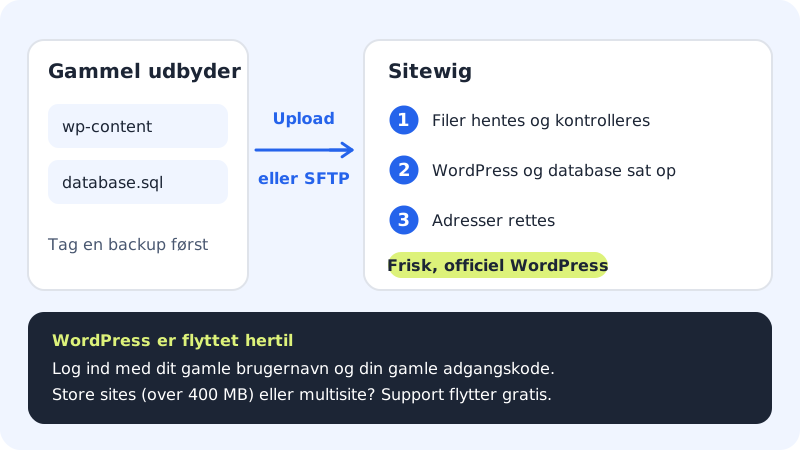
- Take a full backup with your old provider: both files and database. Don't touch the old site until the new one is running.
- Create an empty website at Sitewig under WordPress → Overview with Create website.
- Connect the domain to the website with SSL. The migration puts the site on the website's domain, so the domain must be connected with Add domain, and the SSL certificate must be active. SSL only becomes active once the domain points to Sitewig (for example with the name servers
ns1.sitewig.comandns2.sitewig.com). From that moment until the migration is finished, visitors see an empty website, so do it at a quiet time. If you want to avoid the gap, ask us for the free migration. - Your plan must have room for one more database.
Move with the "Move WordPress here" card
Step 1: Open the empty website
Choose WordPress → Overview, and click the empty website. The Move WordPress here card is in the WordPress section.
Step 2: Choose how you want to move
Under How do you want to move it?, choose one of three ways:
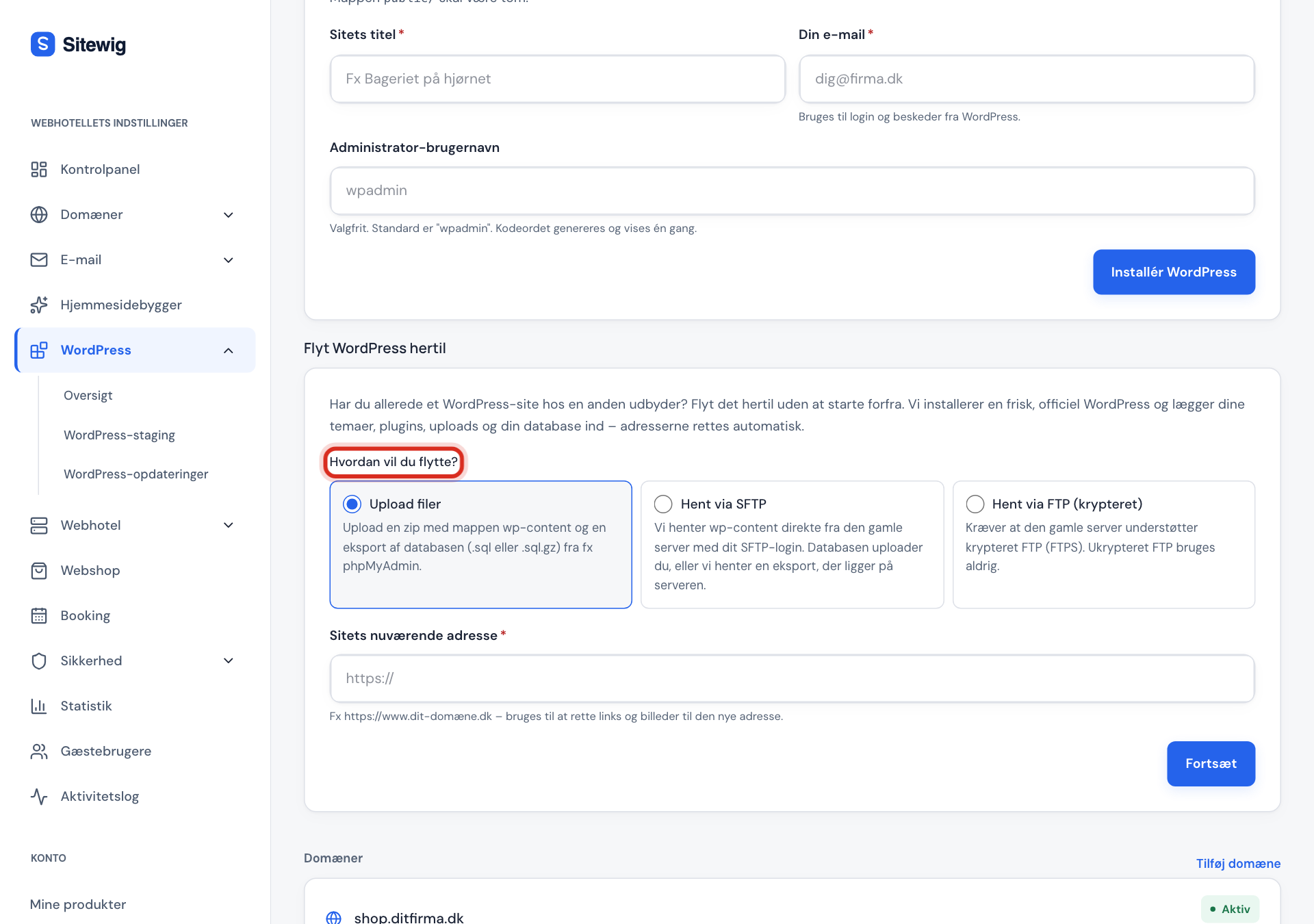
- Upload files: you upload a zip file with the
wp-contentfolder and an export of the database (.sqlor.sql.gz). The zip file can be at most 400 MB and the database at most 256 MB. - Fetch via SFTP: Sitewig fetches
wp-contentdirectly from the old server with your SFTP login. - Fetch via FTP (encrypted): like SFTP, but over encrypted FTP (FTPS). Unencrypted FTP is never used.
- Upload files: you upload a zip file with the
Step 3: Fill in the details
Enter the Current site address, for example
https://www.yourcompany.com. It's used to correct links and images to the new address. If you fetch via SFTP or FTP, you also enter Server, Username and WordPress folder on the server (the folder containingwp-content, for example/public_html). The password for the old server is used only for this move and isn't stored.Step 4: Start the move
Click Continue and then Start the move. The card shows three steps: Files are fetched and checked, WordPress is installed and the database imported and Addresses are updated. The page refreshes by itself.
Step 5: Sign in and check the site
When it says WordPress has been moved here, sign in with your old WordPress username and password. Go through the pages, and check forms, images and any online shop.
Step 6: Tidy up with the old provider
Leave the old site and your backup in place for a couple of weeks, until you're sure that everything works at Sitewig. If the domain is also to be moved to Sitewig, see the category Transfer a domain.
Move it yourself with SFTP and the database tool
If you don't have the card yet, or you'd rather stay in control:
- Export the database with the old provider (for example with phpMyAdmin → Export), and download all of the site's files.
- Create a database under Web hosting → Databases, and import your export with the Database tool.
- Upload the files to the website's
public/folder with SFTP (see Web hosting → SSH/SFTP), or via Web hosting → Files. - Edit
wp-config.phpso that the database name, user and password match the new database. - If the address has changed, it must be corrected in the database, for example with a search-and-replace plugin.
Frequently asked questions
Can I move before the domain points to Sitewig?
The card puts the site on the website's domain with SSL. If the domain still points to the old provider, you can move to your main site, which has a preview address, and test it there. If the site later needs to go onto your domain, contact support: the address has to be corrected in the database. If you want to avoid all of that, ask us for the free migration.
What if my site is too big?
If the zip file is over 400 MB or the database is over 256 MB, the card shows that the site is too big for a self-service move. Support will then help you free of charge.
Can I move a WordPress multisite?
Not with the card. Contact support and we'll find a solution.
Will my email be moved too?
No. Moving WordPress covers only the website. You move email separately, or ask support to move it together with the site.