When an employee leaves, or an address isn't going to be used for a while, you don't have to delete the mailbox. You can pause it so nobody can sign in while the old emails stay where they are. And if a mailbox gets full, you can give it more space within your plan.
What should happen to the address?
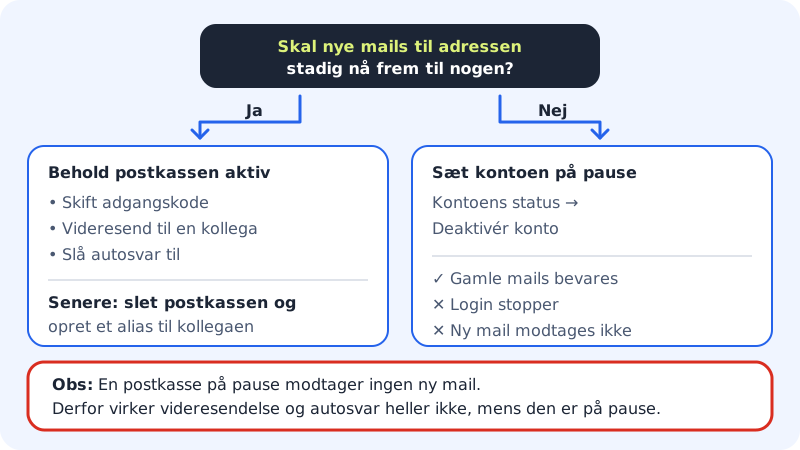
Pause a mailbox
Step 1: Open Account status
Go to Email → Mailboxes, click the menu button (the three dots) next to the address and choose Account status.
Step 2: Deactivate the account
Read the text in the window and click Deactivate account. The mailbox now shows the status Disabled in the list.
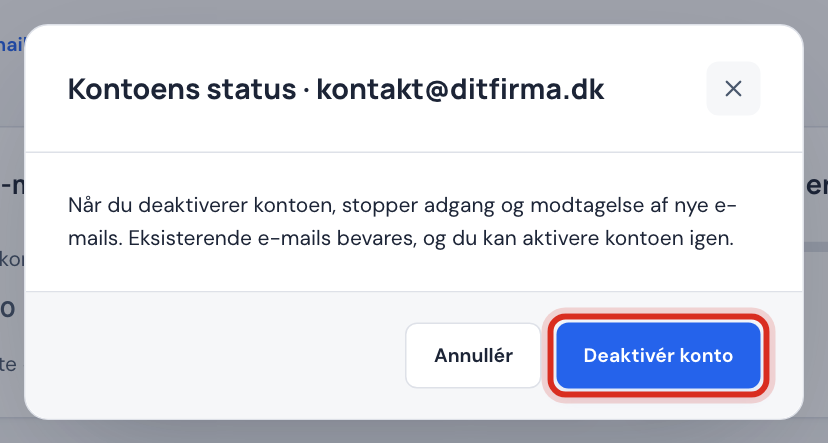
Pause the mailbox Step 3: Activate it again when it's needed
Choose Account status again and click Activate account. The mailbox can then be signed in to and receive emails again. Emails sent while it was paused are normally not delivered afterwards.
Give a mailbox more (or less) space
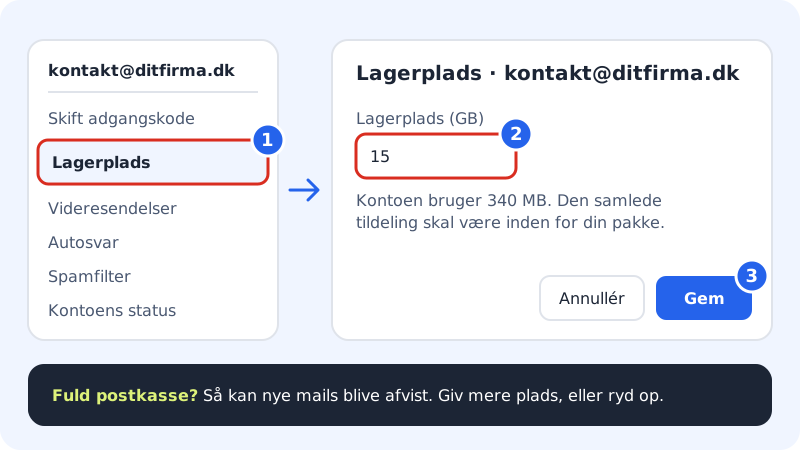
Step 1: Open Storage
Go to Email → Mailboxes, click the menu button next to the address and choose Storage.
Step 2: Type the new size
Type the number of GB in Storage (GB). Below the field you can see how much the mailbox is using now.
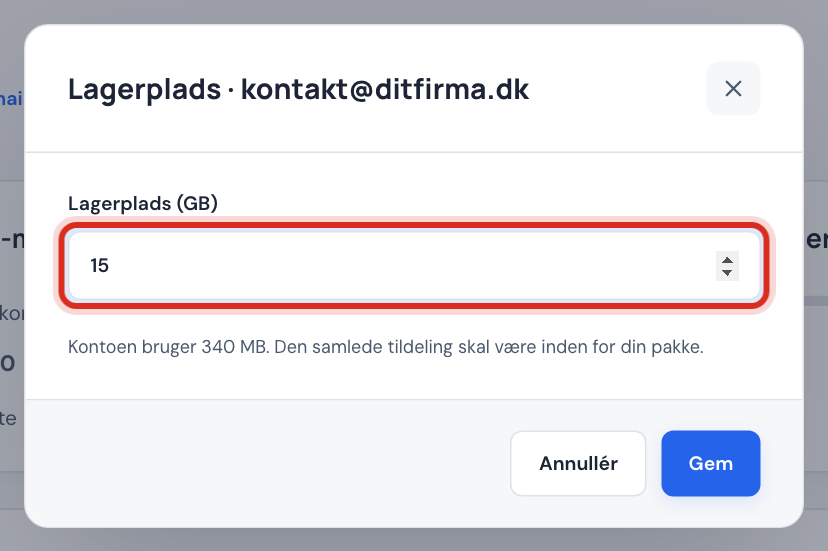
Change the storage for the mailbox Step 3: Save
Click Save. If there isn't enough space in your plan, you get a message; you can then give another mailbox less space or upgrade. You can at most choose the size your plan gives per mailbox. If one mailbox needs more, you can buy Larger mailbox 25 GB. See Storage and quota.
The Total storage used card at the top of the page shows how much all your mailboxes take up together. Click Refresh usage if the figures need to be fetched again.
Delete a mailbox
If the address won't be used at all any more, you can delete the mailbox: choose Delete mailbox in the menu, type the email address to confirm, and delete. The account and its emails are deleted permanently, and this can't be undone.
Frequently asked questions
Does a paused mailbox count towards my plan?
Yes. It still exists and uses both a place in the plan and storage. Delete it if you need the space.
What happens when a mailbox is full?
New emails may be rejected, and the sender gets an error message. Give the mailbox more space, or delete old emails and empty the trash in your mail app or in webmail.
Can I get emails out of a mailbox before I delete it?
Yes. Set the mailbox up in a mail app and copy the emails to a local folder, or move them to another mailbox, before you delete.