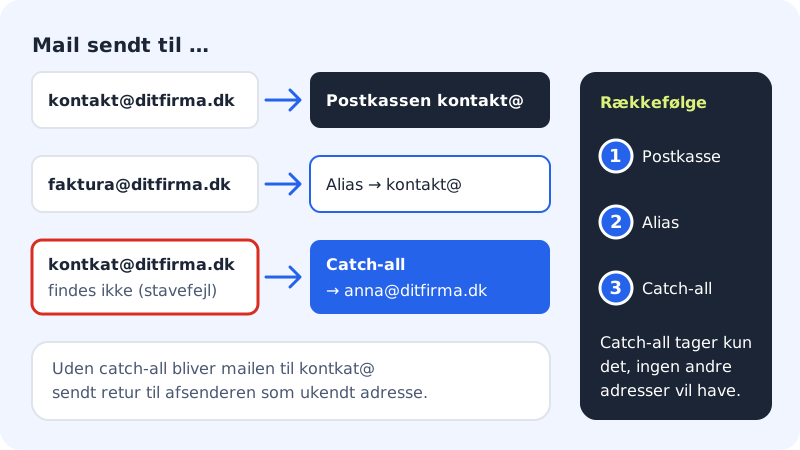
If a customer writes to kontkat@ditfirma.dk instead of kontakt@ditfirma.dk, the email normally bounces back because the address doesn't exist. With a catch-all address, it lands in a mailbox of your choice instead. This applies to every address on the domain that is neither a mailbox nor an alias.
Good to know
- You can have one catch-all per domain.
- The catch-all must deliver to one of your own mailboxes with Sitewig, not to an external address.
- Mailboxes and aliases always take priority. The catch-all only takes the emails that no other address wants.
Turn on catch-all
Step 1: Choose the domain and open Catch-all
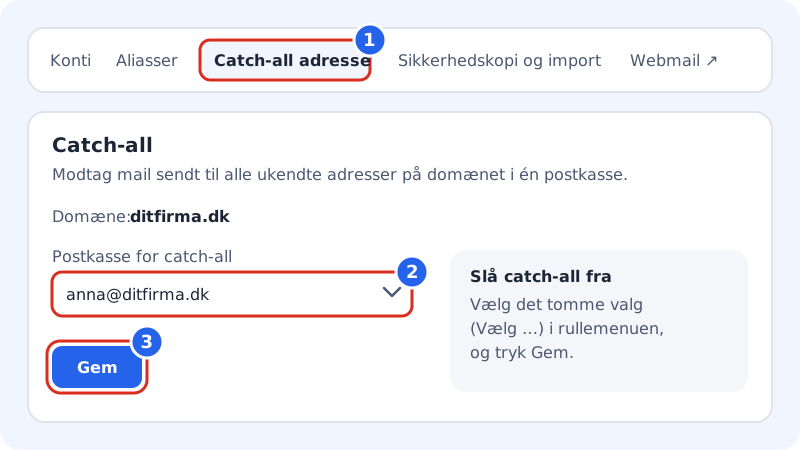
Choose the domain in question in the control panel. Go to Email and choose the Catch-all address tab (or Catch-all in the menu on the left). At the top of the page you can see which Domain you are changing.
Step 2: Choose the mailbox
In Catch-all mailbox, choose which mailbox should receive emails sent to unknown addresses.
Step 3: Save
Click Save. Catch-all is now turned on for the domain.
Step 4: Test it
From another address, send an email to an address on the domain that doesn't exist, for example
test123@ditfirma.dk. It should land in the mailbox you chose.
Turn off catch-all
Open the Catch-all page again, choose the empty option Choose … in Catch-all mailbox, and click Save. From then on, emails to unknown addresses bounce back to the sender again.
Frequently asked questions
Can a catch-all forward to my Gmail or another provider?
Not directly. Choose one of your Sitewig mailboxes as the catch-all, then turn on forwarding for that mailbox.
I'm getting a lot of spam since I turned on catch-all. What should I do?
Turn catch-all off and create aliases for the few addresses you use. You can also turn up the spam filter on the mailbox that receives the catch-all.
Does catch-all also apply to my other domains?
No, only to the domain shown at the top of the page. Choose a different domain to set up catch-all there.