Outlook for Mac can use your Sitewig email as an ordinary IMAP account. If you prefer Apple's own Mail app, see Apple Mail on Mac.
What you need
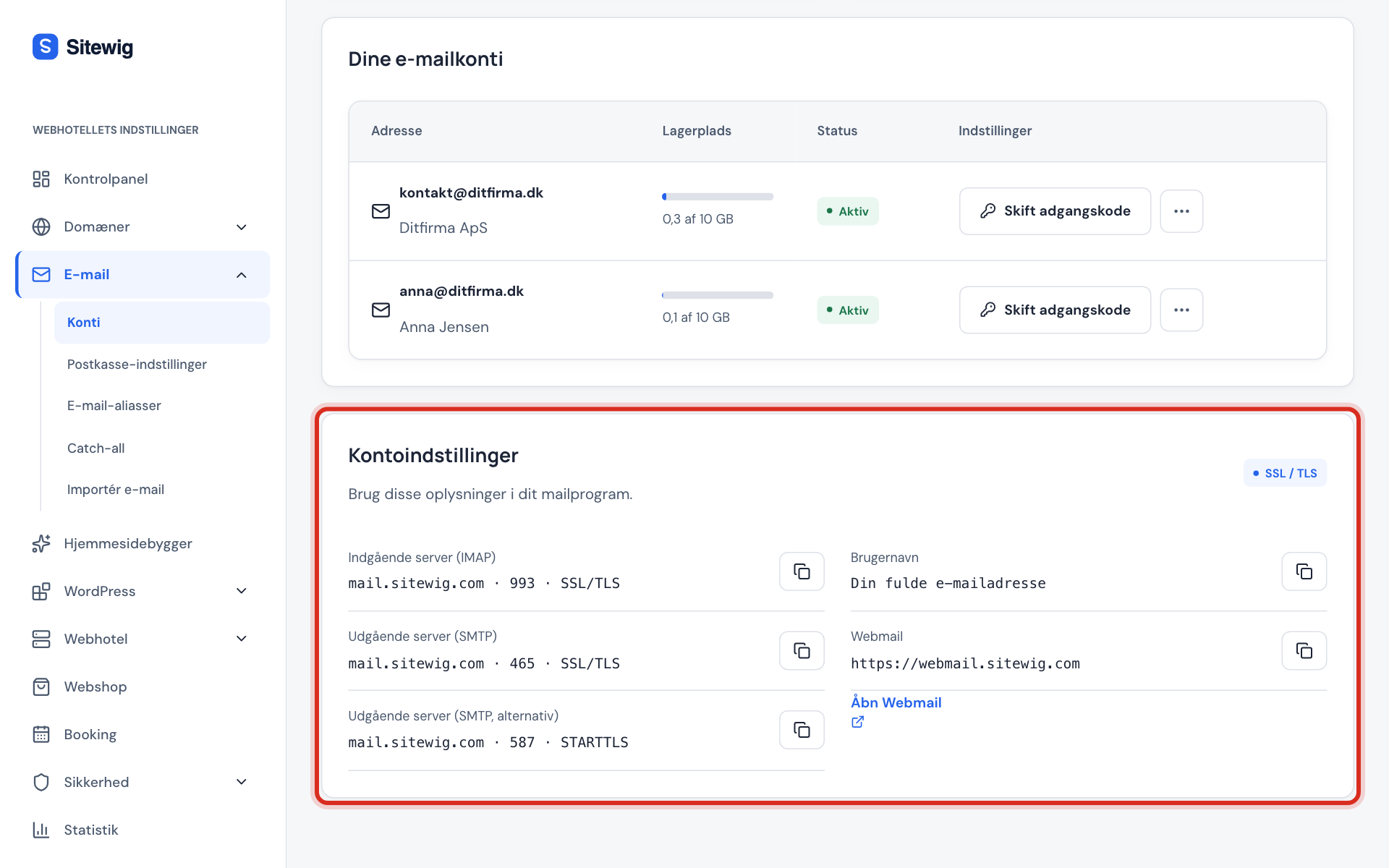
Incoming server (IMAP)
- Server
mail.sitewig.com- Port
993- Use SSL
- Yes
Outgoing server (SMTP)
- Server
mail.sitewig.com- Port
465- Use SSL
- Yes
The user name is your full email address, and the password is the mailbox's own password. You will find the servers in the control panel under Email → Mailboxes → Account settings.
Add the account
Menu names can vary slightly between Outlook versions.
Step 1: Open the account settings
Open Outlook. Choose Outlook → Settings in the menu bar, and click Accounts. Click + in the bottom left corner, and choose New Account.
Step 2: Enter your address
Enter your full email address, for example
contact@yourcompany.com, and click Continue.Step 3: Choose IMAP
If Outlook asks for a provider, choose IMAP/POP – not Microsoft 365, Exchange or Google. Then choose the account type IMAP.
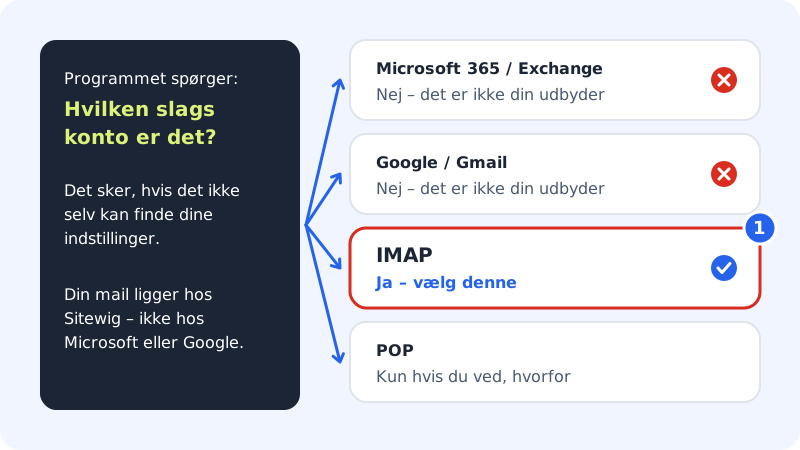
Choose IMAP – your email is stored at Sitewig Step 4: Fill in login and servers
Enter the full email address as the user name and the mailbox password. Incoming server:
mail.sitewig.com, port993, with Use SSL to connect ticked. Outgoing server:mail.sitewig.com, port465, also with SSL.Step 5: Add the account
Click Add Account. Outlook fetches your folders – this can take a few minutes the first time.
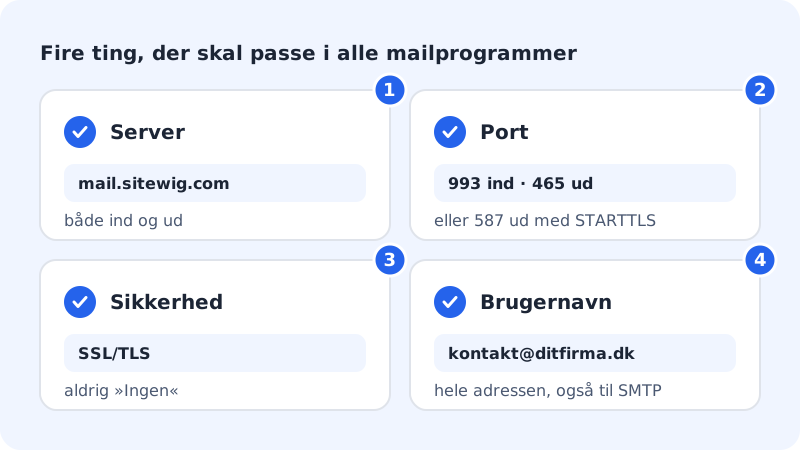
The four things that must be right
If the account does not work, it is almost always one of these four things: server, port, security or user name. You can find them again under Outlook → Settings → Accounts when you click the account.
Check the folders
After a few minutes, Inbox, Sent, Drafts and Deleted Items should show the same as in webmail. If sent messages are missing on your other devices, check that the account was set up as IMAP and not POP.
Frequently asked questions
Outlook cannot send, but receives fine. What do I do?
Check that the outgoing server uses the same user name and password as the incoming server. If port 465 does not work on your network, use port 587 without the SSL tick – Outlook then uses STARTTLS. See I can receive but not send.
Outlook says the certificate is not valid. Is that dangerous?
It usually means the server name has been typed incorrectly, for example with your own domain. Change it to mail.sitewig.com. See Certificate warning in your email program.