The Mail app on your Mac can use Sitewig email via IMAP. You enter the settings yourself – it takes 3–5 minutes.
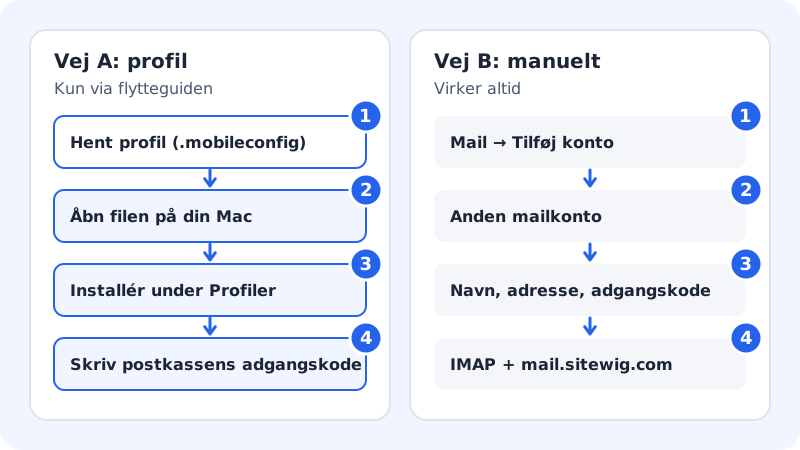
What you need
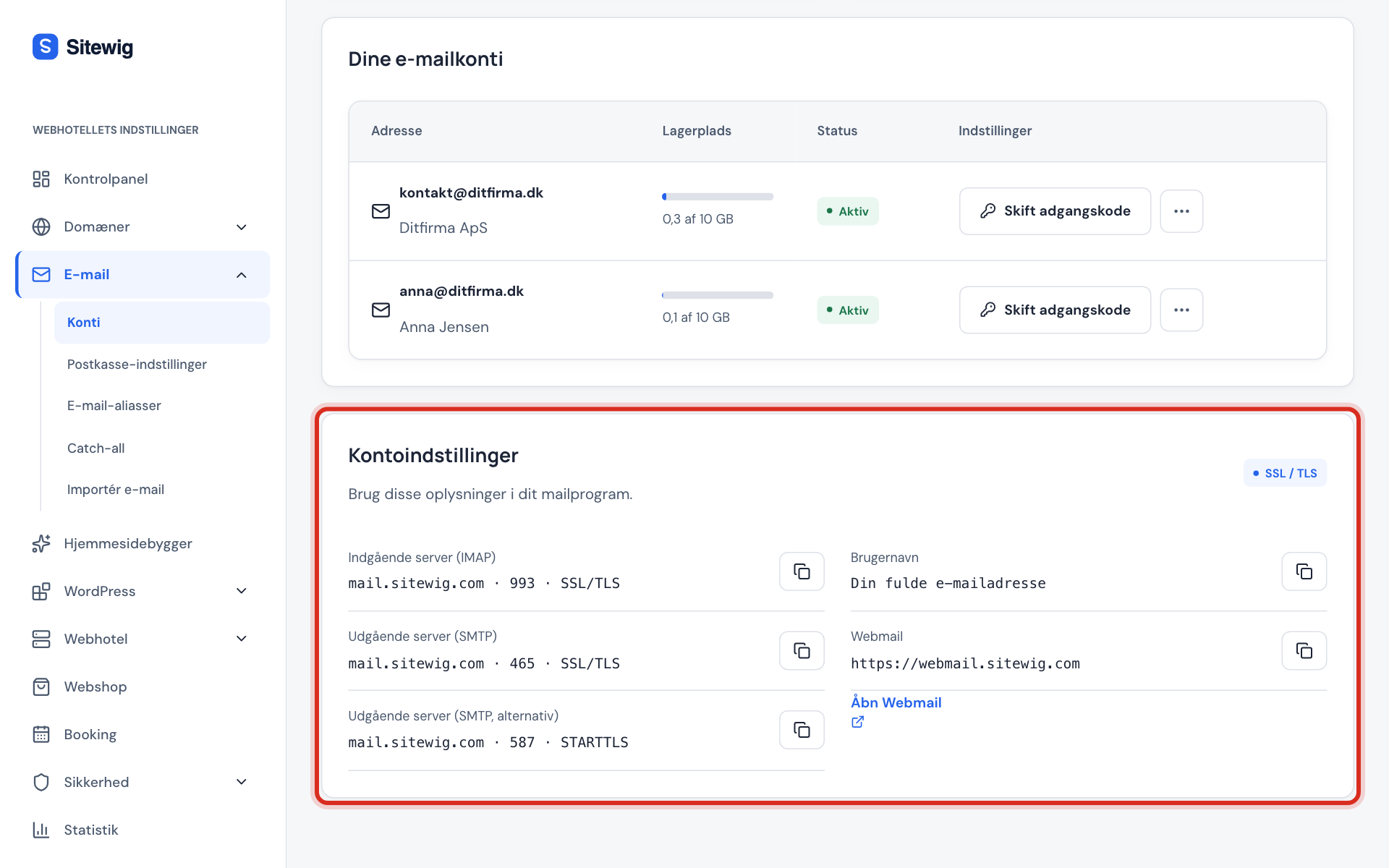
Incoming mail server (IMAP)
- Host name
mail.sitewig.com- Port
993- Security
- TLS/SSL
- User name
- Your full email address
Outgoing mail server (SMTP)
- Host name
mail.sitewig.com- Port
465- Security
- TLS/SSL
- Authentication
- Password – the same as for incoming
The password is the mailbox's own password, not the one for the control panel. The servers are also shown in the control panel under Email → Mailboxes → Account settings.
Add the account manually
The names below follow recent macOS versions. In older versions they can differ slightly.
Step 1: Start in Mail
Open Mail, and choose Mail → Add Account in the menu bar. Choose Other Mail Account at the bottom, and click Continue.
Step 2: Enter name, address and password
Fill in Name (what recipients see), your full Email Address and the mailbox Password. Click Sign In.
Step 3: Fill in the servers
Mail often cannot find the settings by itself and shows more fields. Choose the account type IMAP, enter the full address as the user name, and enter
mail.sitewig.comas both Incoming Mail Server and Outgoing Mail Server. Click Sign In.Step 4: Choose apps and finish
Choose to use the account for Mail, and click Done.
Check ports and encryption
Mail normally chooses the ports by itself. If sending or receiving fails, set them manually:
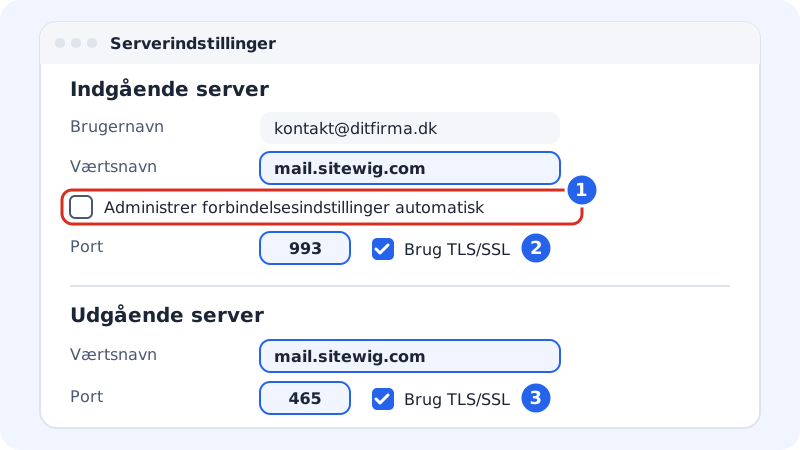
Step 1: Open the server settings
Choose Mail → Settings → Accounts, select the account, and click the Server Settings tab.
Step 2: Incoming server
Untick Automatically manage connection settings. Enter port
993, and tick Use TLS/SSL.Step 3: Outgoing server
Do the same for the outgoing server: port
465and Use TLS/SSL. Click Save.
Add the same mailbox on your other devices
You can use the same mailbox on your Mac, iPhone, iPad and other devices at the same time. Because the account uses IMAP, read, moved and deleted messages look the same everywhere.
- Use the same server, ports and user name on every device. Only the program's menus differ.
- If you change the mailbox password in the control panel, enter the new password on every device.
- Guides for other devices: iPhone and iPad and Android with the Gmail app.
Frequently asked questions
Mail keeps asking for the password. What is wrong?
Typically the password has been changed in the control panel but not on the Mac – or the user name is only the first part of the address. See My email program rejects my password.
Can I also get my calendar and contacts?
Yes, with CalDAV and CardDAV in the Calendar and Contacts apps. See Sync your calendar and contacts.