When an email program keeps asking for the password, it is almost always one of a few things: the username, the password, the account's status, or a device that still has an old password saved. Start with step 1: it tells you whether the problem is in the account or in the program.
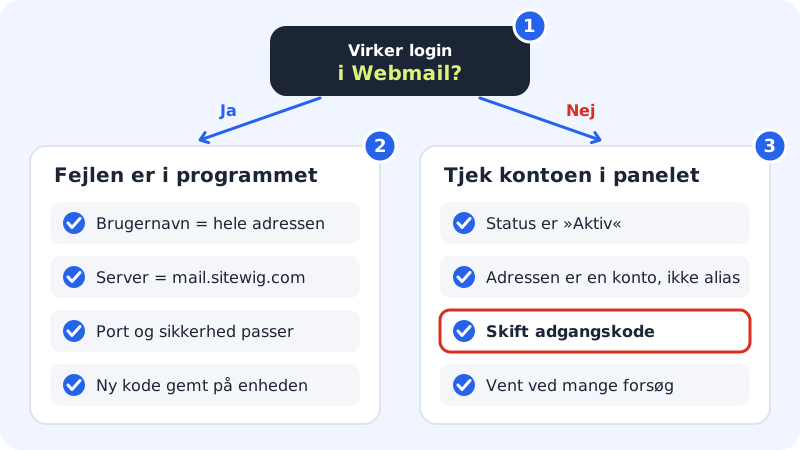
Step 1: Test login in webmail
Log in to the control panel, go to Email → Mailboxes, and click Open Webmail under Account settings. Log in with the full email address and the mailbox password.
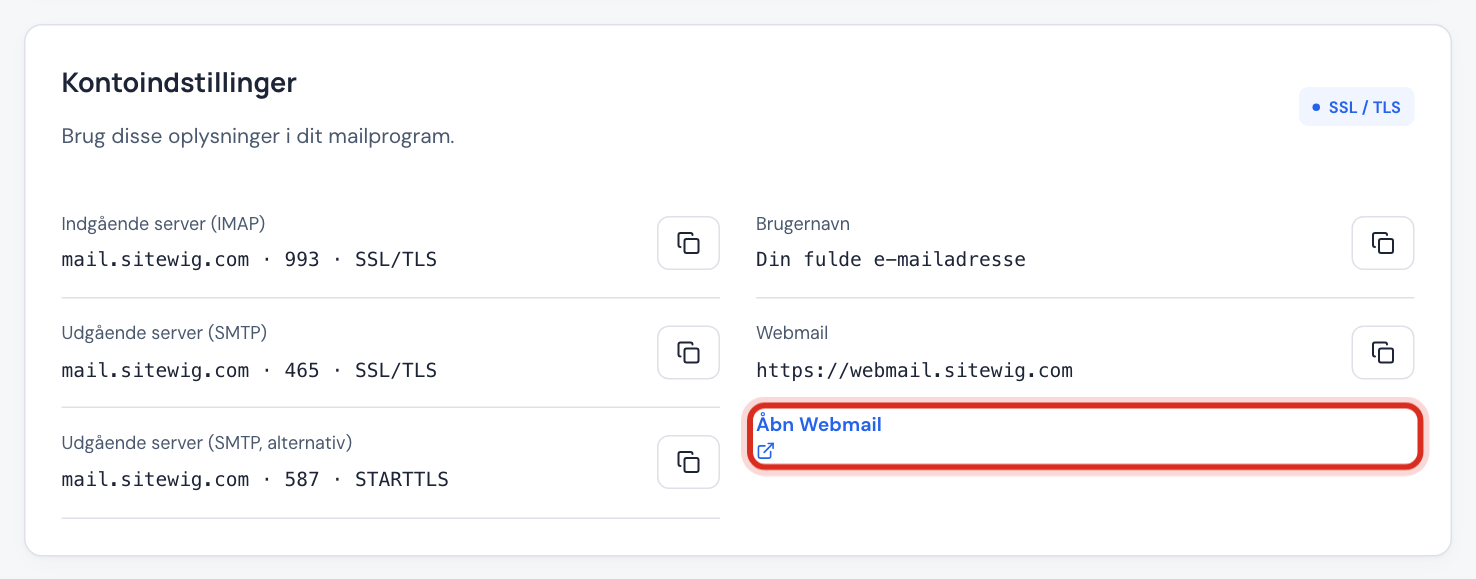
Open Webmail from the control panel - Webmail works: The password is correct. The problem is in the email program: continue with step 2.
- Webmail does not work either: The problem is in the account: skip to step 3.
Step 2: Check the username and servers in the program
The username must be the whole email address, for example
info@yourcompany.com, for both the incoming and the outgoing server. The server must bemail.sitewig.com, and the port and security must go together (993 with SSL/TLS incoming, 465 with SSL/TLS or 587 with STARTTLS outgoing). See Server settings for your email program.Step 3: Check the account's status in the control panel
Under Email → Mailboxes, each account is shown with a status:
- Active: the account can be used.
- Disabled: the account is switched off and cannot log in. Activate it again via the account's menu and Mailbox status.
- Awaiting activation: the account is being created. Wait a few minutes and try again.
- Error: contact support.
If the address is not on the list, it may be an alias. An alias simply forwards emails and has no mailbox, so you cannot log in with it. You can find aliases under Email → Email aliases.
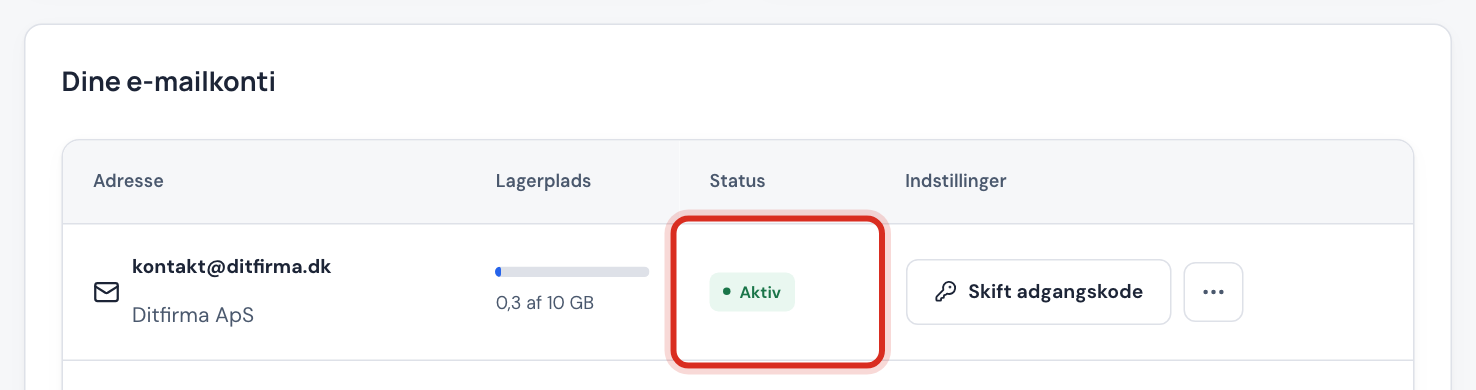
The status of each account in the control panel Step 4: Set a new password
Click Change password next to the address. Enter a new password twice, or click Suggest password to have a strong one generated. It must be at least 12 characters and contain at least two types of character (for example letters and numbers). Click Save password.
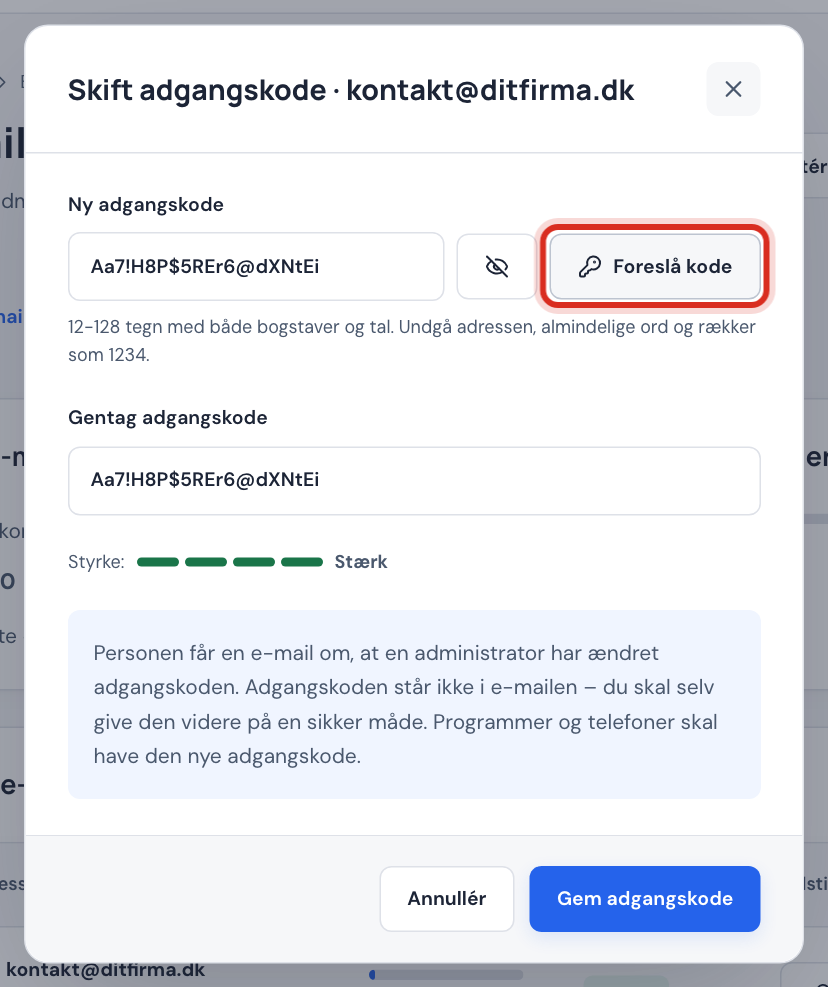
Change the password for a mailbox The person who uses the mailbox receives an email saying that the password has been changed. The password itself is not in the email, so pass it on in a secure way.
Step 5: Update the password on all devices
The new password must be entered on all devices that use the mailbox: phone, tablet, work PC and home PC. A single device with the old password will keep failing, and many failed attempts can cause the server to temporarily block logins.
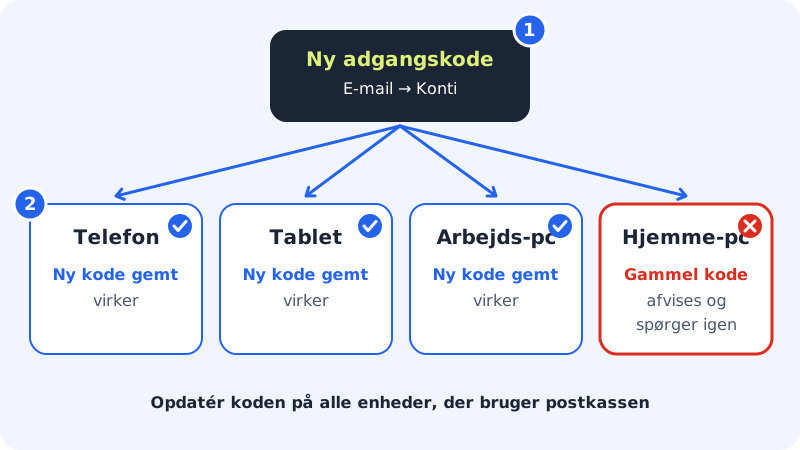
One device with the old password is enough to cause errors Step 6: Wait a little after many attempts
If you have tried many times with a wrong password, login may be blocked for a short period. Close the email program on all devices so they do not keep trying, wait a while, and try again with the correct password.
Still stuck?
Write to support, and include:
- the email address concerned (never the password),
- which program and which version you are using, for example "Outlook for Windows, Microsoft 365",
- the exact error message, preferably with a screenshot,
- whether login in webmail works.
Frequently asked questions
I have forgotten the mailbox password. Can Sitewig send it to me?
No, passwords are not stored in a readable form. Instead, set a new password under Email → Mailboxes → Change password.
Is the mailbox password the same as the control panel password?
No. Each mailbox has its own password. The control panel login is only used to manage your products.
The control panel says "Email is not activated for the domain". What does that mean?
The domain's email currently goes to a provider other than Sitewig. Open the domain under My domains, choose Sitewig Mail as the mail destination, and save. After that you can create and manage accounts.