The message Error establishing a database connection means that WordPress can't sign in to its database. Your posts and pages are still in the database – it's the connection that is failing. In the vast majority of cases it's caused by a wrong value in wp-config.php, and it takes a few minutes to fix.
Find and fix the error
Step 1: Check the database status
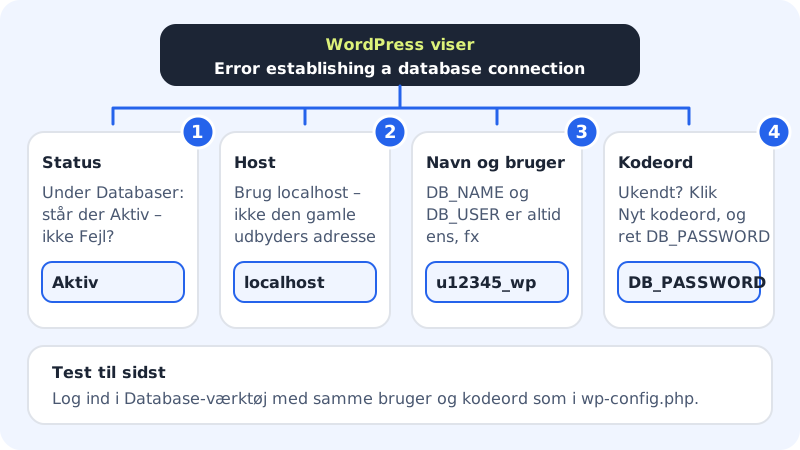
Go to Web hosting → Databases. If the database has the status Active, it's ready. If it says Creating or Deleting, wait a little. If it says Error, the reason is shown in red under the name – contact support with that text.
Step 2: Open wp-config.php
Open the website's
wp-config.phpwith the File manager or an SFTP program. The file is in the same folder aswp-adminandwp-content.Step 3: Check the host
DB_HOSTmust belocalhost. If you moved the site from another provider, it often still contains the old provider's server name. Change it tolocalhost.Step 4: Check name and user
DB_NAMEandDB_USERmust both be the full database name, e.g.u12345_wp. At Sitewig they are always identical. Compare with the name under Web hosting → Databases.Step 5: Check the password
If you don't know the right password, click New password next to the database, copy the new one and paste it into
DB_PASSWORD. See Reset the password for your database.Step 6: Test in Database tool
Sign in to Database tool with exactly the same username and password as in
wp-config.php. If it works there but not on the site, there is a typo in the file, e.g. a space or a missing quotation mark.
What the values should look like
- DB_NAME
u12345_wp(your own name)- DB_USER
u12345_wp(same as DB_NAME)- DB_PASSWORD
- The password that belongs to the database
- DB_HOST
localhost
Other causes
- You've just created a new password. The old one stops working after a few seconds. Put the new one into
wp-config.php. - The database has been deleted. If it's no longer under Databases, it needs to be restored – see Restore a database from a backup.
- The web hosting is suspended. Websites and databases are then closed until the account is active again. There is a message at the top of the control panel.
- Too many connections. Each database user may have a limited number of simultaneous connections (e.g. 20, shown as max. 20 connections). A plugin that doesn't close its connections can use them all up. Deactivate recently installed plugins.
Frequently asked questions
Have I lost my data?
Almost never. The error only means that WordPress can't connect. Once the connection works again, all your content is back.
I installed WordPress with one click. Do I need to fix anything myself?
Normally not – the installation sets up the database and wp-config.php for you. If you have since clicked New password or moved files, go through the steps above.
Can I use my old provider's database server from Sitewig?
We advise against it, and it rarely works, because most providers block access from outside. Move the database to Sitewig instead – see Import a database.