The database password is only shown once, when the database is created, and can't be retrieved later. If you've lost it, you create a new one with a single click. The new password is generated automatically – you can't choose it yourself.
Create a new password
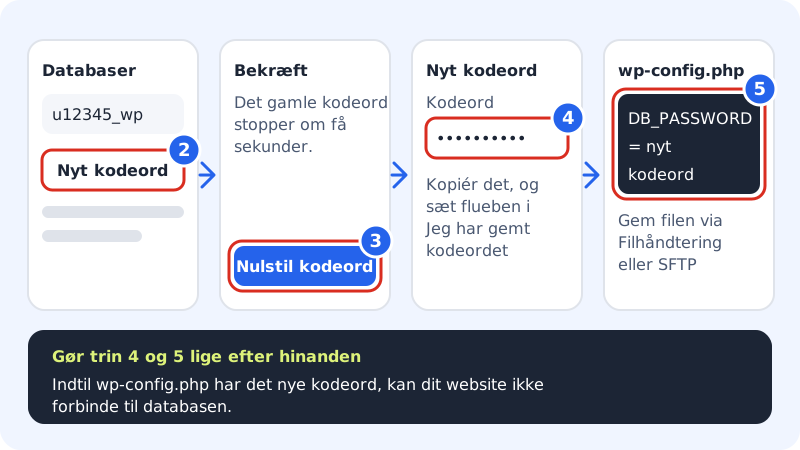
Step 1: Open Databases
Go to Web hosting → Databases in the control panel.
Step 2: Click New password
Find the database, e.g.
u12345_wp, and click New password on the right of the line.Step 3: Confirm
Read the message saying that the old password will stop in a few seconds and click Reset password.
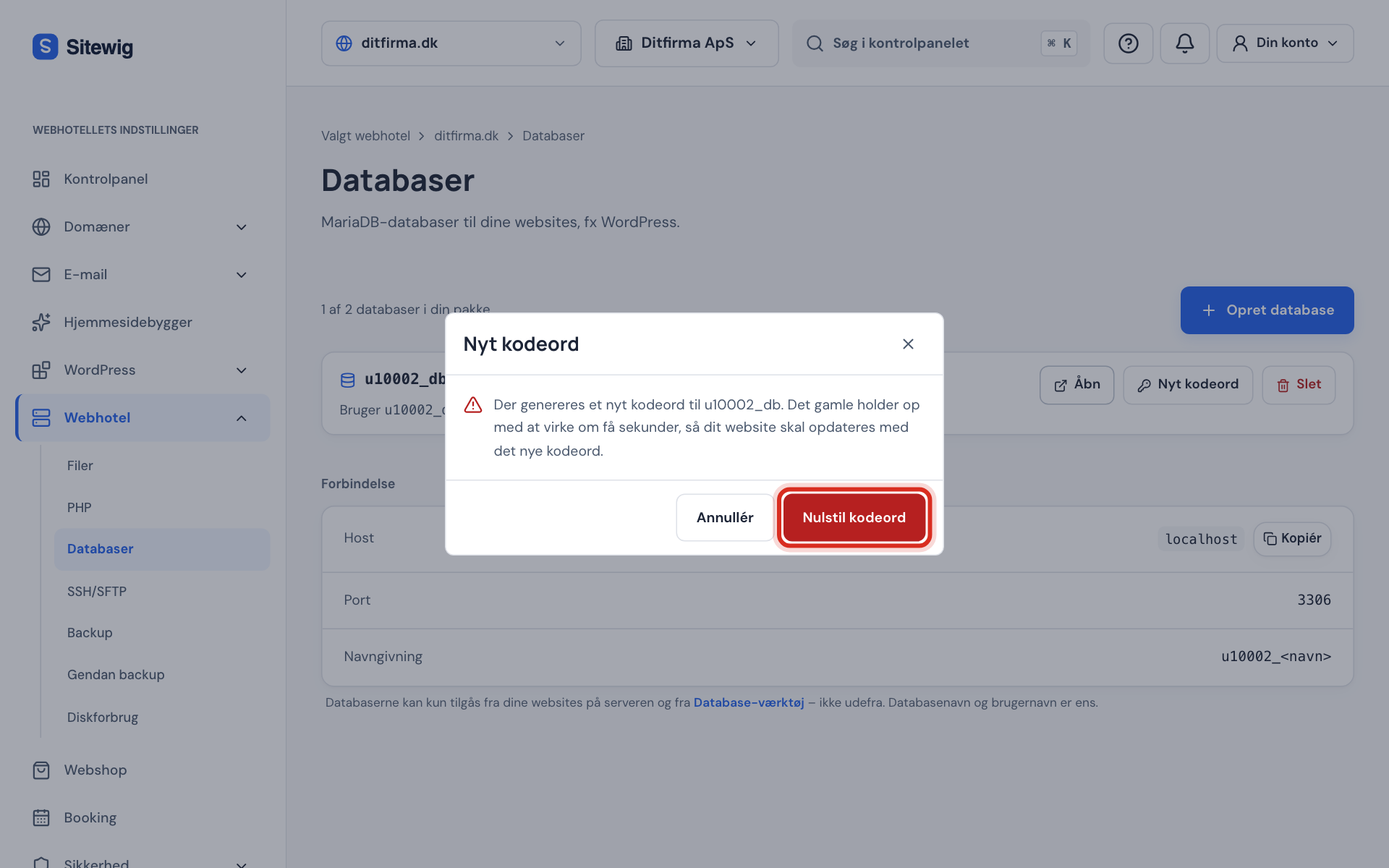
Confirm that a new password should be created Step 4: Copy the new password
The window shows the username and the new password. Copy the password with the copy button, tick I have saved the password and click Close.
Step 5: Update your website straight away
Open
wp-config.phpwith the File manager or SFTP and replace the value inDB_PASSWORDwith the new password. If you use another program or your own script, change the password in its configuration file. Save the file.Step 6: Check that the website works
Reload your website. If you still get a database error, check that no extra space or quotation mark came along when you pasted in the password.
The line in wp-config.php
- DB_PASSWORD
- The new password in single quotation marks, e.g.
define('DB_PASSWORD', 'new-password');
Frequently asked questions
Can support tell me the old password?
No. The password can't be retrieved, not even by us. The only way is to create a new one.
Can I choose the password myself?
No. Sitewig always generates a long, random password so that the database is well protected. Save it in your password manager.
Does the new password change anything in the database itself?
No. Your tables and data are unchanged. Only the sign-in to the database gets a new password.
Why is the New password button greyed out?
While a database is being deleted, you can't change it. The button is also greyed out if the web hosting isn't active.