It's a good idea to make a copy of the database before you update WordPress, change theme or edit data directly. At Sitewig you have two options: a manual copy that you download as a file yourself, and the automatic backups we take every day.
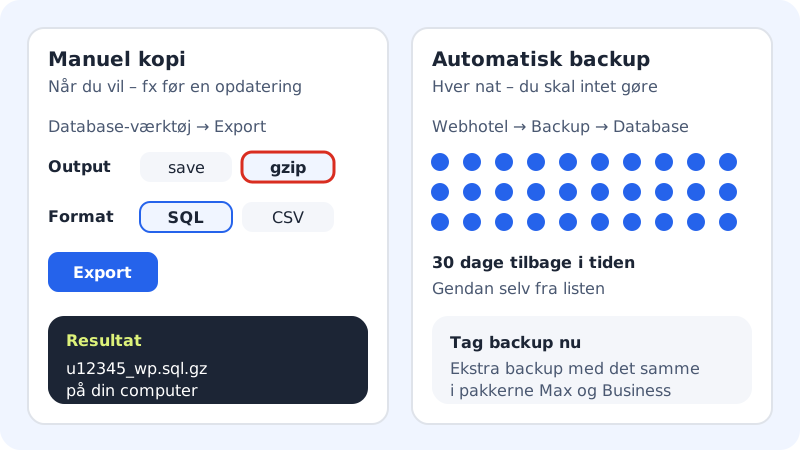
| Comparison | Manual copy (Export) | Automatic backup |
|---|---|---|
| When | Whenever you want | Every day, without you doing anything |
| Where it is kept | On your own computer | With Sitewig for 30 days |
| Can be downloaded as a file | Yes | No – it is restored from the control panel |
| Best for | Before a big change, or when you're moving | When something has gone wrong and you want to go back |
Download a copy as a file
Step 1: Open Database tool
Go to Database tool (shortcut on the front page of the control panel), click Open next to the database, enter the password and click Login.
Step 2: Choose Export
Click Export in the menu. All tables are selected in advance.
Step 3: Choose format and compression
Set Output to gzip and Format to SQL. That gives you a single compressed file that is easy to store and quick to import again.
Step 4: Start the export
Click Export. The browser saves a file such as
u12345_wp.sql.gzin your downloads folder.Step 5: Keep the file somewhere safe
Store the file somewhere outside the web hosting, e.g. in your own cloud storage. The file contains all the data from your website, including users and orders, so don't share it with others.
Use the automatic backups
Every day Sitewig takes a backup of your files and databases and keeps it for 30 days. You'll find them under Web hosting → Backup on the Database tab. The list shows the time and contents of each backup, and with Restore you can put an older version back yourself – see Restore a database from a backup.
Frequently asked questions
Can I download one of the automatic backups?
Not from the control panel. The automatic backups are meant to be restored with Restore. If you want a file on your own computer, use Export in Database tool.
How often should I export myself?
Before every major change, e.g. updating WordPress, changing theme or importing data. For day-to-day protection, the automatic backups have you covered.
My export is very large. Is that a problem?
No, but compress it with gzip, so that both the download and a later import are quicker. If the file needs to be imported again, it can be at most 128 MB per upload.
Can I export to Excel?
Yes. Choose CSV as the format instead of SQL and open the file in a spreadsheet. For backups, always use SQL.