Sitewig's online shop takes payments through Stripe. You create your own Stripe account directly from the control panel, and the money goes to that account, not through Sitewig. Sitewig charges 0% commission; you only pay Stripe's own fee per payment.
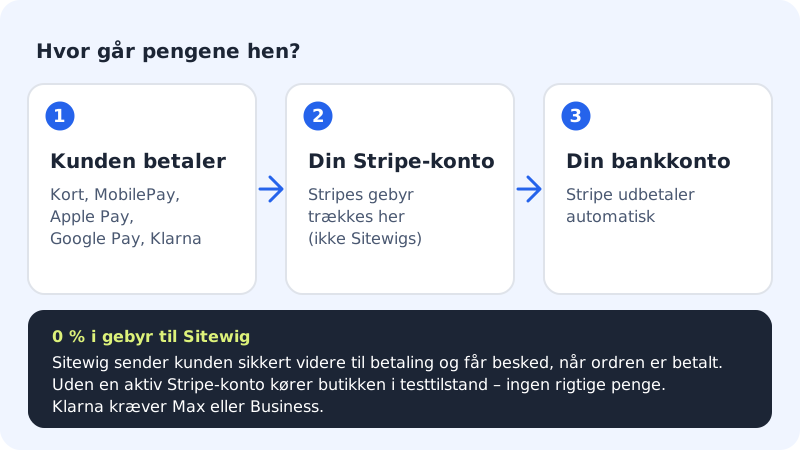
Payment methods in your plan
| Plan | Payment methods |
|---|---|
| Pro | Card, Apple Pay, Google Pay, MobilePay and manual payment |
| Business | As Pro + Klarna and Stripe's other methods |
| Max | As Business + invoice for business customers (B2B) |
The card on the page is called Card, MobilePay and Klarna (Stripe) when your plan includes Klarna, and otherwise Card and MobilePay (Stripe).
Connect Stripe
Step 1: Open Payments & VAT
Go to Online shop → Payments & VAT. The status at the top is Not connected.
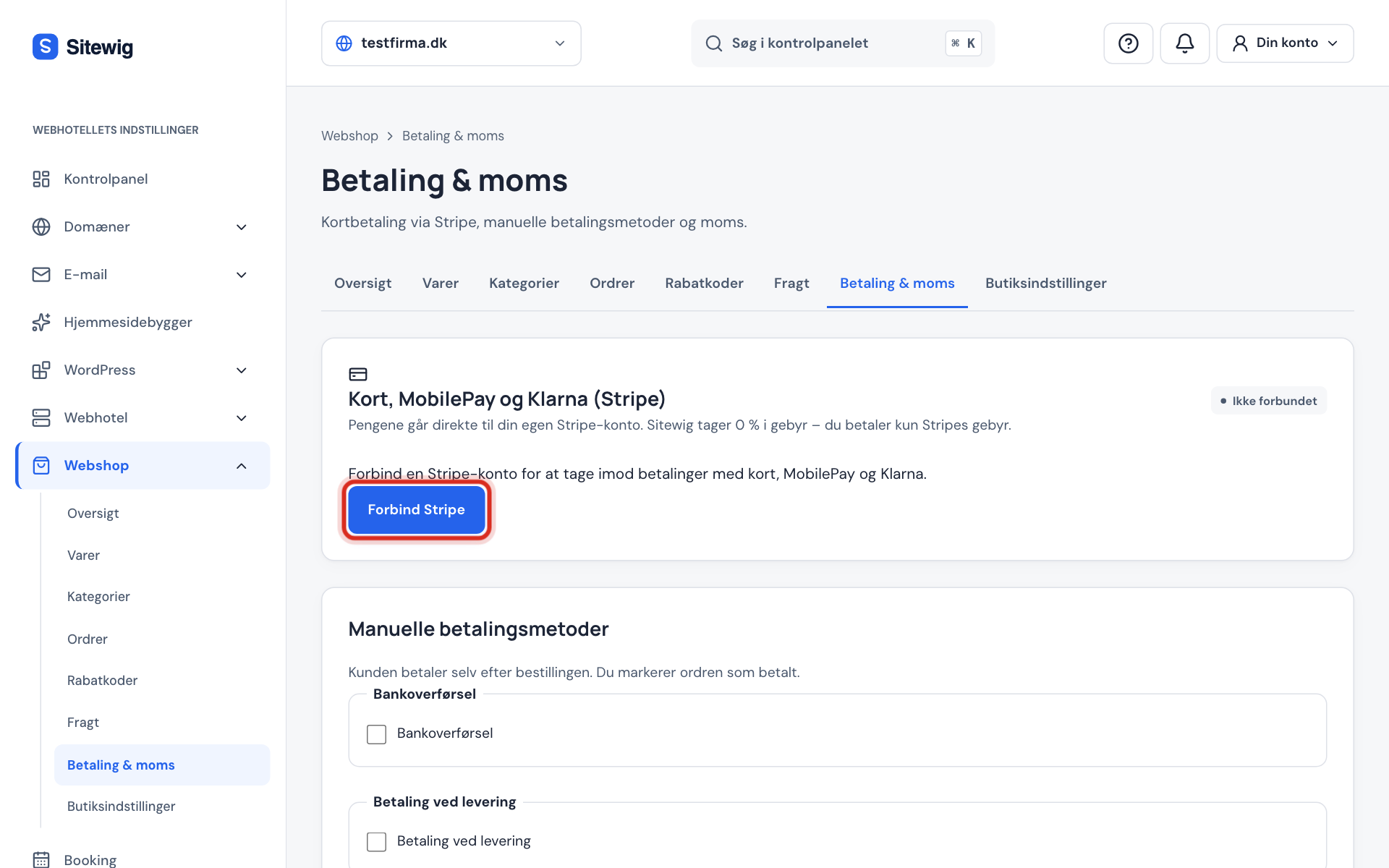
Step 2: Click Connect Stripe
Click Connect Stripe. You're sent securely on to Stripe's own page.
Step 3: Fill in your details with Stripe
Stripe asks about your business, you as the owner and the bank account the money should be paid out to. Have your company number, your ID and your account number ready. The details are stored with Stripe. Sitewig doesn't see them.
Step 4: Return to Sitewig
When you've finished, Stripe sends you back to Payments & VAT, where it says Welcome back – we've updated the status from Stripe. If the status hasn't changed, click Refresh status.
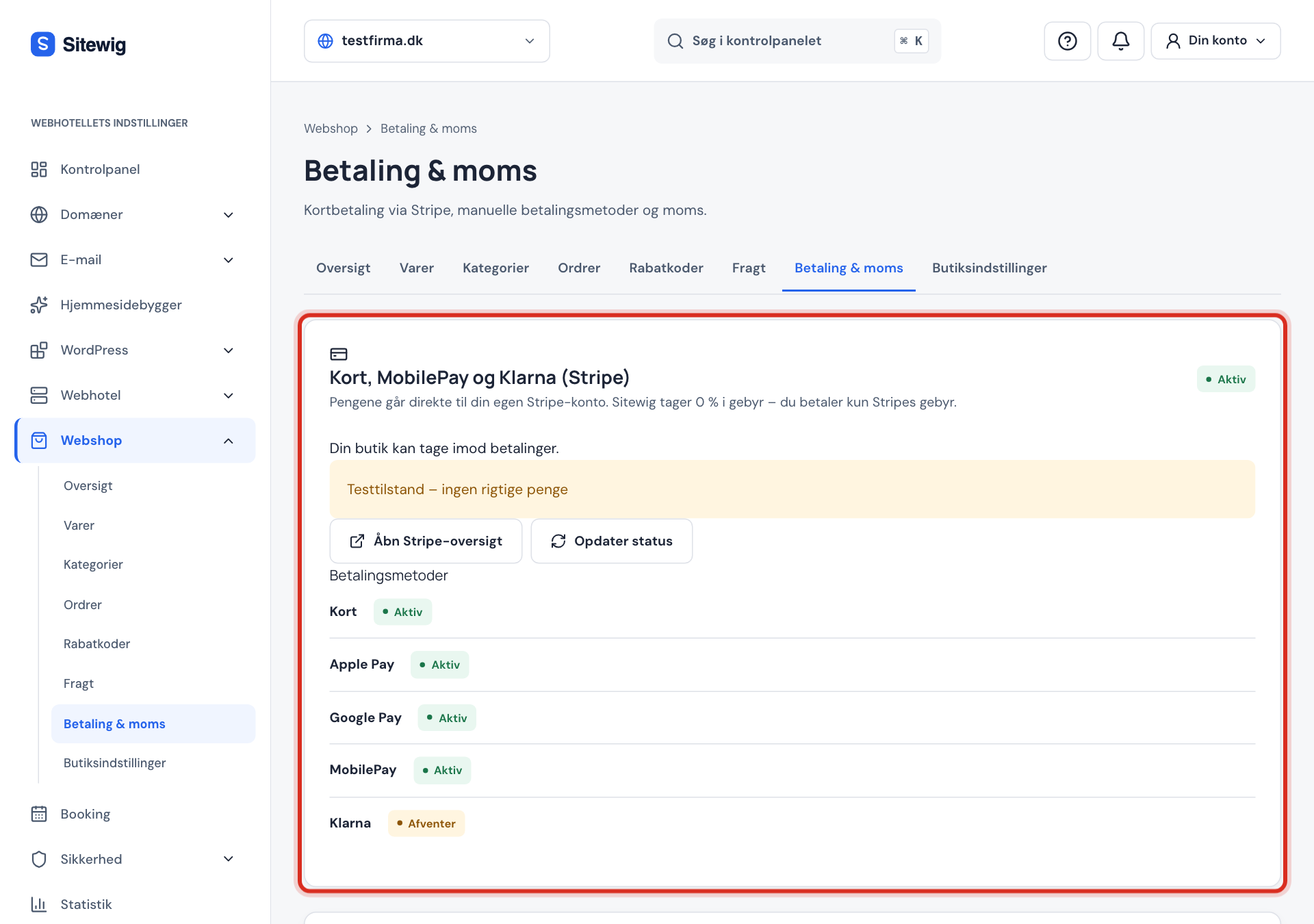
Step 5: Check the payment methods
Under Payment methods you see Card, Apple Pay, Google Pay, MobilePay and Klarna with the status Active, Pending, Not active or Not available. When card payment shows as Active, customers can pay.
What does the status mean?
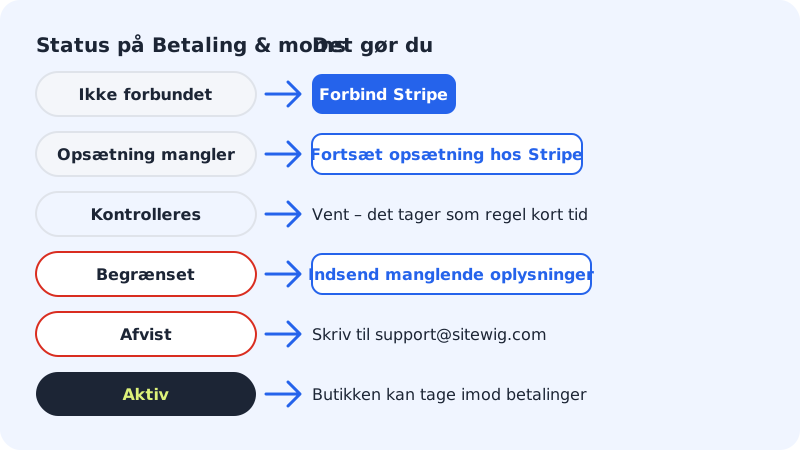
| Status | Means | What you do |
|---|---|---|
| Not connected | There's no Stripe account yet | Click Connect Stripe |
| Setup incomplete | You haven't finished with Stripe | Click Continue setup with Stripe |
| Under review | Stripe is checking your details | Wait – it usually doesn't take long |
| Restricted | Stripe needs more information; payments or payouts are paused | Click Submit missing information before the deadline |
| Rejected | Stripe has rejected the account | Write to support@sitewig.com and we'll help |
| Active | The shop can take payments | Nothing – you're ready |
See payouts and fees
Click Open Stripe overview on Payments & VAT. Here you see your payouts, fees and account details with Stripe. The button appears once you've sent your details to Stripe.
PayPal via Stripe
If the feature is switched on, you'll find the PayPal card under Payments & VAT. Click Turn on PayPal. Once Stripe has approved it, PayPal appears at checkout and in the shop footer. PayPal payments can be refunded from the order for up to 180 days after purchase.
Frequently asked questions
What does it cost to accept card and MobilePay?
Sitewig charges 0% commission. You only pay Stripe's fee per payment, which you can see in your Stripe overview. Sitewig adds no extra set-up fees.
When do I get the money?
Stripe pays out automatically to the bank account you've provided. You can see and change how often and when in the Stripe overview.
Can I use a Stripe account I already have?
The online shop creates its own linked Stripe account for the shop when you click Connect Stripe. You sign in and fill in the details with Stripe.
Why does Klarna say Not available?
Typically because Klarna requires Business or Max. If you have Pro, customers can pay with card, Apple Pay, Google Pay and MobilePay. If you have Business, Stripe may still need to activate Klarna – check the Stripe overview.
Can I accept payment without Stripe?
Yes, with manual methods such as bank transfer or payment on delivery. See Bank transfer, payment on delivery and reserving a card amount.