All products are created under Online shop → Products. Here you can create one product at a time or import many from a CSV file. A new product is visible in the shop straight away once you've ticked Visible in the shop, but customers can only buy it once the shop is open.
Create a product
Step 1: Open Products
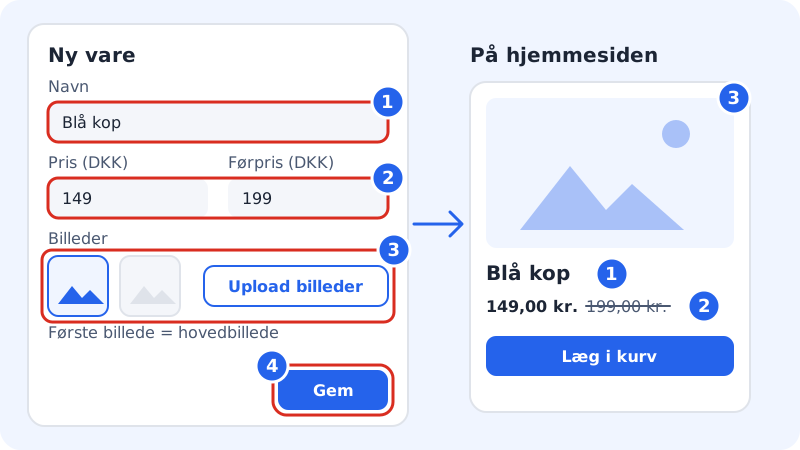
Go to Online shop → Products and click New product. The New product drawer opens on the right.
Step 2: Enter a name and choose a product type
Fill in Name and choose the Product type:
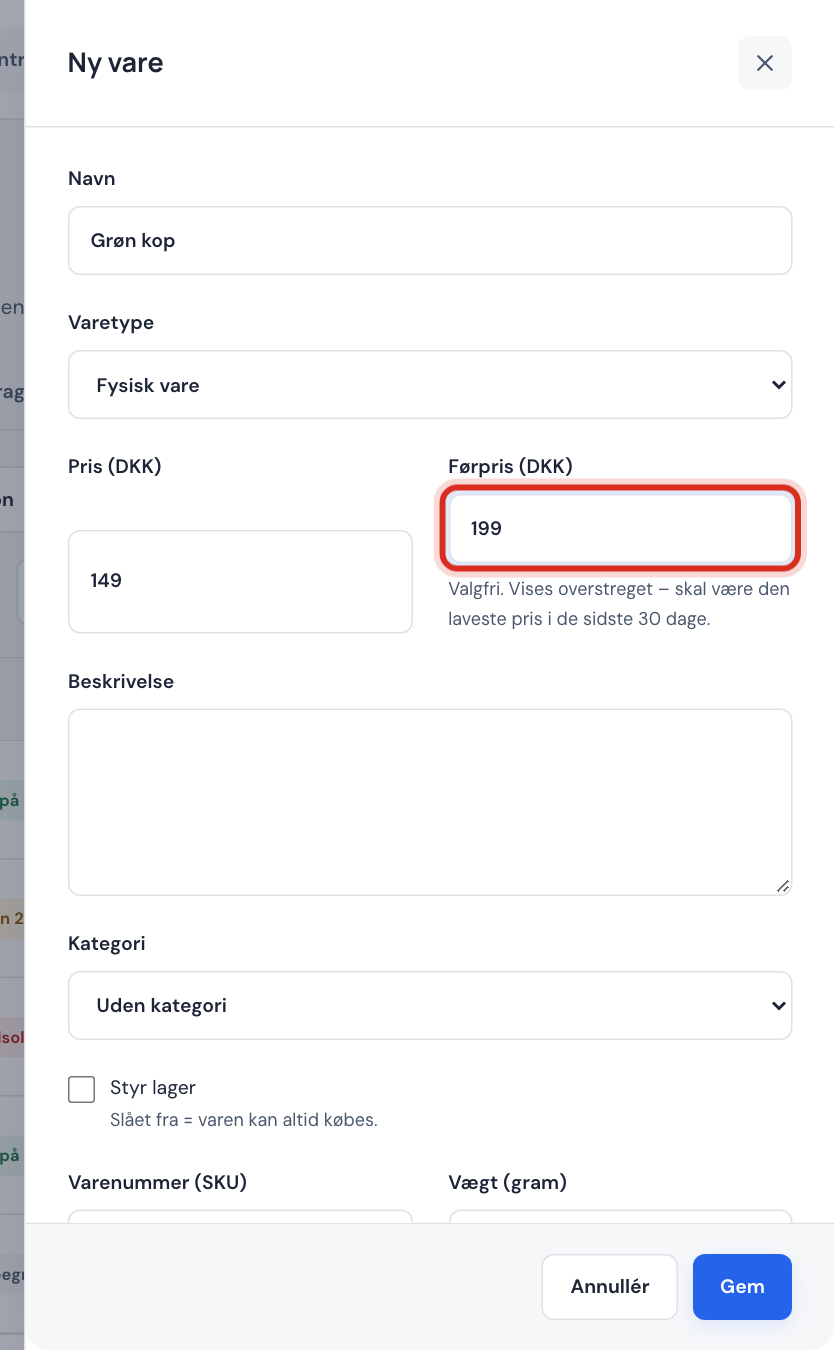
- Physical product – something you ship or the customer collects.
- Digital product (download) – a file the customer downloads after purchase. See Sell digital products.
- Gift card – Business and Max only. See Sell and redeem gift cards.
Step 3: Set the price and, if you like, a previous price
Enter the price in Price, e.g.
149or149.95. If you want to show the product as reduced, enter the earlier price in Previous price. The previous price is shown crossed out next to the price and must be higher than the price.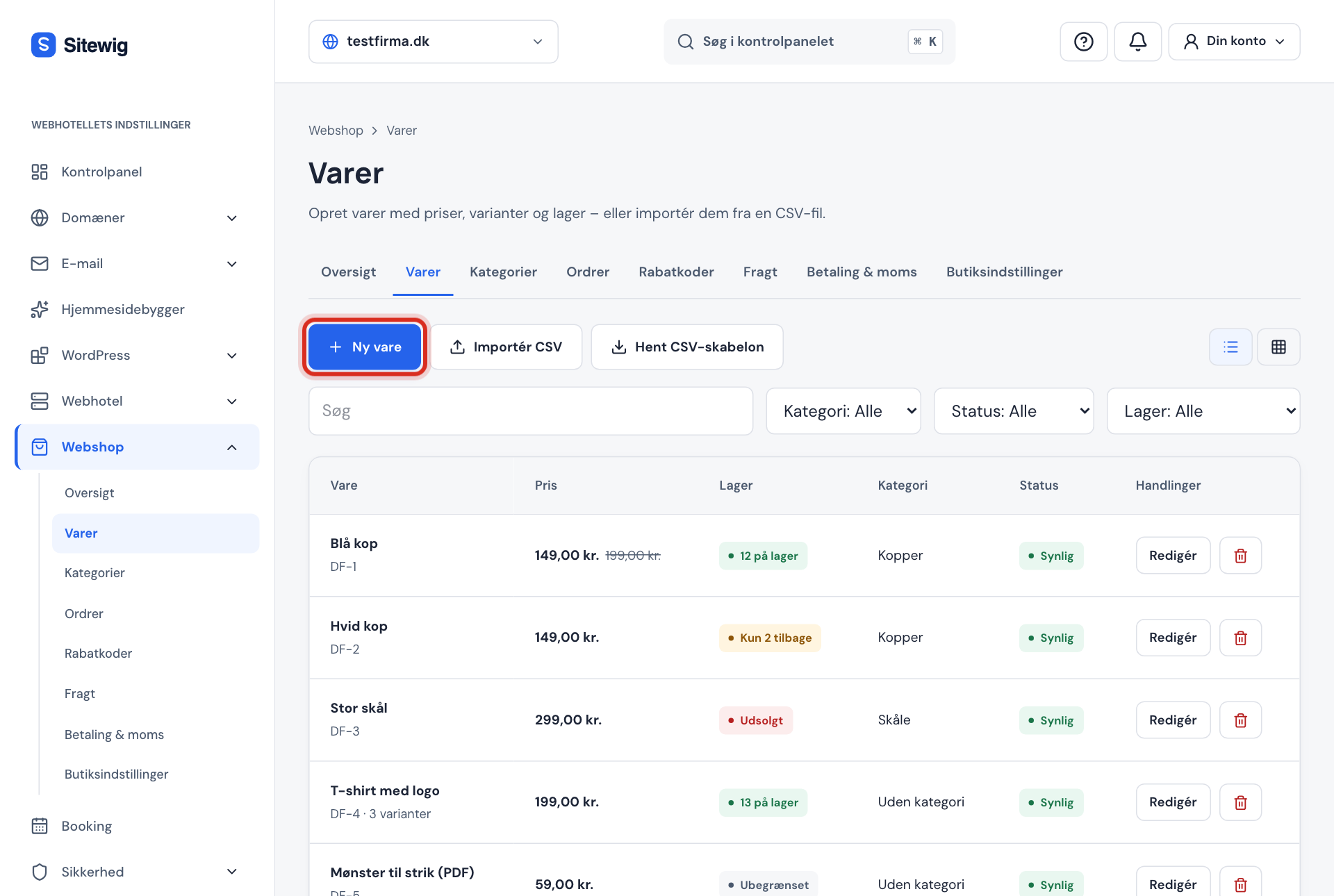
Step 4: Write a description
Briefly say what the product is, what it's made of and what the customer gets. The text in Description appears on the product's page.
Step 5: Add images
Click Upload images and choose images from your computer or phone. You can also paste a link that starts with
https://. The first image is the main image – use the arrows to change the order. You can have up to 20 images per product (JPG, PNG, WebP, GIF or AVIF, 5 MB each at most).Step 6: Choose a category, stock and VAT
Choose a Category if you've created any. Tick Track stock and enter Quantity in stock if you have a limited number. SKU and Weight (grams) are optional, but the weight must be filled in if you use shipping by weight. Leave VAT (%) empty to use the shop's standard VAT.
Step 7: Make the product visible and save
Tick Visible in the shop. If you want to highlight the product, also tick Featured. Click Save. The message The product has been created confirms that it's saved.
Previous price: the 30-day rule
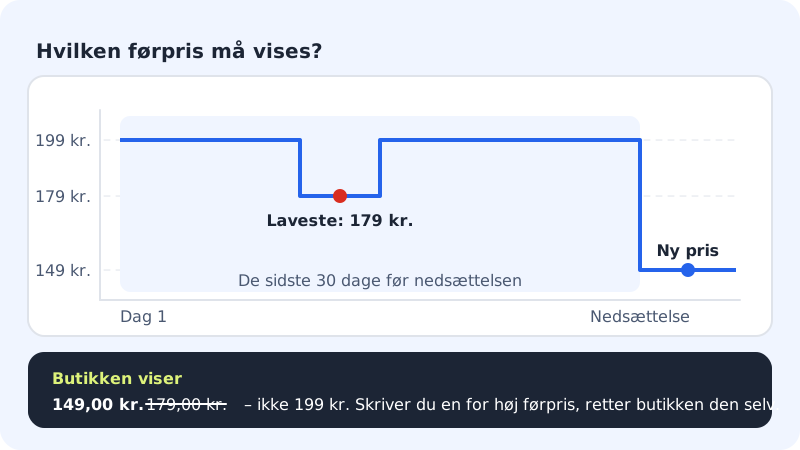
Under the Danish Marketing Practices Act, the crossed-out previous price may be no higher than the lowest price the product had in the 30 days before the reduction. Sitewig keeps an eye on the price history itself:
- If you enter a previous price that is higher than the lowest price in the period, the shop automatically shows the lawful price instead. You see a warning in the form.
- If the price hasn't been higher in the last 30 days, the previous price isn't shown at all yet.
Import many products from a CSV file
If you already have your products in a spreadsheet or another online shop, you can import them in one go.
Step 1: Download the template
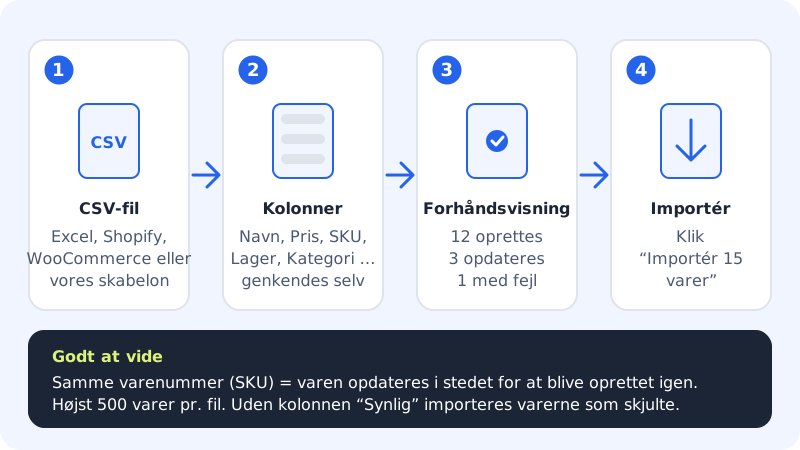
Go to Online shop → Products and click Download CSV template. Fill it in using Excel, Numbers or Google Sheets. You can also use an export file from Shopify or WooCommerce directly.
Step 2: Choose the file
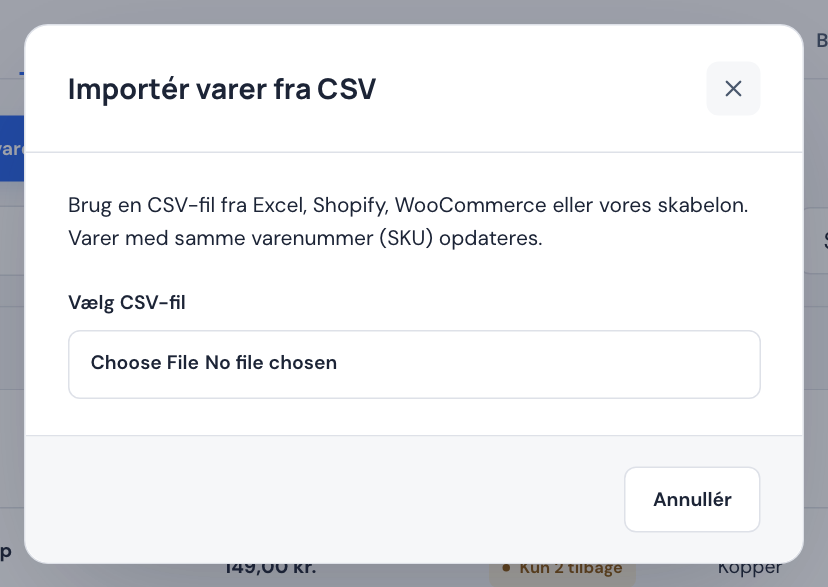
Click Import CSV and then Choose CSV file. The file must have at least the columns for name and price.
Step 3: Check the preview
Sitewig shows which columns have been recognised and how many products will be created, updated or have errors, e.g. 12 created · 3 updated · 1 with errors. Errors are shown with a line number so you can fix them in the file.
Step 4: Run the import
Click Import. The button shows how many products will be imported. When the import is finished, you see how many succeeded.
Find and edit your products
Under Products you can switch between Grid and List and filter by Category, Status (Visible, Hidden or Reduced) and Stock. Click the product in the grid, or Edit in the list, to open Edit product.
Frequently asked questions
How do I hide a product without deleting it?
Open the product and untick Visible in the shop. Click Save. Hidden products can't be bought, but they keep their stock and images.
Why isn't my previous price showing?
The previous price is only shown when the product has had a higher price within the last 30 days. If you've just created the product, or the price has been the same all along, the shop isn't allowed to show it as reduced yet.
Can I copy a product?
Yes. Click Duplicate on the product, and you get a draft with the same details and variants. If you need to edit many products at once, you can use bulk editing in the spreadsheet view or import products with CSV.
Can I write ALT text for the images?
Yes. Each product image can have its own ALT text, which is shown on the website and the product page.