Error 500 means the server ran into trouble while building the page. The cause is almost always a change: a new PHP version, an updated plugin or theme, or an edit to a PHP file. Find the change and undo it. Work through the steps from the bottom of the ladder up – most faults are fixed after the first three.
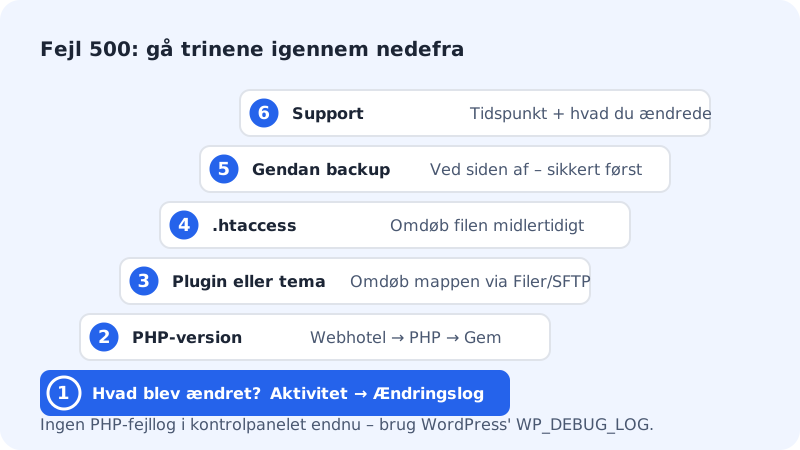
Step 1: Find out what was changed
Go to Security → Activity log. The Change log tab shows the latest changes on the whole account (all hostings), e.g. a change of PHP version, with the time and who made it. Choose Web hosting under Area to see only the hostings' changes, and Show more for older ones. Compare with when the error started.
Step 2: Switch the PHP version back
If someone changed the PHP version just before the error, go to Web hosting → PHP, choose the previous version under PHP version and press Save. You can choose between 8.2, 8.3 and 8.4.
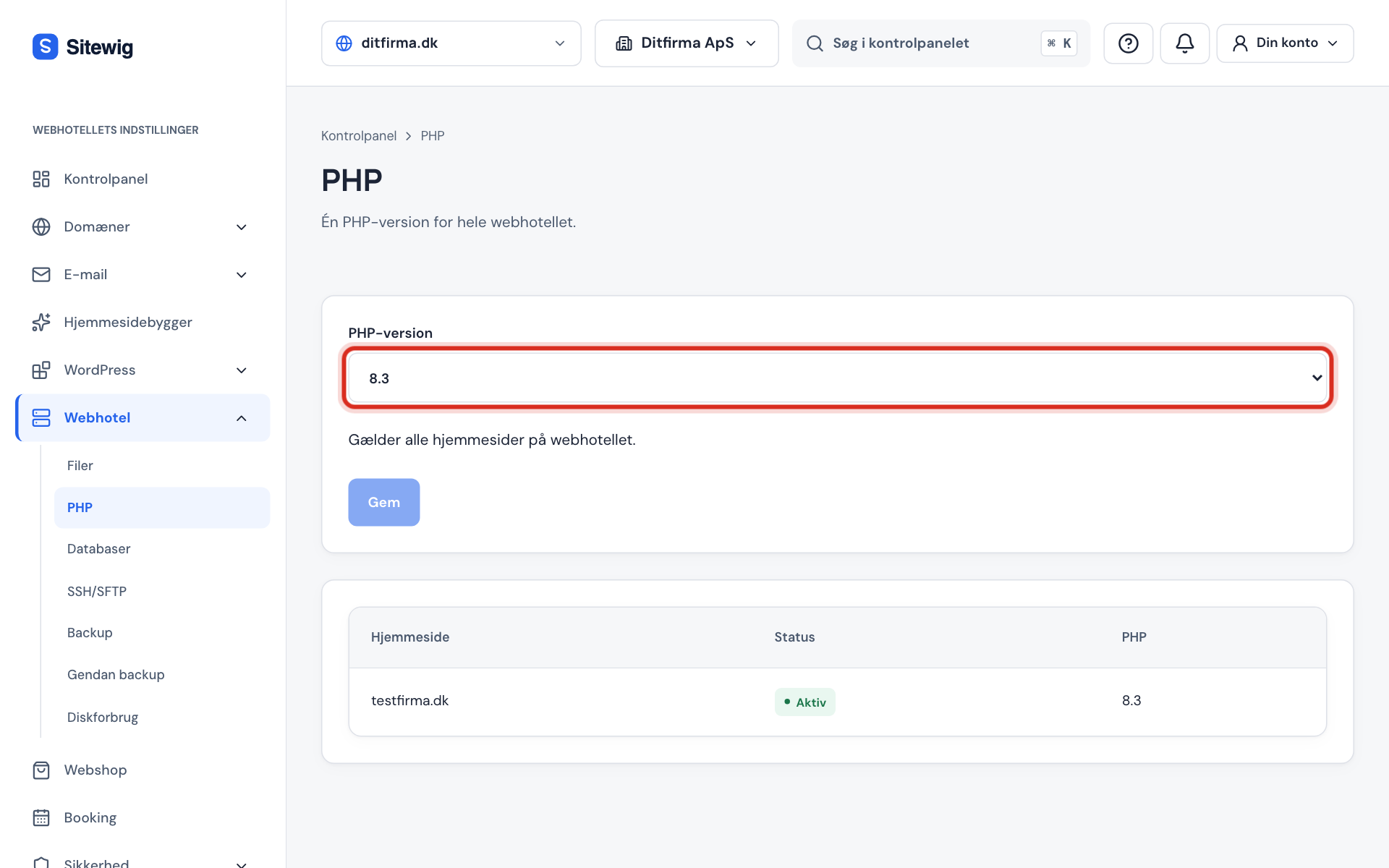
One PHP version applies to the whole hosting Step 3: Turn off plugins or theme
If you use WordPress, open the files via Web hosting → Files or SFTP and rename the folder
public/wp-content/pluginsto e.g.plugins-slaaet-fra. If the site works now, it's a plugin. Give the folder its name back and rename one plugin at a time until you find the culprit. If that didn't help, do the same with the folder for your theme underwp-content/themes. The full walkthrough is in WordPress shows a white screen or error 500.Step 4: Read the error log
The cause is usually in the log. Open the
logsfolder in your home folder with Web hosting → Files or your SFTP program.logs/php/error.logshows errors from PHP, andlogs/<website>.error.log(e.g.main.error.log) shows errors from the web server. The bottom line is the newest.Step 5: Restore from backup
Go to Web hosting → Backup. We take daily backups and keep them for 30 days. Choose the Web hosting, Database or Website tab and press Restore next to a backup from before the error.
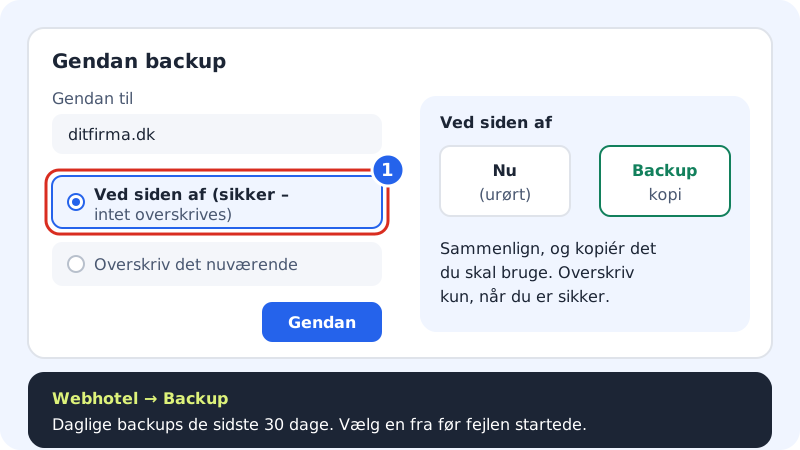
Restore alongside first, so you don't overwrite anything Choose Alongside (safe – nothing is overwritten) so you can compare without losing anything. If you're sure the backup is the right one, you can afterwards choose Overwrite the current one.
Step 6: Contact support
Write to support and write the time the error started and what was changed. If the whole site is down, say so in the subject line.
What the control panel can't do (yet)
The control panel doesn't show PHP's error log yet – it's a file in the logs folder (see the step Read the error log). If you use WordPress, you can also have the error written to a file with WP_DEBUG_LOG; see the step See the error message itself in WordPress shows a white screen or error 500.
Frequently asked questions
Which PHP version should I choose?
The newest one your website supports. First update WordPress, plugins and theme, then switch to 8.3 or 8.4. If errors appear, switch back.
Can I have different PHP versions for different websites?
Not at present. One PHP version applies to the whole hosting. PHP version per website is in development.
The error comes and goes. What does that mean?
It could be a heavy page, a plugin running out of memory, or lots of visitors at once. Note the times and send them to support, and we can see what happened on the server.