If your website shows 403 Forbidden or 404 Not Found, it's almost always down to one of four things: the front page is in the wrong place, the file name doesn't match, the file permissions are too strict, or the domain isn't connected to the website you've uploaded to.
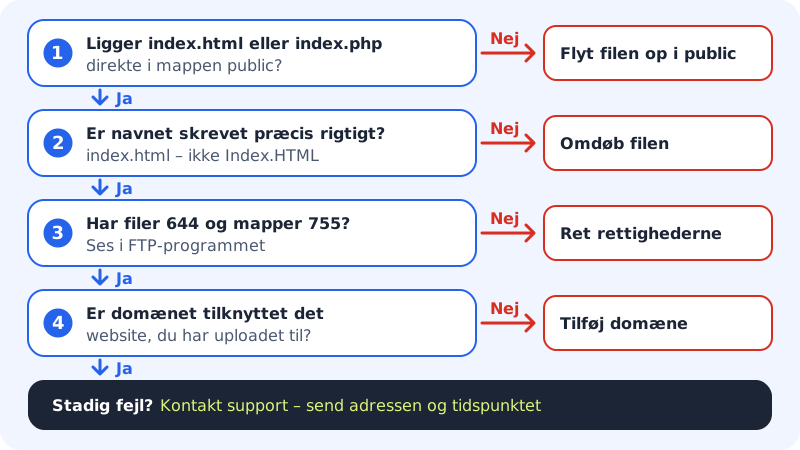
Find the error step by step
Step 1: Check the front page
index.php,index.htmlorindex.htmmust be directly insites/<name>/public. If it's in a subfolder, an error is shown on the front page. See the folder structure.Step 2: Check the file name
The web server is case-sensitive.
Index.HTMLandindex.htmlare two different files, and links toImages/logo.pngwon't work if the folder is calledimages.Step 3: Check the file permissions
Right-click the file in your FTP program and choose, for example, File permissions (in FileZilla). Use
644for files and755for folders. If a file is set to600, the web server can't read it, and the page shows 403.Step 4: Check the domain
Go to WordPress → Overview and open the website. Your domain should be listed under Domains. If it's missing, click Add domain.
Recommended file permissions
- Files (html, php, css, images)
644- Folders
755- Configuration files with passwords, such as wp-config.php
640or600
PHP runs as your own user, so PHP files set to 600 still work. Images, CSS and other files that the web server sends directly to the visitor must be readable by everyone (644).
Hidden files and .htaccess
Files and folders whose names start with a dot are hidden. The web server never shows them to visitors: an address such as yourcompany.com/.env always gives 404. This protects .env, .git and configuration files, for example.
Here's what you can do instead:
- Pretty addresses (permalinks) in WordPress and other PHP systems work automatically. All addresses that aren't a file or folder are sent to
index.php. - The whole domain should forward to another address: use domain forwarding.
- Individual pages should be redirected on a PHP site: set up the redirect in the PHP code or with a plugin, such as a redirect plugin in WordPress.
- You need special rules: contact us and tell us what you want to achieve.
Can I see hidden files in my FTP program?
Yes. In FileZilla, choose Server → Force showing hidden files. Cyberduck and WinSCP have a similar setting under the view options. The files are still there, even though they can't be opened in a browser.
Find the error in the log
If a PHP page shows a white page or the 500 error, the cause is usually in the log. Open the logs folder in your home folder with your FTP program or the file manager:
logs/php/error.log: errors from PHP.logs/<website>.error.log: errors from the web server, such asmain.error.log.
If you can't find the cause, contact us and send the address of the page, the error and the time it happened.