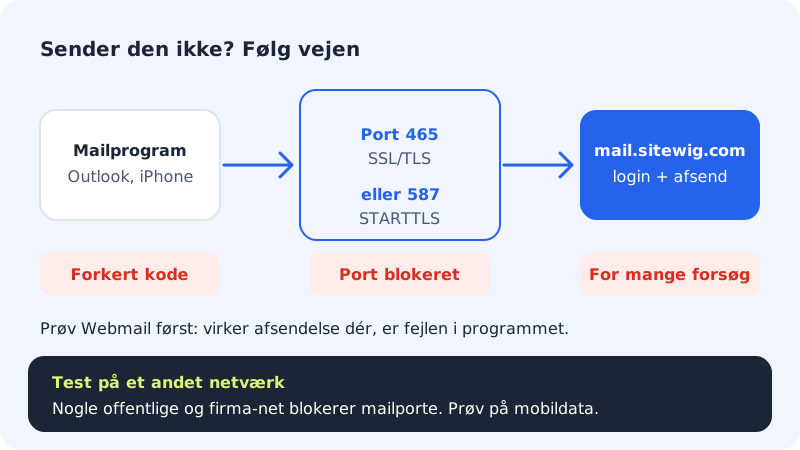
If you can receive but not send, the fault is almost always in the settings for the outgoing server (SMTP). If you can neither send nor receive, it's typically the password. Start by testing in Webmail, so you know straight away whether the fault is in the account or in your program.
Outgoing server (SMTP)
- Server
mail.sitewig.com- Port
465with SSL/TLS, or587with STARTTLS- Authentication
- Yes, the same username and password as incoming
- Username
- Your full email address, e.g.
kontakt@ditfirma.dk
Find the fault
Step 1: Test in Webmail
Open Webmail (opens in a new window) and sign in with your full email address and password. If you can send from there, the account works and the fault is in your email program. If you can't sign in, the password is wrong – change it under Email → Mailboxes with Change password.
Step 2: Compare with Account settings
Go to Email → Mailboxes and find the Account settings card. It shows the values your program needs.
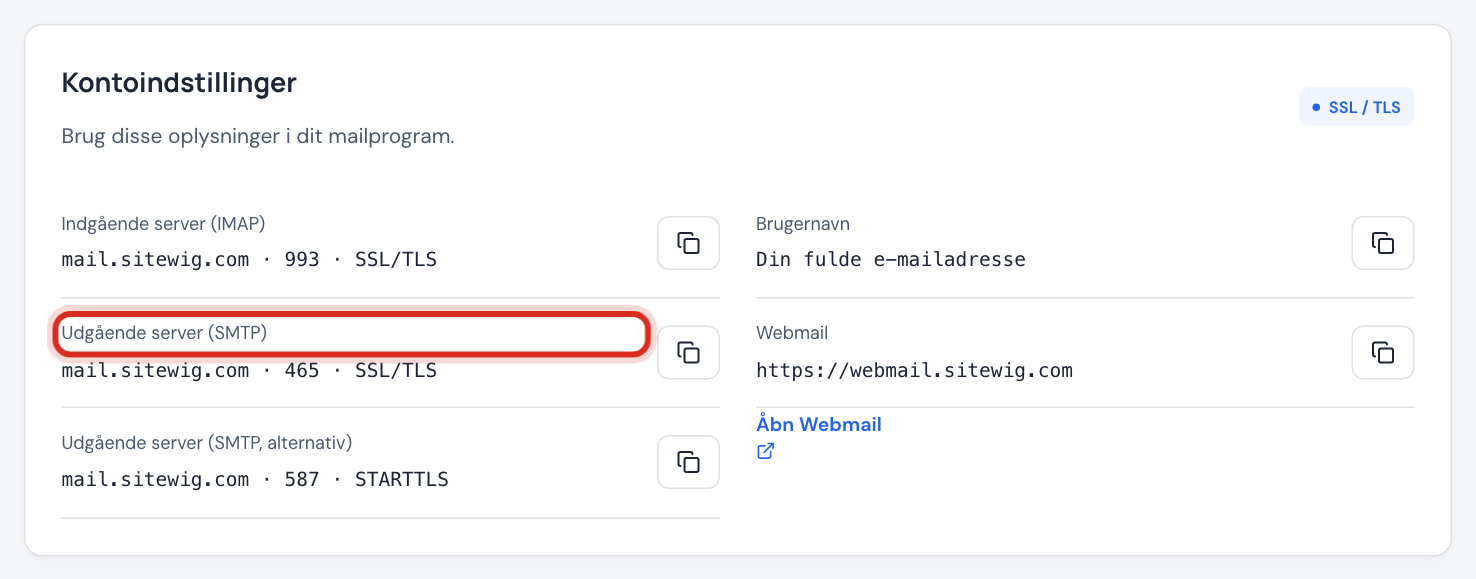
Use exactly these values in your email program 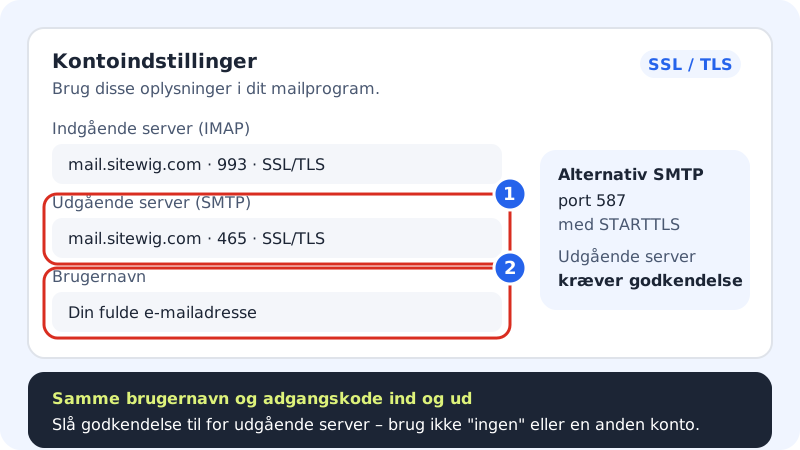
What matters most for sending: server, port and authentication Step 3: Turn on authentication for the outgoing server
Many programs have a setting called something like Outgoing server requires authentication. It must be turned on, using the same username and password as for incoming mail. Don't choose no authentication.
Step 4: Check the port and encryption
The port and encryption must match:
465with SSL/TLS or587with STARTTLS. Port25is only used between mail servers and doesn't work from your program.Step 5: Have you changed your password recently?
Then the new password must be entered on all devices: phone, computer and tablet. A device with the old password keeps trying and can make the server temporarily block further attempts. Correct the password everywhere and wait a little before you try again.
Step 6: Try another network
Some public networks, hotels and company networks block mail ports. Try sending over mobile data. If that works, use port 587 or speak to the network's owner.
If it still doesn't work
Write down the error message exactly as it appears and take a screenshot of your settings (hide the password). Write to support with the name of your email program and your email address.
Frequently asked questions
The program keeps asking for my password. Why?
The password doesn't match, or the username isn't the full email address. Enter both username and password again, including for the outgoing server.
Emails are stuck in the outbox. What do I do?
Check that the port and encryption match and that authentication is turned on. If the attachment is very large, try without it, or share the file via a link.
It says something about a certificate when I send. What does that mean?
Then the program is using a server name that doesn't match the certificate. Use mail.sitewig.com as the server name. See Certificate errors in the email program.