The password for a mailbox is separate from the password for the control panel. If someone has forgotten it, the owner of the Sitewig account creates a new one in the control panel. There is no Forgot password link for the individual mailbox.
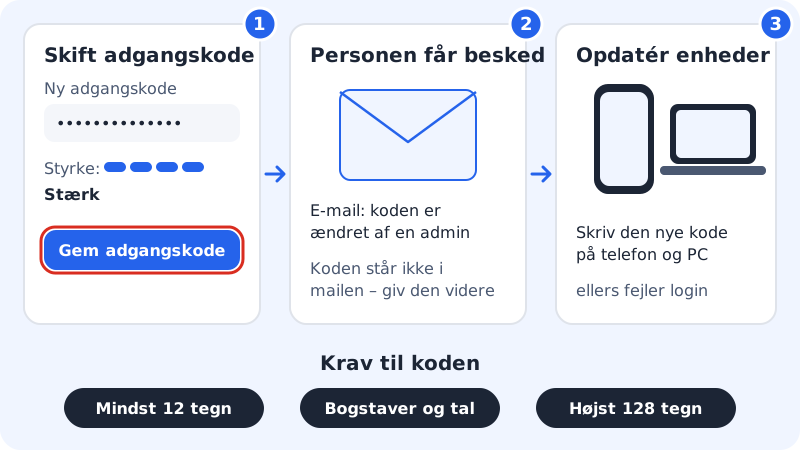
Create a new password in the control panel
Step 1: Open Email → Mailboxes
Log in to the control panel, choose the domain, and go to Email → Mailboxes.
Step 2: Click Change password
Find the address in the Your email accounts list, and click Change password in the Settings column. You can also find it in the account's menu (the three dots).
Step 3: Enter or suggest a password
Enter the password in New password and again in Repeat password – or click Suggest password, and both fields are filled with a strong password. The eye button shows the password. The strength meter shows Weak, Fair, Good or Strong.
Step 4: Save the password
Click Save password. Copy the password before you close the window, and pass it on in a secure way.
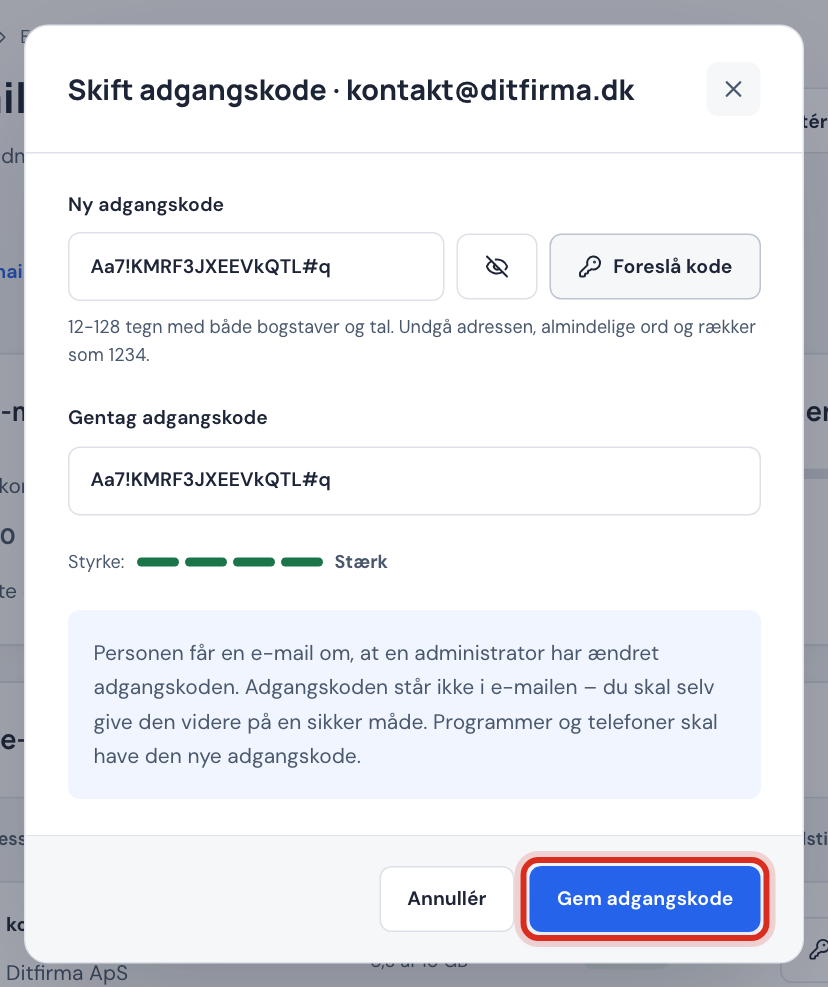
What happens afterwards
- The person who uses the mailbox gets an email saying that an administrator has changed the password. The password itself is not in the email – you must pass it on yourself.
- The old password stops working. Phones and email programs that use the old password cannot fetch or send email until the new password has been entered.
Update the password on your devices
- iPhone/iPad: Settings → (Apps →) Mail → Mail Accounts → choose the account, and enter the new password for both the incoming and outgoing server.
- Android (the Gmail app): The app usually asks for the new password itself the next time it fetches email.
- Outlook and Apple Mail: The program asks for the password when the old one is rejected. Enter the new one, and save it.
Change your own password in Webmail
If you know the current password and just want a new one, you can change it yourself in Webmail without going through the control panel. For security reasons, there is a limit on how many attempts can be made in a row.
Frequently asked questions
Can I see the old password in the control panel?
No. Passwords are not stored in a way that allows them to be shown. You can only create a new one.
Is the mailbox password the same as my control panel password?
No. The control panel has its own login. The mailbox uses its own password in Webmail and in email programs.
What does "Too many attempts. Wait a moment and try again." mean?
Many changes have been made in a short time. Wait a few minutes, and try again.