Your saved cards are managed in Stripe's secure customer portal, which you open from the control panel. If you update the card well before your next renewal, you avoid a failed payment.
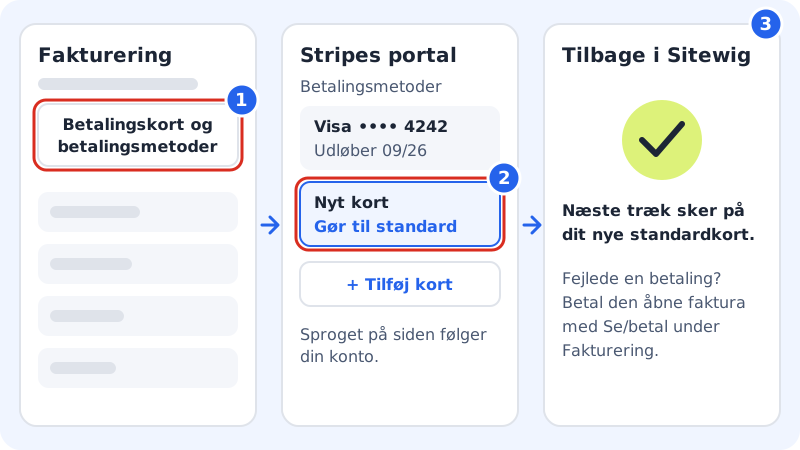
Step 1: Open Billing
Sign in to the control panel and choose Billing in the menu.
Step 2: Tap Payment cards and payment methods
The button is at the top right of the page. You are sent on to Stripe's customer portal.
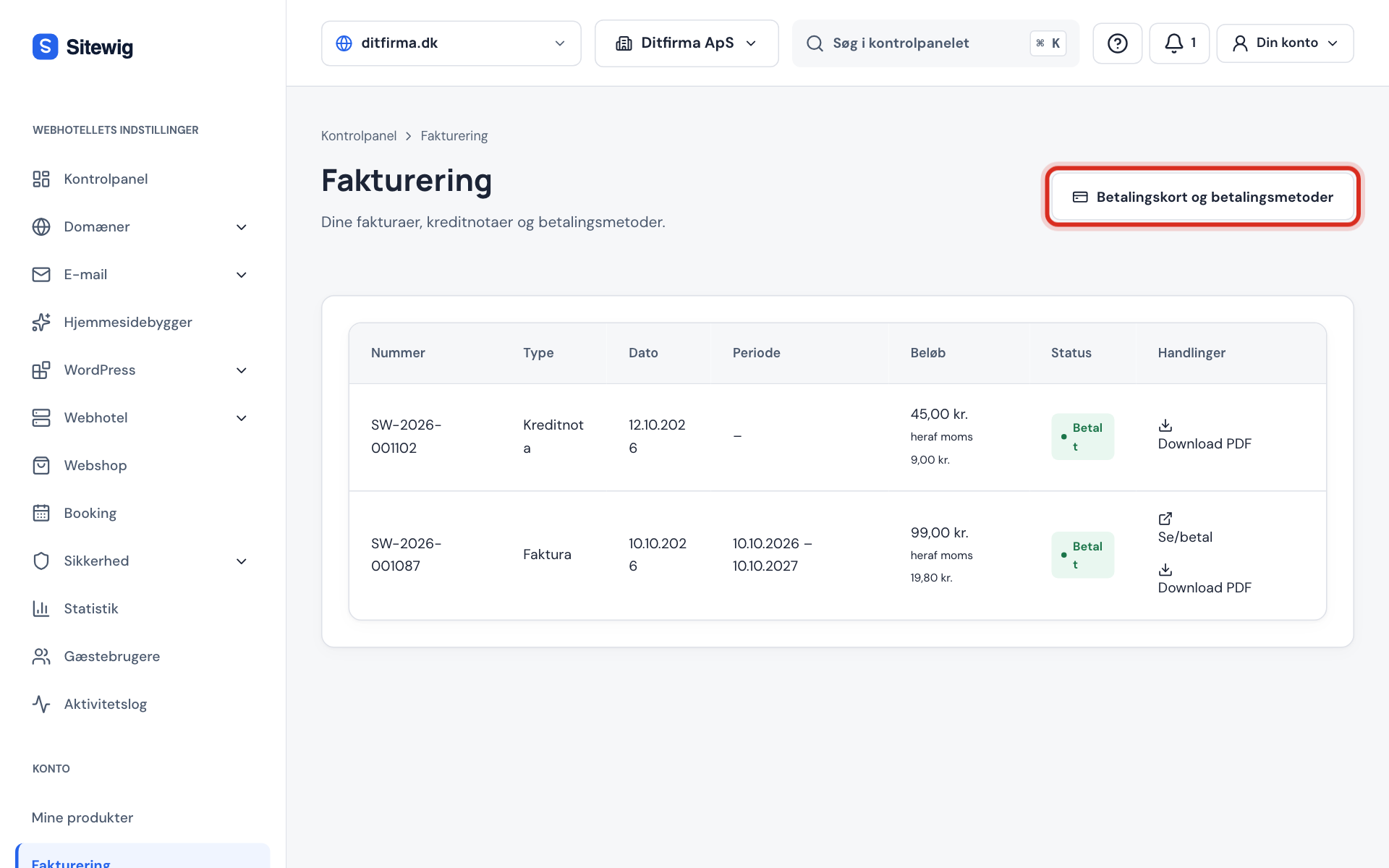
The button opens Stripe's portal, where you manage your cards Step 3: Add the new card
Choose to add a payment method and enter the card details. Your bank may ask you to approve the card in its app.
Step 4: Make the card the default
Set the new card as the default. The default card is the one your subscriptions renew on. If you do not want to keep the old card, you can remove it here.
Step 5: Return to Sitewig
Use the link back to Sitewig in the portal. The change applies immediately and is used for the next charge.
Different cards for different subscriptions
By default, all subscriptions are charged to your default card. You can choose a different card for each subscription on the Payment method per subscription card under My products:
- Choose the card in the list next to the subscription. The Default card option means the subscription follows your default card.
- Tap Save. You get the message Payment method saved.
- You add new cards with the Add or remove cards button, which opens the same portal.
Frequently asked questions
I can't see Billing in the menu. Why?
Your user does not have access to billing on the account. Ask the account owner to give you access to the Billing area or to change the card for you.
Nothing happens when I tap the button. What do I do?
Wait a moment: the portal opens in the same tab. If you see an error, try again in a little while. If it keeps failing, write to support@sitewig.com.
Does Sitewig store my new card number?
No. The card is stored only by Stripe. Sitewig sees at most the card type, the last four digits and the expiry date.