Sitewig sends the emails your customers need by itself – you don't have to write them. Emails are sent in the language of the website, times are shown in your time zone, and the sender is your business.
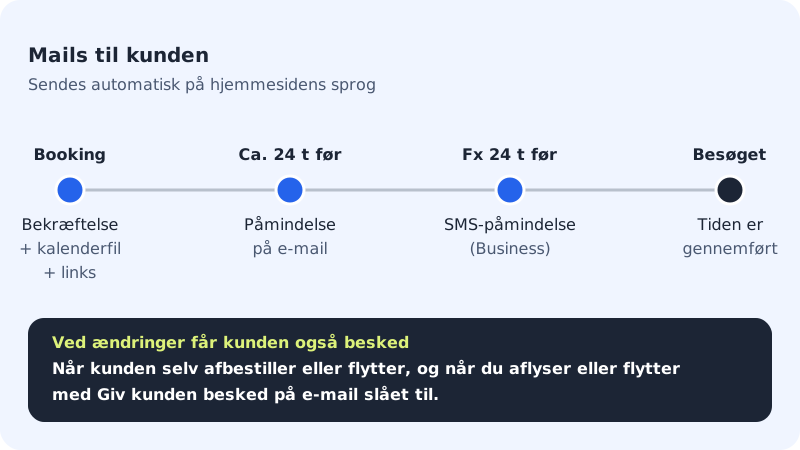
Emails to the customer
| When | |
|---|---|
| Confirmation | When the booking is made, or when you have approved it. With a calendar file (.ics) and links to cancel or reschedule |
| Receipt for request | Only with manual approval: when the customer has booked but you haven't approved yet |
| Reminder | About 24 hours before the appointment |
| Cancelled by the customer | When the customer has cancelled using the link |
| Cancelled by the business | When you cancel with Notify the customer by email turned on |
| Rescheduled | When the customer or you have moved the appointment |
The time of the email reminder is fixed (about a day before) and can't currently be changed in the control panel.
Emails to you
You receive an email when a new booking comes in, and when a customer cancels or reschedules themselves. The emails are sent to the address in Email for bookings under Booking → Settings. If the field is empty, you won't receive any emails, so check that the address is correct.
SMS reminders
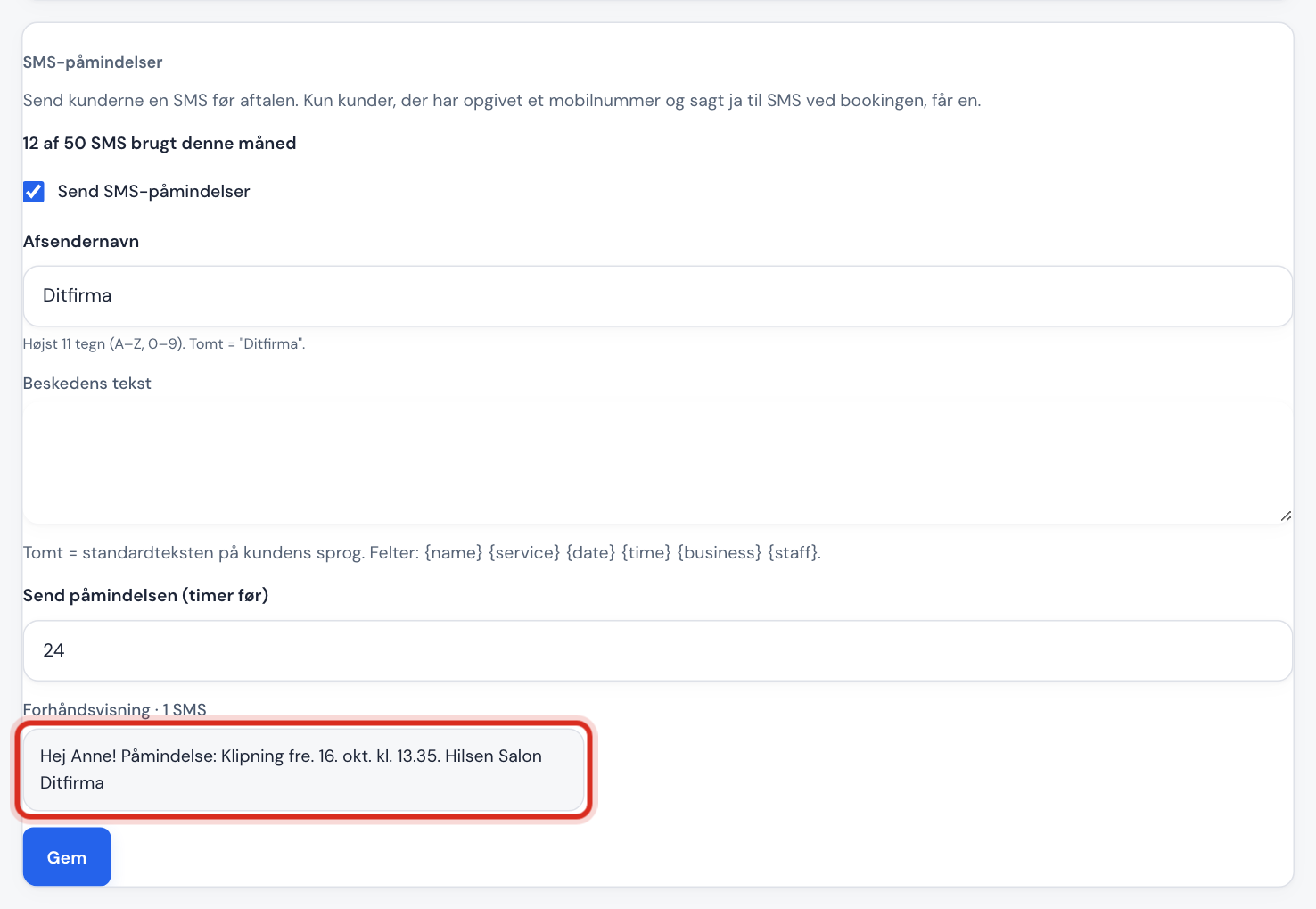
Step 1: Open SMS reminders
Go to Booking → Settings and scroll down to the SMS reminders card.
Step 2: Turn on reminders
Tick Send SMS reminders.
Step 3: Sender name
Enter your Sender name: up to 11 characters, using the letters A-Z and digits, e.g.
Yourfirm. Accented letters can't be used, and the name must not look like a phone number or a well-known brand.Step 4: Text and timing
Leave Message text empty to use the default text, or write your own (up to 480 characters). You can use the fields
{name},{service},{date},{time},{business}and{staff}. In Send the reminder (hours before), choose how many hours before the appointment the text should be sent (1-72).Step 5: Check and save
See the message under Preview. It also shows how many texts the message takes up. Tap Save.
Who gets a text?
Only customers who entered a mobile number and agreed to texts when they booked. In the booking window you can see Agreed to texts. If a customer opts out, you can tap Customer opted out of texts.
Frequently asked questions
The customer says the confirmation hasn't arrived. What do I do?
Ask the customer to check their spam folder, and check the customer's email address in the booking. If you created the booking yourself, Send confirmation to the customer must have been turned on.
Can I change the text of the confirmation email?
No, the emails have a fixed text. The name the customer sees is Name shown to customers from Booking → Settings.
Does the customer get one email per appointment for recurring appointments?
If you create a series of recurring appointments at once, the customer gets one combined confirmation with all the dates. Bookings you create individually each get their own confirmation.