Everyone who has booked an appointment is automatically collected in a customer list under Booking → Customers. The list is built from the customer's email address, so you can see the history for each customer.
Find a customer
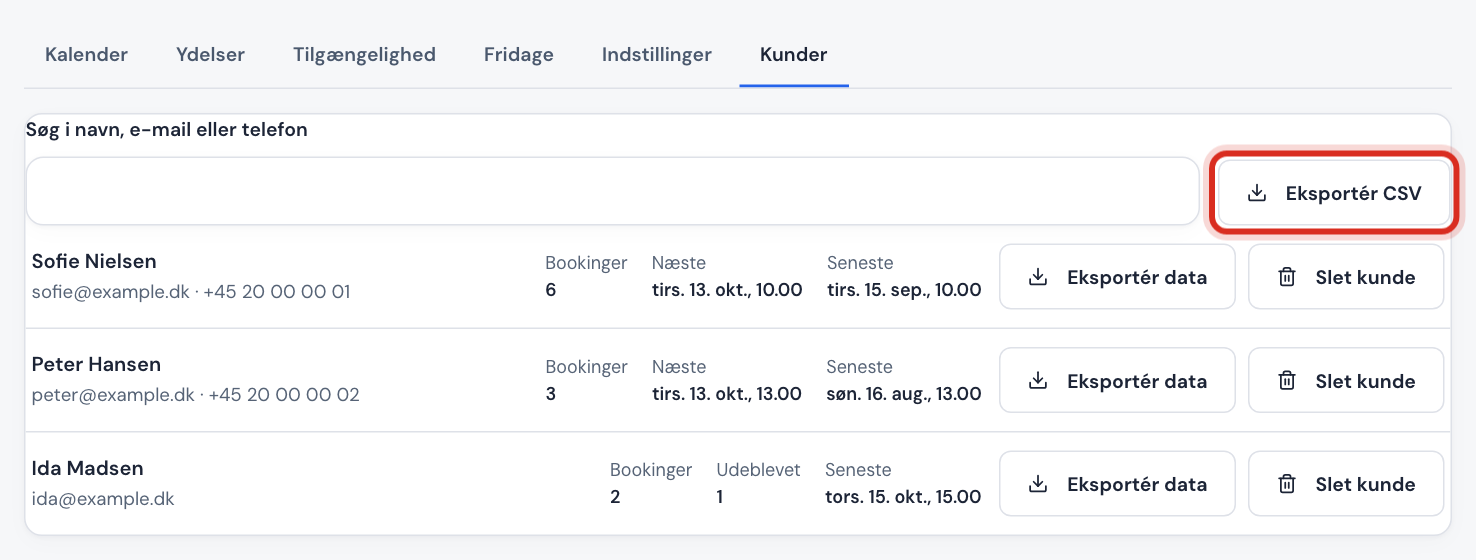
Go to Booking → Customers and type in the Search name, email or phone field. For each customer you see:
| Column | Shows |
|---|---|
| Bookings | How many bookings the customer has had in total |
| Next | The customer's next appointment |
| Latest | The customer's most recent appointment |
| No-shows | How many times you have marked the customer as a no-show |
Export the whole list
Tap Export CSV. The file opens directly in Excel (semicolon-separated) and contains name, email, phone, number of bookings, cancelled, no-shows, and next and latest appointment.
When a customer asks for their data
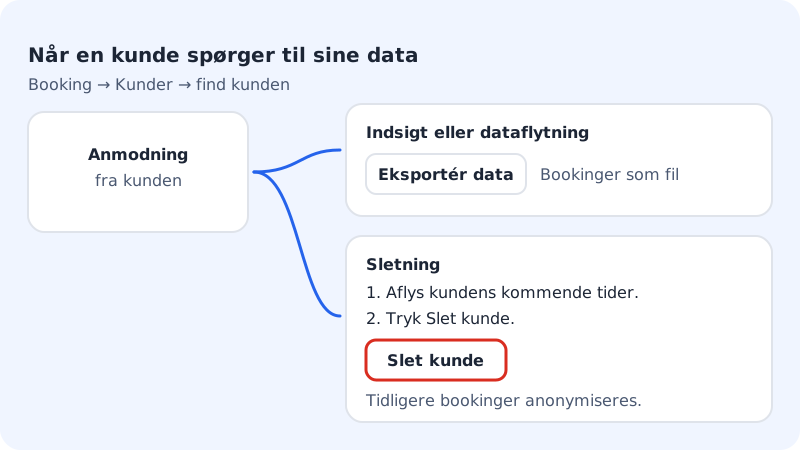
Step 1: Find the customer
Go to Booking → Customers and search for the customer's email address.
Step 2: For a request for access or a copy
Tap Export data next to the customer. You get a file with the customer's bookings, which you can send to the customer.
Step 3: For a deletion request: cancel upcoming appointments
If the customer has upcoming bookings, they must be cancelled first in Calendar. Otherwise you get a message saying that upcoming bookings must be cancelled first.
Step 4: Delete the customer
Tap Delete customer and confirm. Name, email, phone, address and notes are removed from the customer's past and cancelled bookings. The appointments themselves remain anonymously, so your statistics and accounts add up.
Frequently asked questions
Is the customer list the same as the shop's customers?
Booking has its own customer list. Under Customers & contacts you'll also find one combined list per website with customers from the shop, booking, forms and newsletter.
Can I undo a deletion?
No. Once the customer has been deleted, the information can't be retrieved. Export it first if you're in doubt.
How long does Sitewig keep booking customers?
The information is kept until you delete the customer. You are the data controller for your customers' information and decide when it should be deleted.