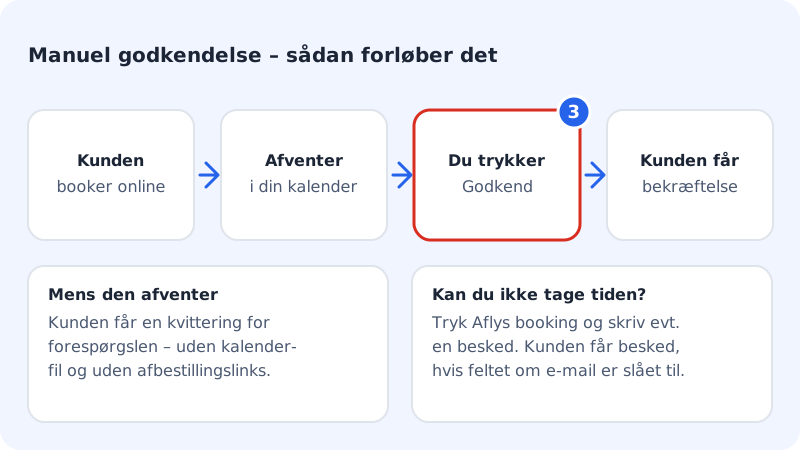
By default, an online booking is confirmed straight away. If you would rather look through each booking first (e.g. because you want to check that the job suits you), you can turn on manual approval. New bookings then become requests that you approve in the calendar.
Turn on manual approval
Step 1: Open the settings
Go to Booking → Settings.
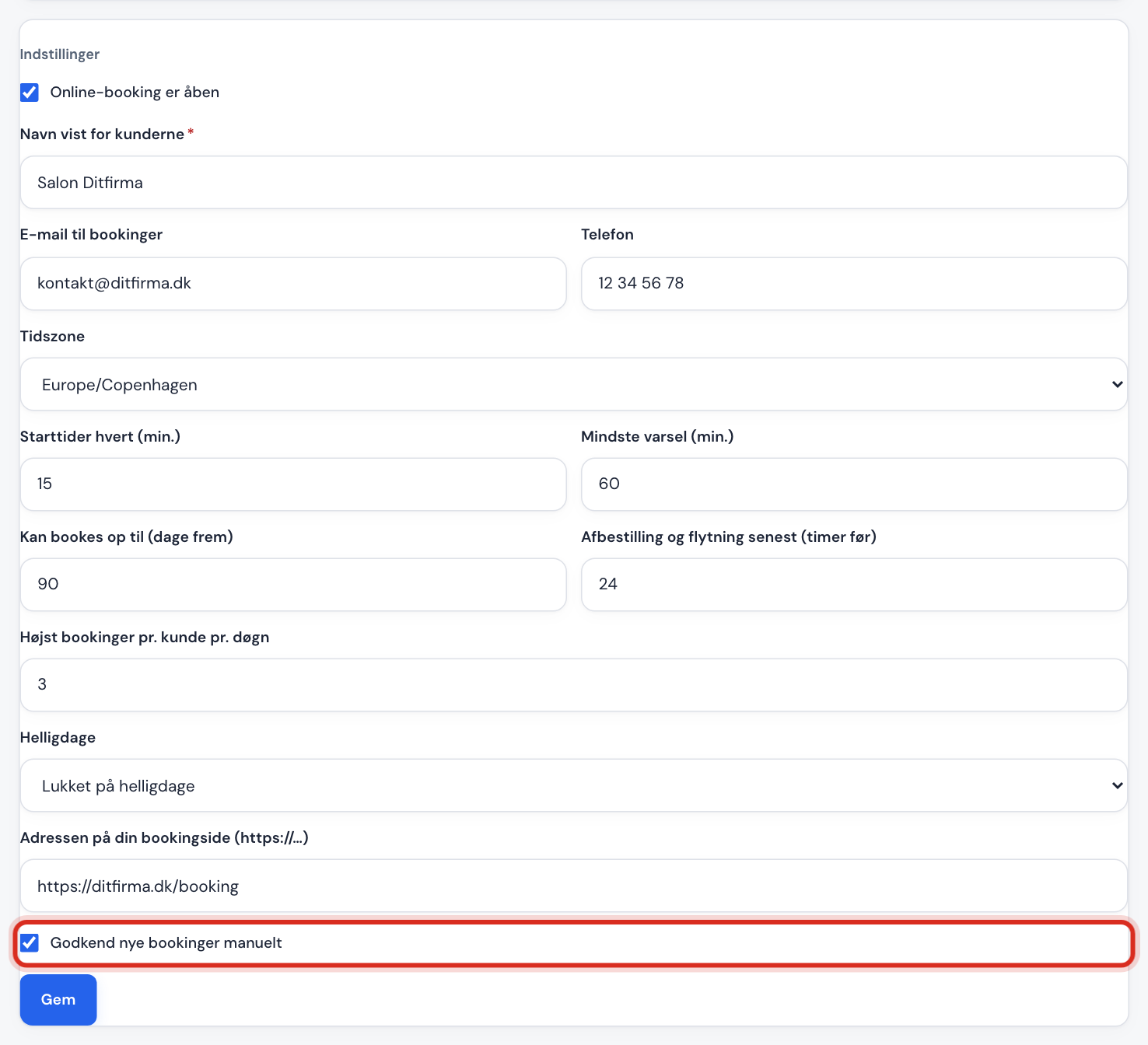
Step 2: Tick the box
Tick Approve new bookings manually and tap Save at the bottom of the card.
Step 3: Approve a request
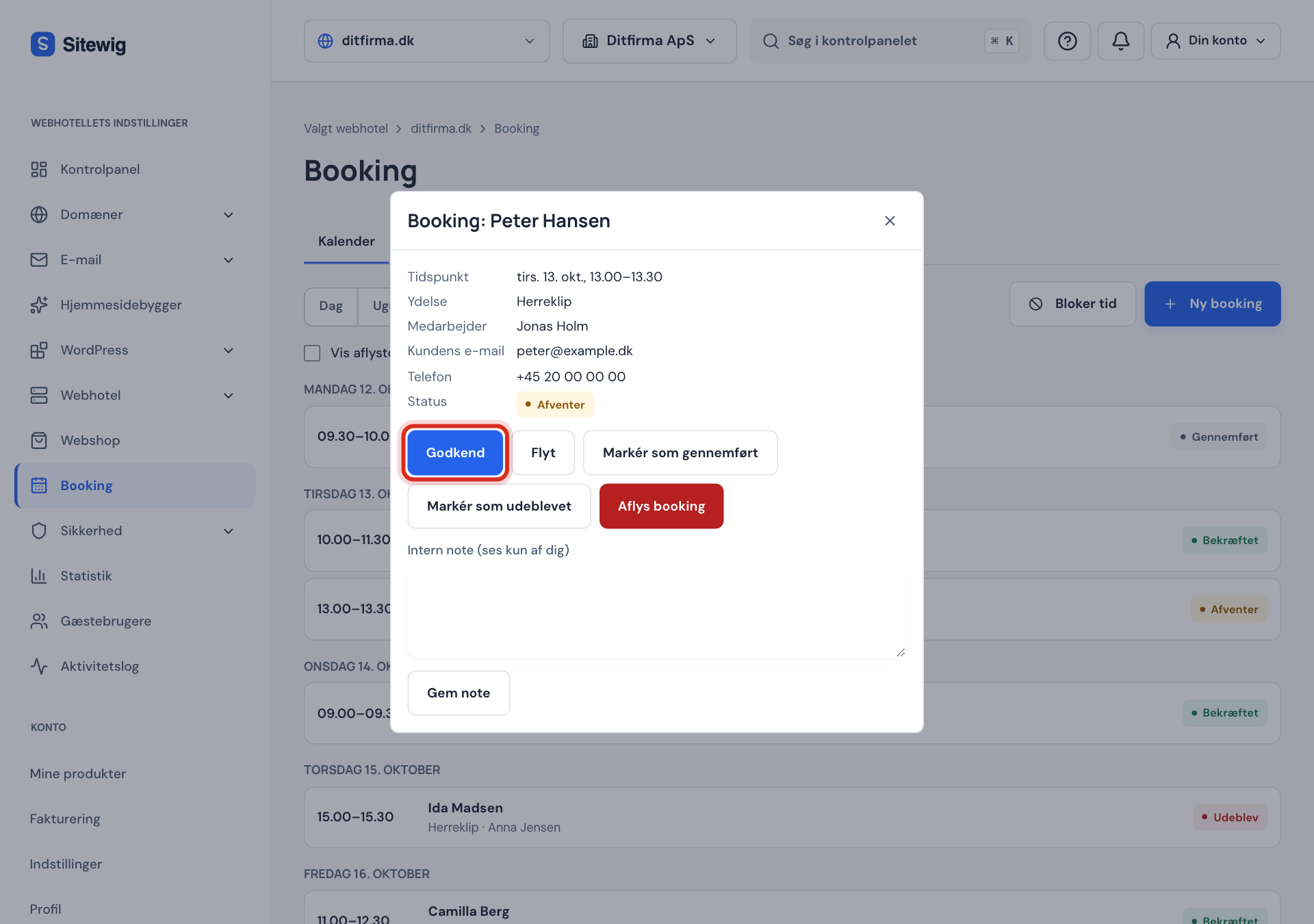
New online bookings now have the status Pending in Calendar. Click the booking and tap Approve. The customer then receives the usual confirmation with the time, calendar file and links to cancel or reschedule.
Decline a request
If you can't take the appointment, click the booking and tap Cancel booking. Optionally write a Message to the customer (optional), e.g. a suggestion for another day, and leave Notify the customer by email turned on.
Temporarily close all online bookings
If you need to stop new bookings entirely for a while, untick Online booking is open under Booking → Settings and tap Save. Your bookings, services and times stay in place, and you can reopen with one click.
Keep an eye on the month's number
At the top of Settings, the Bookings this month card shows how many online bookings you have had, e.g. 18 of 25. When you are approaching the limit, it says You're close to this month's limit. with a link to Upgrade.

| Message | What it means |
|---|---|
| You're close to this month's limit. | You have used most of the month's bookings |
| The limit is reached – one extra booking was accepted. | The first booking over the limit was accepted anyway |
| The limit is reached – new online bookings are refused. | Customers are asked to contact you directly |
The limit resets on the 1st of every month. Business and Max have no limit.
Frequently asked questions
Does a request I decline count towards the limit?
No. The limit counts customers' online bookings in the month, but cancelled bookings don't count, including a request you decline with Cancel booking. Appointments you create yourself in the calendar don't count either.
Can I require approval for just one service?
No. Manual approval applies to all services on the website.