If you have a website somewhere else, e.g. in WordPress, you can show Sitewig's booking calendar on it. You still manage services, times and bookings in Sitewig's control panel.
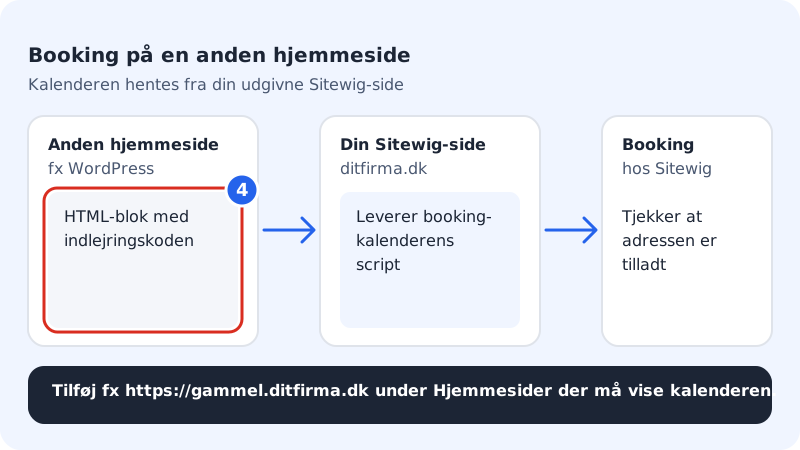
Embed the calendar
Step 1: Publish your Sitewig website
Make sure booking is turned on, that you have at least one service and opening hours, and that the website is published. If it says Publish the website first, the page hasn't been published yet.
Step 2: Copy the embed code
Go to Booking → Settings and scroll down to Embed on another website. Copy the code in Embed code.
Step 3: Allow the other website
Enter the address of the other website in Websites allowed to show the calendar: one address per line, with
https://and without a path, e.g.https://old.yourcompany.com. Tap Save. Your Sitewig website is always allowed.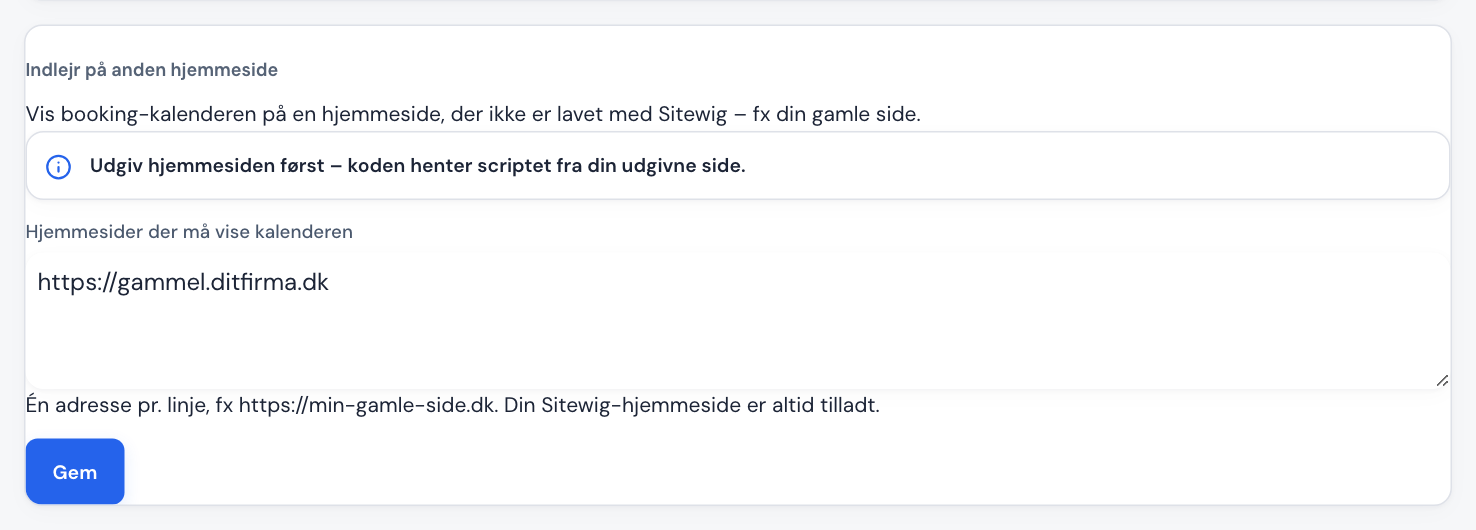
Step 4: Paste the code
Open the page on the other website for editing, add a block for custom HTML, and paste the code where the calendar should appear. Save and publish the page.
The address of the booking page
Under Booking → Settings you'll find Address of your booking page (https://…). Sitewig fills it in by itself when you publish a page with the Online booking section. The address is used when the customer taps Choose a new time in an email, and when the customer needs to return after a payment. If your customers mainly book on the other website, you can enter that site's address instead and tap Save.
Frequently asked questions
Can I use booking entirely without a Sitewig website?
No. The code loads the calendar from your published Sitewig website, so it has to exist.
Do bookings from the other website count towards the monthly limit?
Yes. All bookings that customers make online count, regardless of which website they book from.