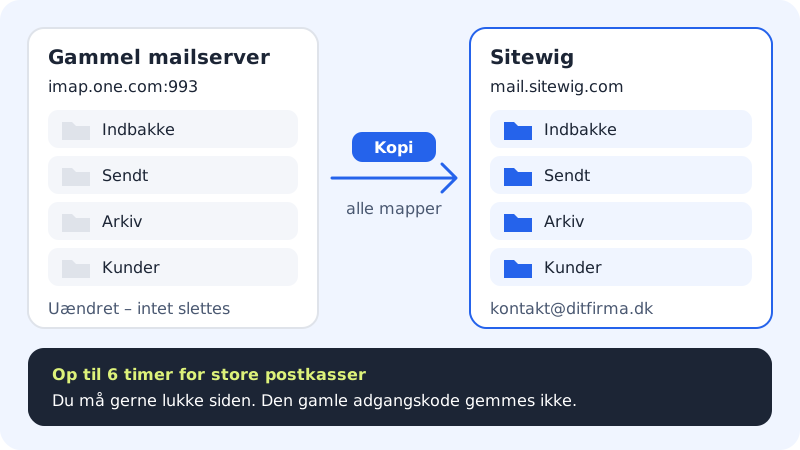
Your old emails can come with you. The import in step 3 Move your email signs in to your old mail server and copies all folders and emails into your new mailbox at Sitewig. Your old mailbox is not touched: nothing is deleted there.
Before you start
- The mailbox must exist at Sitewig. Create it in step 2 first.
- Have the old password ready. The username is typically the whole email address.
- Gmail, Yahoo and iCloud require an app password. Your normal password is rejected. The guide shows how to create one.
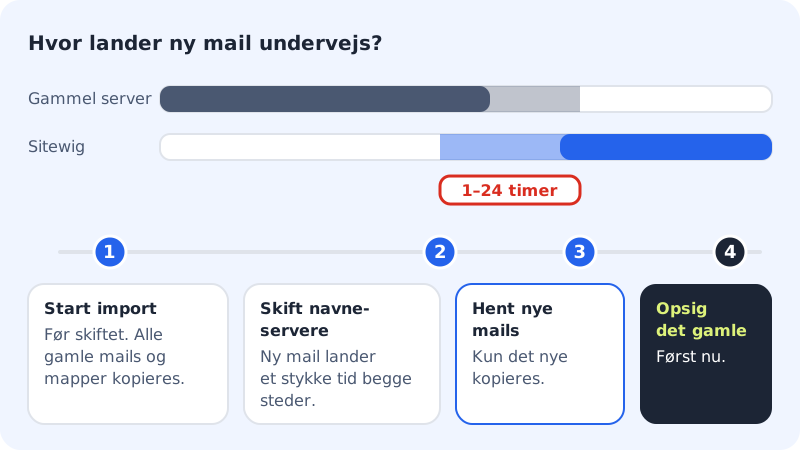
- Start before you change name servers. That way most of it has been moved by the time email starts arriving at Sitewig.
Start the import
Step 1: Choose the provider under Import from
For each mailbox, choose the old provider in Import from. The server is filled in for you. If your email is somewhere else, choose Other provider (enter the server) and enter the IMAP server in Server (IMAP).
Step 2: Check the username, and enter the password
Username is filled in with the mailbox's address – change it if the old provider uses something else. Enter the password in Password at …. It is sent encrypted to the import and is not stored.
Step 3: Tap Start import
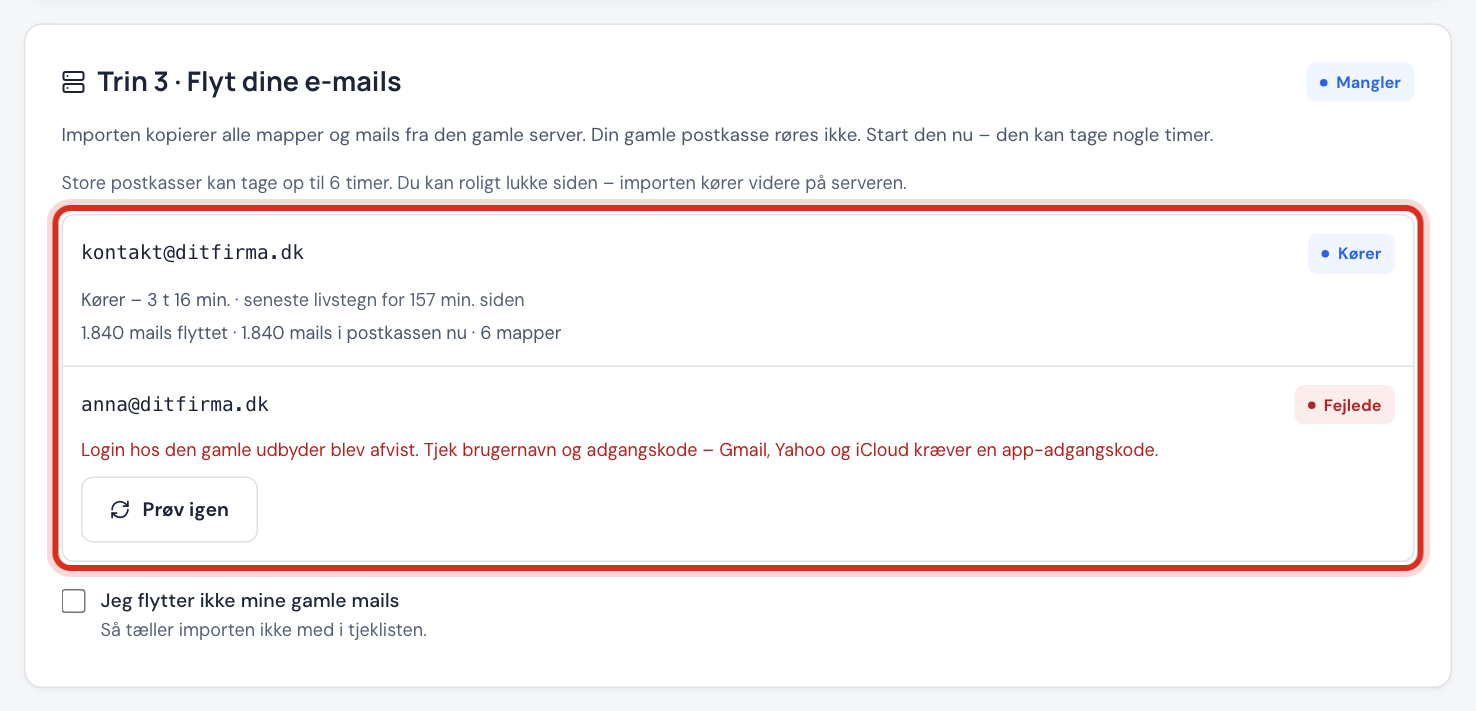
Tap Start import. The status changes from Queued to Running, and you can see how many emails and folders have been moved. Large mailboxes can take up to 6 hours. You can safely close the page – the import keeps running on the server.
Step 4: Wait for Done
When the status is Done, all emails have been copied. Under Folders you can see the number per folder before and after.
Step 5: Fetch new email after the switch
Once you have changed name servers in step 5, tap Fetch new email. Only emails that have arrived since last time are copied. Do it once the change has taken effect, so that nothing is left behind on the old server.
Presets in Import from
- one.com
imap.one.com, port 993, ordinary password- Simply.com
imap.simply.com, port 993, ordinary password- GoDaddy
imap.secureserver.net, port 993, ordinary password- Gmail / Google Workspace
imap.gmail.com, port 993, app password- Yahoo Mail
imap.mail.yahoo.com, port 993, app password- iCloud Mail
imap.mail.me.com, port 993, app password
Microsoft 365, Outlook.com and Hotmail
Microsoft only allows sign-in with its own authentication (OAuth), which the import cannot use. That is why you cannot import from Microsoft 365, Outlook.com or Hotmail. You have two options:
- Export the mail from Outlook (for example as a .pst file), and load it into your email program after the switch.
- Tick I'm not moving my old email. The import then does not count in the checklist.
If the import fails
The status becomes Failed or Interrupted, and the guide says what went wrong. Fix the problem, and tap Try again or Start again. The import continues where it stopped: emails that have already been moved are not copied again.
Typical errors
- Sign-in rejected
- Wrong username or password. Gmail, Yahoo and iCloud require an app password.
- Server does not exist
- Check the spelling, for example
imap.one.com. - No connection
- Check the server name and port.
- Invalid certificate
- The old server did not present a valid security certificate. Check the server name.
- Mailbox is full
- Buy more space or clear out, and start again.
- Time limit reached
- Start again – the import continues where it stopped.
Frequently asked questions
Will my emails be deleted at the old provider?
No. The import only reads from the old server and copies to Sitewig.
Will my folders come along?
Yes. All folders are copied with the same names, for example Sent, Archive and your own folders.
What about contacts and calendar?
The import only moves emails. You export contacts and calendars from the old provider and load them into your email app or via CalDAV/CardDAV.
Does it say "New messages arrived during the import"?
That means email came in while the import was running. Tap Fetch new email again to include it.