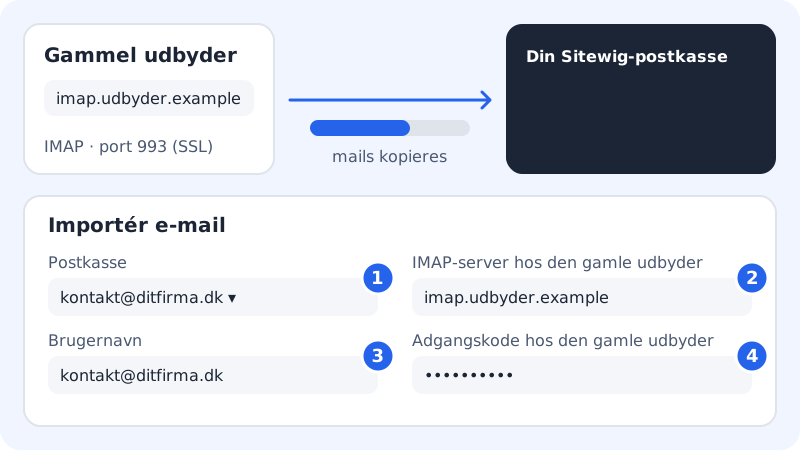
If you are switching to Sitewig from another provider, you can take your old emails with you. The IMAP import signs in to the old provider and copies emails and folders into your new mailbox. The emails at the old provider are not deleted.
Before you start
- Create the mailbox at Sitewig first – see Create a new email address.
- Find the old provider's IMAP server. It is usually listed in the provider's help under IMAP settings and often looks like
imap.followed by the provider's domain. - Have the username and password for the old mailbox ready. If the old provider uses two-step verification, you may need to create an app password there.
- The old mailbox must still work. Do not cancel it until the import has finished.
Start the import
Step 1: Open Import email
Go to Email → Import email in the menu. On Email → Mailboxes you will find the same page under the Backup and import tab.
Step 2: Choose the mailbox
In Mailbox, choose the Sitewig mailbox that the emails should go into.
Step 3: Enter the old server
Enter the old provider's IMAP server in IMAP server at the old provider – just the server name, without
https://and without a port. The import uses port 993 with SSL.Step 4: Enter the username and password
In Username, enter the username you signed in with at the old provider – often the whole email address. Enter the password in Password at the old provider.
Step 5: Start
Click the button below the fields (it is currently labelled Open). The import then runs on the mail server, and you can close the page.
Step 6: Follow progress in the list
The import appears in the list on the page with the old user's name and server, the status, the time and how many new messages have been copied.
Error messages
| Message | What to do |
|---|---|
| Enter the old provider's IMAP server, … | The server name is empty or misspelt. Enter just the name, e.g. imap. + the provider's domain. |
| The server … does not exist. Check the spelling … | The name does not exist on the internet. Check the spelling in the provider's help. |
| … is Sitewig's own mail server. | You have entered Sitewig's server. Enter the old provider's server. |
| An import to the mailbox is already running. | Wait until the current import has finished. |
| Import from another provider opens soon. | The feature has not been switched on for your account yet. Contact support for help with the move. |
If the import fails along the way, the error from the old server appears in the list. It is most often caused by a wrong username or password, or by IMAP not being switched on at the old provider.
What you cannot do yet
- The Import email page may be switched off for some accounts, and the import may show opens soon if it has not been put into service for your account.
- Port and encryption cannot be chosen in the control panel: the import always uses port 993 with SSL.
- Calendar and contacts are not moved. Export them from the old provider and import them into your calendar and contacts program.
Frequently asked questions
Will my emails be deleted at the old provider?
No. The import only copies. You delete the old mailbox yourself once you are sure everything has come across.
How long does it take?
It depends on how much has to be moved and how fast the old server is. Small mailboxes typically take minutes, large ones can take hours.
Can I move several mailboxes?
Yes. Start one import per mailbox.