With email rules, Sitewig's mail server sorts your emails before they reach your inbox. The rules run on the server, so they work in the same way on your phone, on your computer and in webmail, even when all your devices are switched off.
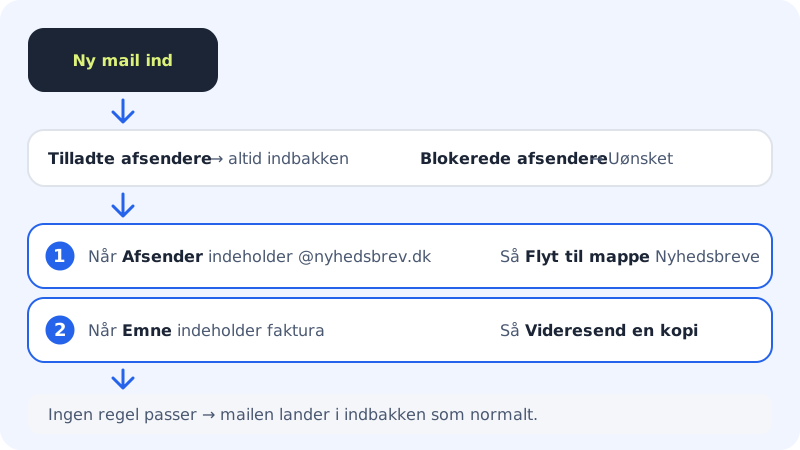
What the rules can do
Each rule consists of a condition (When) and an action (Then). You can combine them freely.
Conditions: the text must either be contains or is exactly:
- Sender, for example
@nyhedsbrev.dk - Recipient (to/cc), for example
faktura@ditfirma.dk - Subject, for example
order - Content (only with contains)
Actions:
- Move to folder: the folder is created if it doesn't exist
- Mark as read
- Delete (move to trash)
- Forward a copy to: a confirmed address
You can have up to 25 rules per mailbox.
Create a rule
Step 1: Open Mailbox settings
Go to Email → Mailbox settings and choose the mailbox in Mailbox.
Step 2: Add a rule
Scroll down to Rules and filters and click Add rule.
Step 3: Choose the condition
Under When, choose what to check (for example Sender), whether the text should be contains or is exactly, and type the text.
Step 4: Choose the action
Under Then, choose for example Move to folder and type the folder name, for example
Newsletters. Use/for subfolders, for exampleClients/2026.Step 5: Decide the order
The rules run from top to bottom. Use Move up and Move down. Tick Stop processing more rules when this matches if an email should only hit one rule.
Step 6: Save the rules
Click Save rules. When the status changes to Active on the mail server, the rules are working.
Allow or block senders
Below the rules you'll find two lists. Type one sender per line: either a full address (name@company.com) or a whole domain (@company.com).
- Allowed senders always land in the inbox. Rules and blocking are skipped for them.
- Blocked senders are put in the Junk folder.
Click Save rules afterwards.
Frequently asked questions
My rules aren't working. What should I do?
Check that the status shows Active on the mail server. If it says The rules couldn't be applied, try saving again. Also check the order: a rule further up with Stop processing more rules when this matches can stop the next ones from running.
Do the rules apply to emails I've already received?
No, only to new emails that arrive after the rules have been saved.
What's the difference between blocking and marking as spam?
A blocked sender is always put in Junk, whatever the spam filter thinks. The spam filter assesses each email itself: read about the levels.