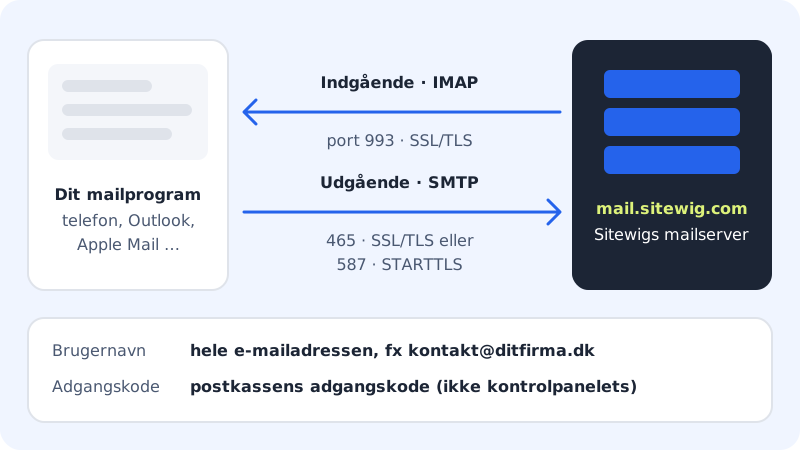
Whichever mail app you use, it needs the same details: a server to receive email (incoming) and a server to send email (outgoing). Here are the values for Sitewig Mail.
The settings
Incoming server (IMAP)
- Hostname
mail.sitewig.com- Port
993- Security
- SSL/TLS
- Username
- Your full email address
- Password
- The mailbox password
Outgoing server (SMTP)
- Hostname
mail.sitewig.com- Port
465(SSL/TLS), or587(STARTTLS)- Authentication
- Yes, the same username and password as incoming
Find your own values in the control panel
Step 1: Open Email
Sign in to the control panel and go to Email. The Mailboxes tab opens.
Step 2: Find Account settings
Scroll down to the Account settings card. It shows Incoming server (IMAP), Outgoing server (SMTP) and Username. Click the copy button next to a value to copy it.
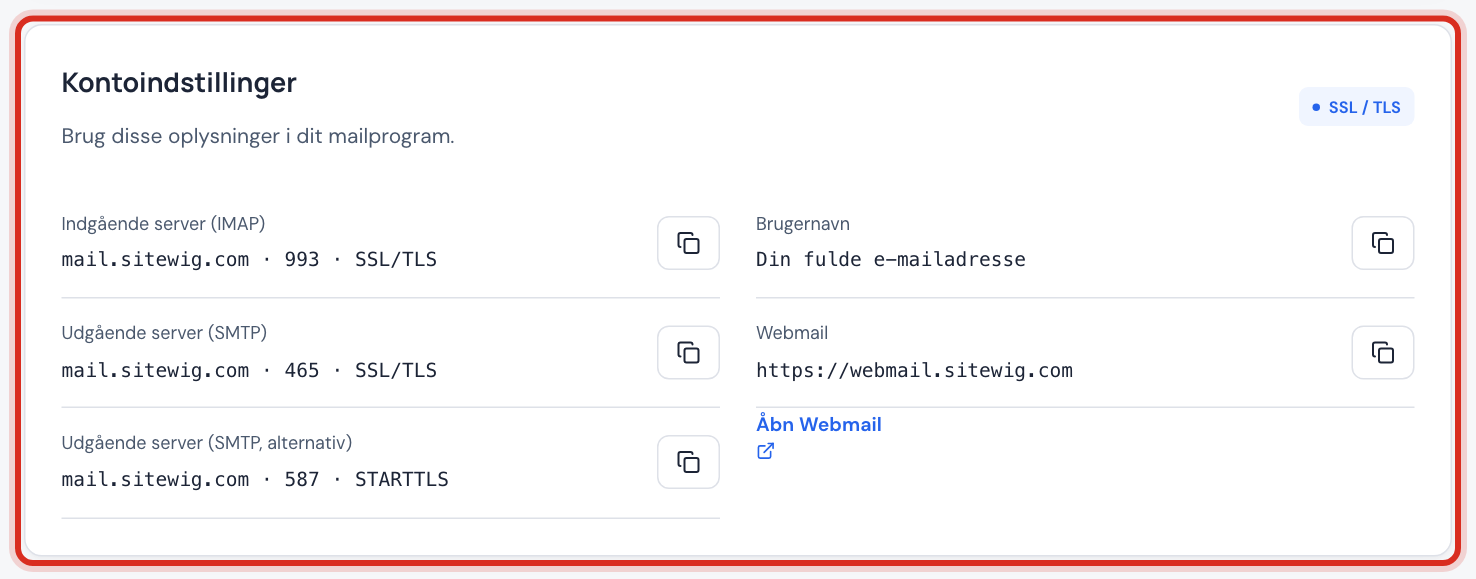
Account settings on the Email page Step 3: Enter them in your mail app
Use the hostnames from the card and the ports from the table above. The username is always the whole email address.
Troubleshooting
| Problem | Try this |
|---|---|
| Sign-in is rejected | Use the whole email address as the username, and check that it's the mailbox password, not the control panel password. If you've forgotten it, choose Change password next to the address under Email → Mailboxes. |
| Can receive but not send | Turn on authentication for the outgoing server. If port 465 is blocked on the network, try 587 with STARTTLS. |
| Certificate warning | Check that the hostname is exactly mail.sitewig.com, not with www. in front or your own domain. |
| Emails missing on another device | The account may have been set up with POP. Remove it and add it again with IMAP. |
| The mailbox is disabled | See Pause a mailbox and activate it again. |
Webmail
If you just want to read email in your browser, click Open Webmail on the Account settings card or the Webmail tab on the Email page. Sign in with the whole email address and the mailbox password.
Frequently asked questions
My email is set up with mail.ayamail.net or mail.fiktomail.dk. Do I need to change it?
No, the old server names still work and point to the same mail server. If you set the account up again, use mail.sitewig.com.
Which port should I choose for outgoing email: 465 or 587?
Both are encrypted. Use 465 with SSL/TLS to begin with. If that doesn't work, for example on a hotel or company network, use 587 with STARTTLS.
Where can I find a guide for my iPhone?
See Set up your Sitewig email on iPhone and iPad for a step-by-step guide.