If you are switching to Sitewig, you can bring your old emails with you. The import signs in to your old provider's mail server using IMAP and copies emails and folders into your Sitewig mailbox. Your old mailbox isn't changed: the import only reads.
What you need
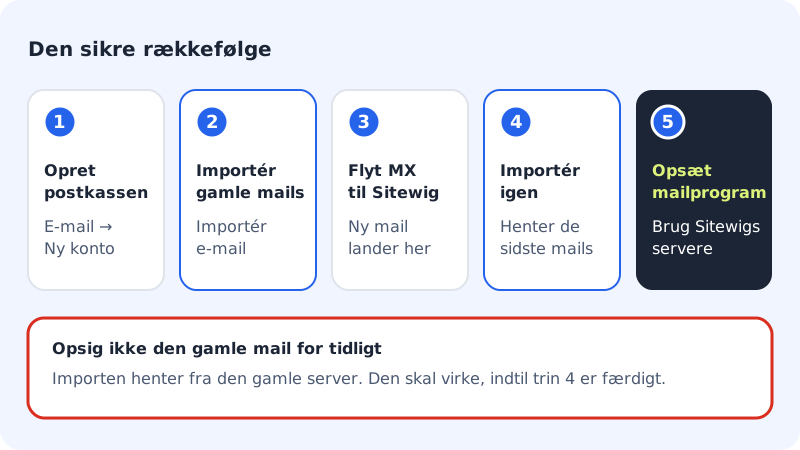
- A mailbox with Sitewig for the emails to go into. Create it first under Email → Mailboxes → New mailbox.
- The name of your old provider's IMAP server. You can find it in the provider's help pages or in your current mail app under the account's server settings. It often starts with
imap. - The username and password for the old mailbox – typically the full email address and the password you use today.
The safe order
Start the import
Step 1: Open Import email
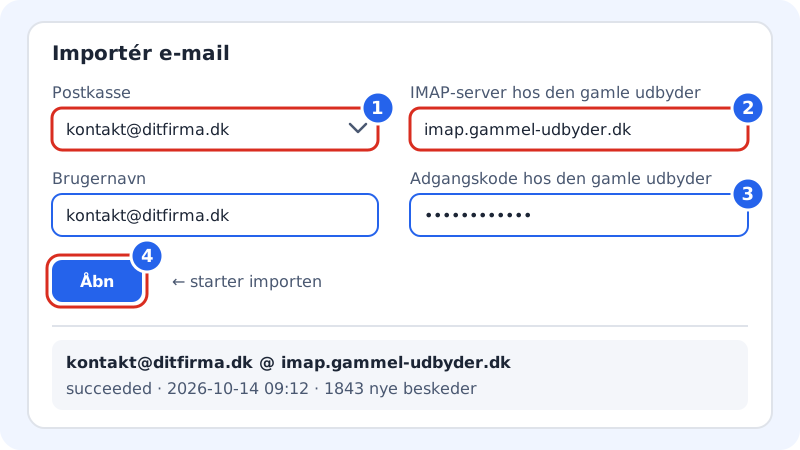
Go to Email and choose the Backup and import tab (or Import email in the menu on the left).
Step 2: Choose the mailbox
In Mailbox, choose the Sitewig mailbox the emails should go into.
Step 3: Type the old server
Type the old provider's server in IMAP server at the old provider, for example
imap.old-provider.com. Type only the server name, nothttps://or a port number.Step 4: Type the username and password
Fill in Username and Password at the old provider. The password is encrypted and isn't stored in plain text at Sitewig.
Step 5: Start the import
Click the Open button below the fields. The import starts on Sitewig's mail server, and you can safely close the page.
Step 6: Follow the list
The import appears in the list below the form with server, status and time. When it has finished, it shows how many new messages were fetched. Refresh the page to see the latest status.
The status appears in the list as an English word:
| Status | Meaning |
|---|---|
queued | The import is waiting to start. |
running | The import is in progress. |
succeeded | Finished: the number of new messages follows. |
failed | The import failed: the reason follows. |
When the import has finished
- Move your email to Sitewig. If you have moved the domain to Sitewig, the domain's email must be delivered to Sitewig Mail – see SPF, DKIM and DMARC for how to check it. If your DNS is hosted elsewhere, change the MX record there.
- Run the import once more a day after the switch. It only fetches the emails that have arrived in the old mailbox since last time: you won't get duplicates of what has already been fetched.
- Set up your mail app with Sitewig's servers – see Server settings for mail apps.
- Cancel the old email only once you've checked that everything has come across.
If the import fails
| Message | What it means |
|---|---|
| "The server … does not exist. Check the spelling" | The server name is misspelled or doesn't exist. Check it with the old provider. |
| "… is Sitewig's own mail server" | You've typed a Sitewig server. Type the old provider's server. |
| "An import to the mailbox is already running." | Wait until the current import has finished before you start a new one. |
Status failed with a sign-in error | The username or password is wrong, or the provider requires an app password. |
| "Import from another provider is opening soon." | The import is temporarily unavailable. Try again later, or contact support. |
Frequently asked questions
Do my folders come across?
Yes. The import copies the folders from the old mailbox, so you find your emails in the same place as before.
Can I import from Microsoft 365 or Outlook.com?
Not with the import today. Those services require a special sign-in that the import doesn't support. Contact support and we'll help you from there.
How long does an import take?
It depends on how much email you have and how fast the old server is. Small mailboxes take a few minutes; large ones can take several hours.
Can I import several mailboxes?
Yes – one import at a time per mailbox, but you can run several mailboxes at once. Choose a different mailbox in Mailbox and start a new import.