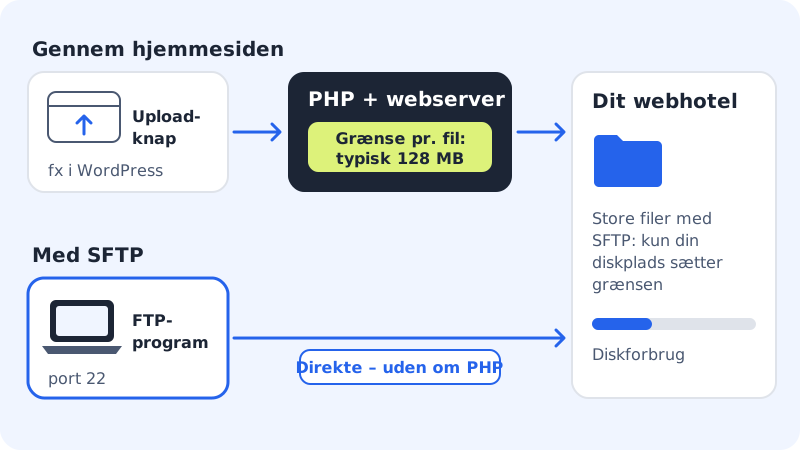
If you upload a file through your website, for example in the WordPress media library or an import plugin, it passes through the web server and PHP. There is a fixed limit per upload here, typically 128 MB. If you upload with SFTP, the file goes straight to the disk, and the limit doesn't apply.
What the error typically looks like
- WordPress says the file exceeds
upload_max_filesize. - The browser shows the error 413 Request Entity Too Large.
- The upload reaches 100% and then disappears without a message.
Upload the file with SFTP instead
Step 1: Connect with an FTP program
Connect to the web hosting with FileZilla or another program with SFTP on port
22.Step 2: Find the right folder
For WordPress media, it's typically
sites/main/public/wp-content/uploads. For other files, choose the folder your website expects.Step 3: Upload the file
Drag the file across. There is no limit per file beyond the disk space your plan has.
Step 4: Make the file visible in WordPress
Files you put directly in
uploadsdon't show up in the media library automatically. Use a plugin to import them, or, if you have SSH, thewp media importcommand with the path to the file.
Frequently asked questions
Does changing the PHP version help?
No, the limit is the same in all PHP versions. You change the PHP version under Web hosting → PHP: it applies to all websites on the web hosting. See change the PHP version.
Does a php.ini or .user.ini with a higher limit work?
The web server has its own limit for how large an upload it accepts. You can't change it with a file on the web hosting, so use SFTP for large files.
How much space do I have?
It depends on your plan. Under Web hosting → Disk usage you can see how much you're using.