An FTP user is the login you use to put files on your web hosting, in an FTP program such as FileZilla or in the file manager in the browser. You can have several users, for example one for yourself and one for a web designer.
Main user and extra users
All user names start with your account number, such as u12345:
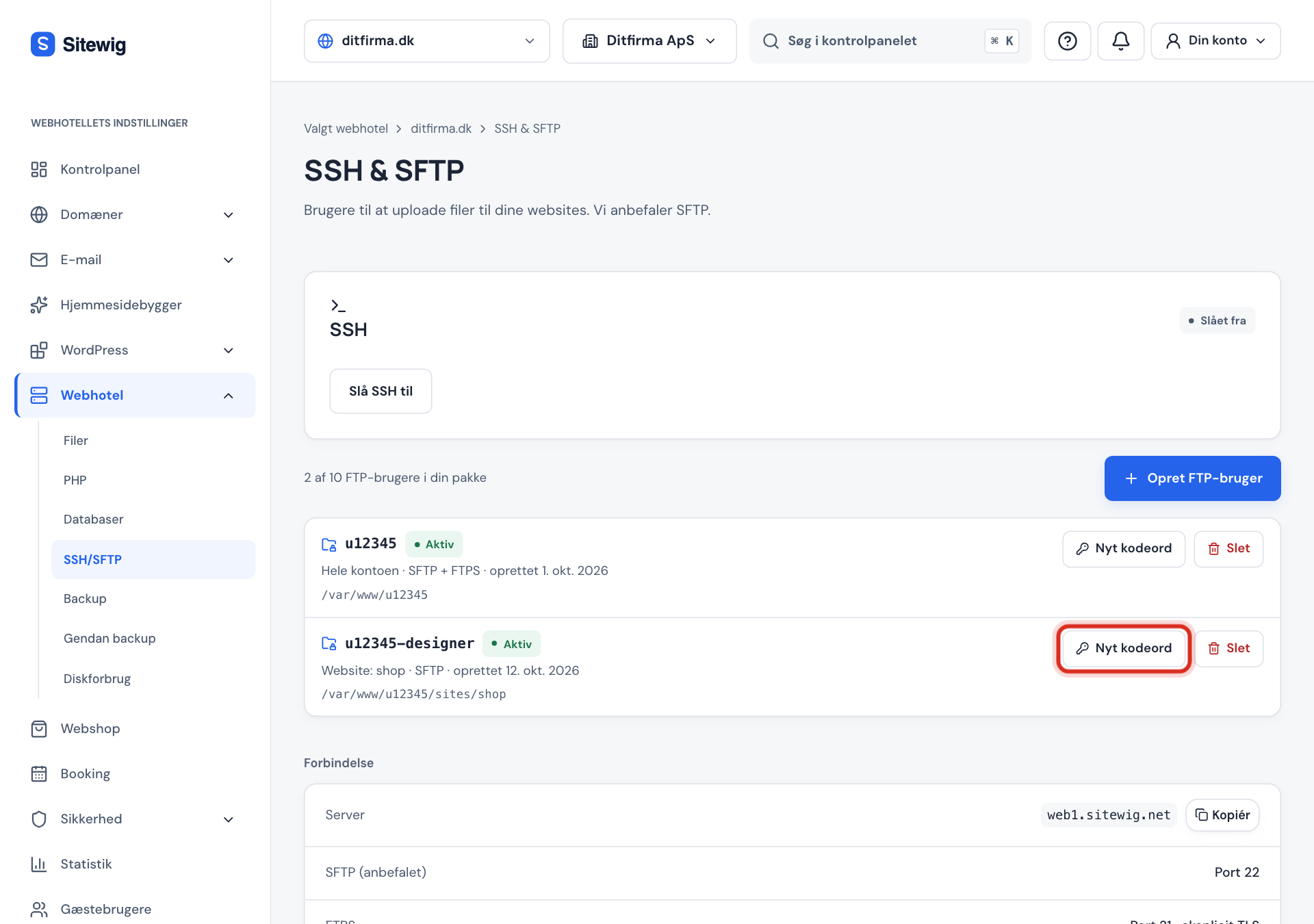
- The main user is called just
u12345. You create it by leaving the Suffix field empty. - Extra users get a suffix, such as
u12345-designer. Once the main user exists, you must always enter a suffix. The suffix may only contain lowercase letters a-z and numbers, with a maximum of 20 characters.
How many FTP users you can create depends on your plan. Above the list it says, for example, 1 of 10 FTP users in your plan.
Create an FTP user
Step 1: Open SSH/SFTP
Log in to the control panel and choose Web hosting → SSH/SFTP in the menu. The page is called SSH & SFTP.
Step 2: Click Create FTP user
The button is above the list of users. If it's greyed out, you've used all the FTP users in your plan; see the question further down.
Step 3: Choose a user name
Leave Suffix (optional) empty if you're creating the main user. For an extra user, enter something like
designer. Below the field you can see the finished user name.Step 4: Choose access
An FTP user has access to the whole web hosting (all websites). For security reasons, new users can't currently be limited to a single website. The user lands in the web hosting's root folder, such as
/var/www/u12345. You can give read-only access (Read only) if the person shouldn't be able to change anything.Step 5: Choose protocols
Under Protocols, both SFTP and FTPS are selected to begin with. Keep SFTP: it's the one we recommend, and it also gives access to the file manager in the browser. You must choose at least one.
Step 6: Create the user and save the password
Click Create user. The password is now shown once and can't be retrieved again. Copy it to your password manager or your FTP program, tick I've saved the password, and click Close. The user works after a few seconds, when the status changes to Active.
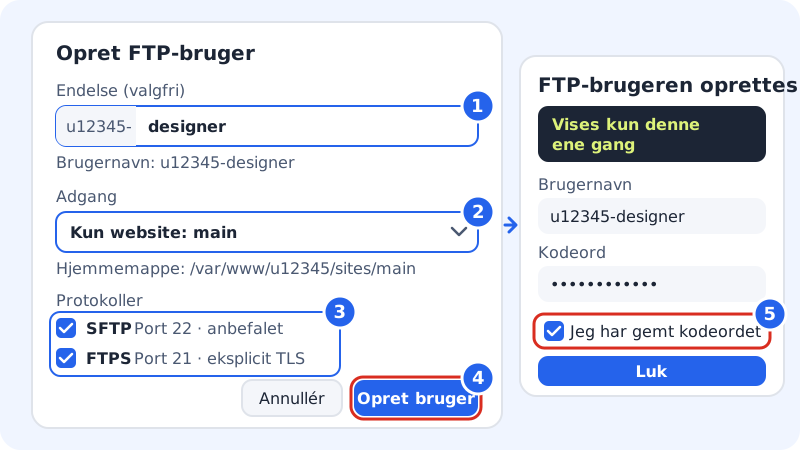
From Create FTP user to a saved password
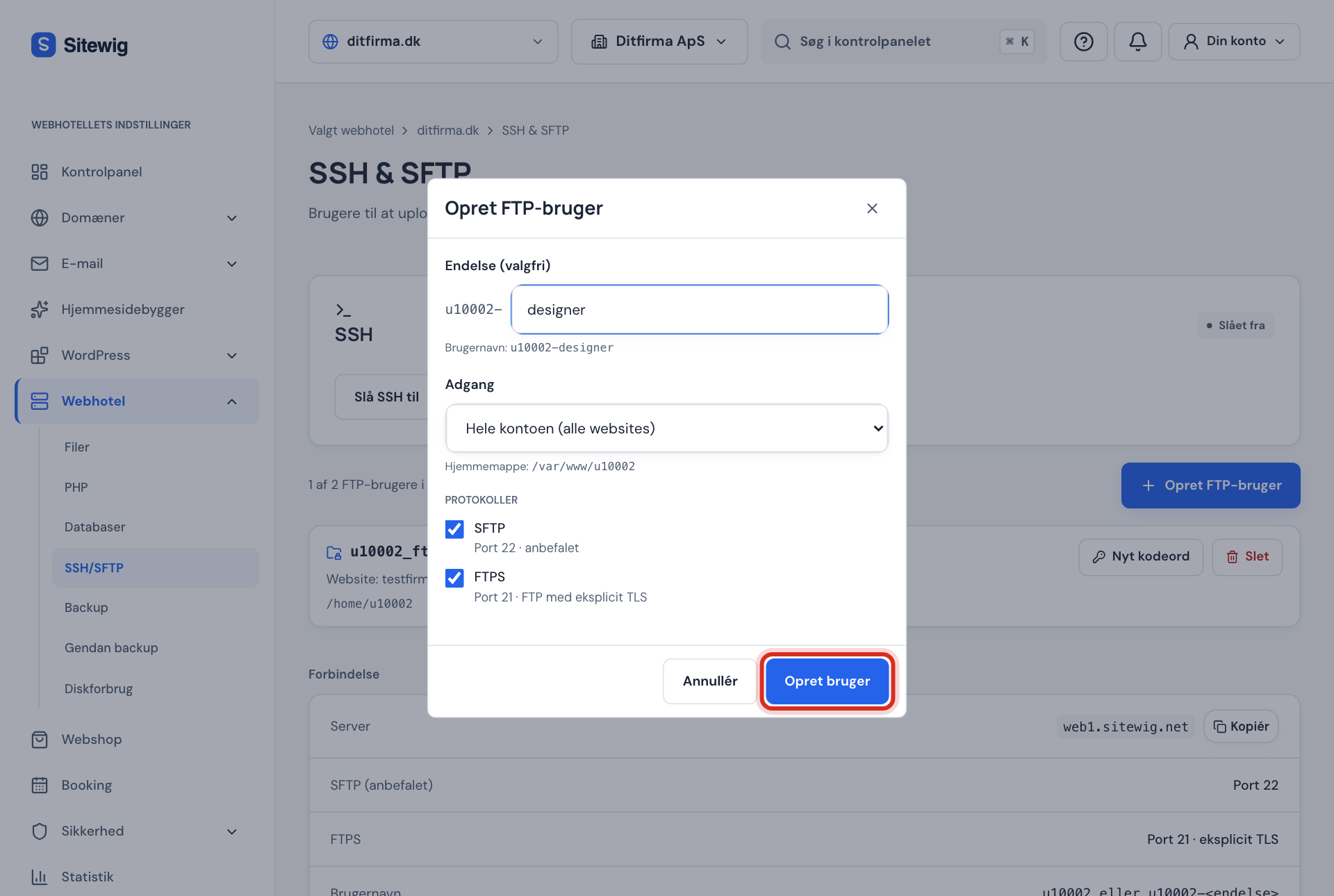
Forgotten password: make a new one
Step 1: Find the user
Go to Web hosting → SSH/SFTP and find the user in the list.
Step 2: Reset the password
Click New password next to the user, and then Reset password. The old password stops working after a few seconds.
Step 3: Save the new password
The new password is shown once. Update it in your FTP program and everywhere else the user is saved.
Remove a user's access
Click Delete next to the user and confirm with Delete user. The user can no longer log in. Your files stay where they are: only the login disappears.
Frequently asked questions
Can I see the password for an existing FTP user?
No. The password is only shown at the moment it's created and can't be retrieved afterwards. If you've lost it, click New password.
What does the status Error mean for a user?
The creation or change didn't go through on the server. The error message is shown under the user name. Try New password, or delete the user and create it again. If that doesn't help, contact us.
Can I get more FTP users?
Yes, the number follows your plan. When you've used them all, the page says You've used all the FTP users in your plan with a link to See plans, where you can upgrade. You can also delete a user you no longer use.
Why can't I create a user without a suffix?
Because the main user u12345 already exists. There can only be one main user, so all other users must have a suffix.