With SSH you log in to your web hosting in a terminal and run commands directly on the server, such as wp for WordPress or php for your own scripts. SSH is included in Starter, Pro, Business and Max, but not in Free.
Turn on SSH
Step 1: Open SSH/SFTP
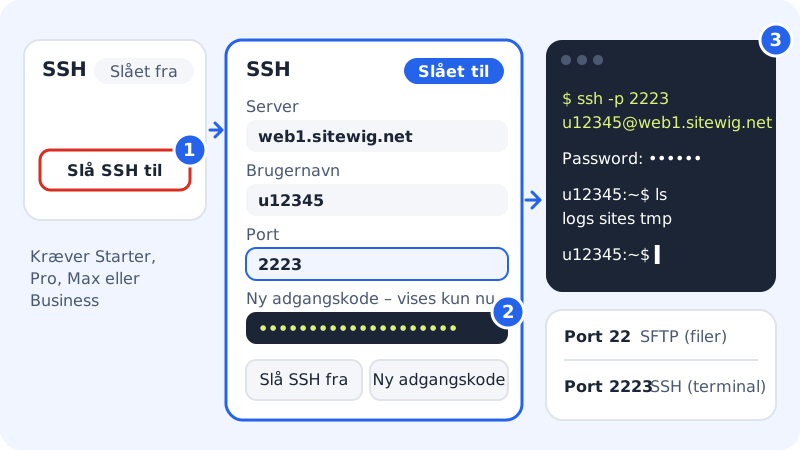
Log in to the control panel and choose Web hosting → SSH/SFTP. At the top of the page is the SSH card with the status Turned off.
Step 2: Click Turn on SSH
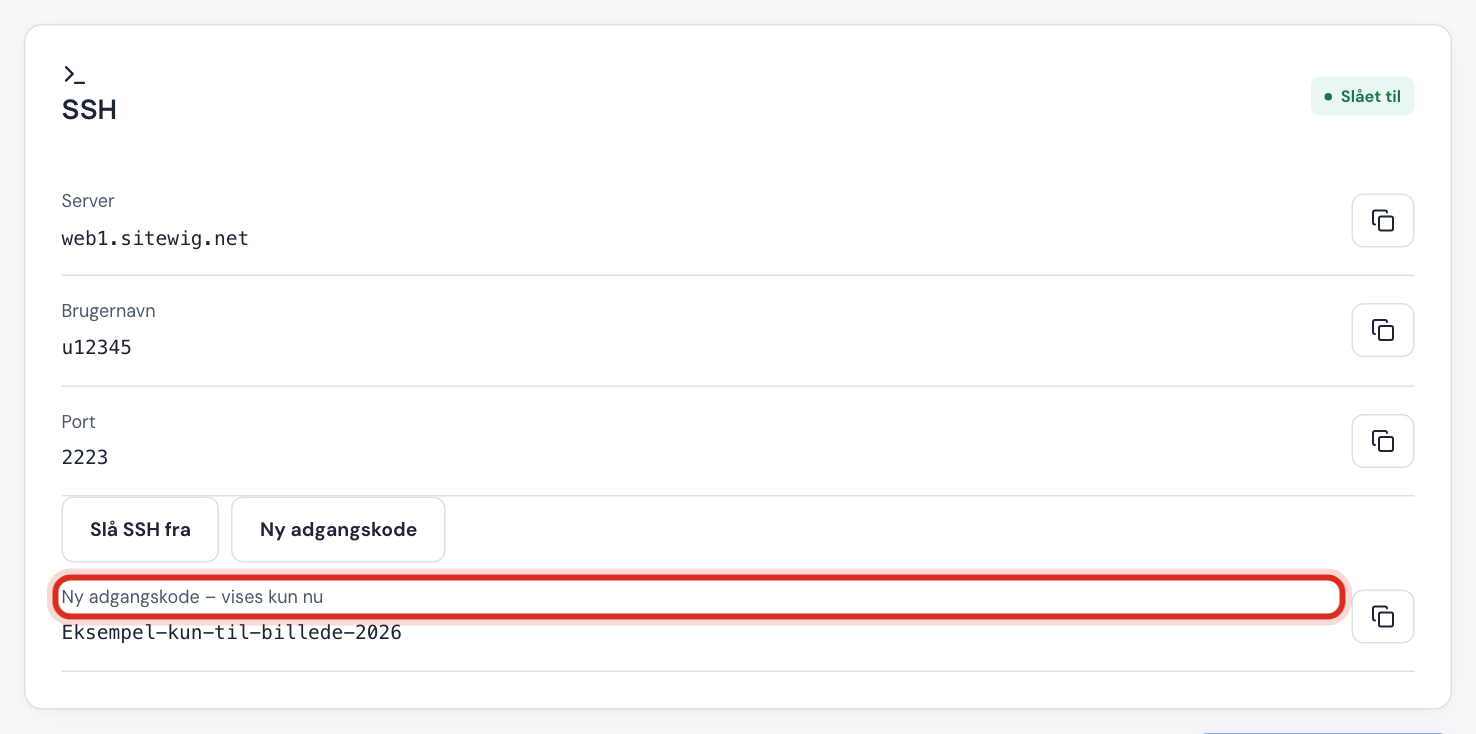
It takes a moment. When the status changes to Turned on, the card shows Server, User name and Port.
Step 3: Save the password
The New password: shown only now field shows your SSH password. Copy it to your password manager straight away. If you leave the page, it can't be shown again.
Step 4: Connect from the terminal
Open Terminal on Mac or Linux, or PowerShell on Windows 10 and 11. Type the command below with your own values from the card and press Enter. Answer
yesthe first time you're asked about the server's key, and enter the password.
SSH connection
- Command (example)
ssh -p 2223 u12345@web1.sitewig.net- Server
- The value next to Server on the SSH card
- User name
u12345(your account number)- Port
- The value next to Port, typically
2223, never 22
Once you're logged in, you're in your home folder. Your websites are in sites/<name>/public. The php command uses the PHP version you've chosen for the web hosting.
New password or turn SSH off
- Forgotten password: click New password on the SSH card. The old one stops working, and the new one is shown once.
- If you don't use SSH: click Turn off SSH. This closes the login but doesn't delete any files.
Frequently asked questions
I get the error "SSH requires a plan that includes it". What does that mean?
Your plan doesn't include SSH. This applies to the Free plan. Click Change plan on the front page of the control panel, upgrade to Starter or higher, and try again.
The connection is refused on port 22. Why?
Port 22 is used for SFTP, which can only transfer files. The SSH terminal runs on the port from the SSH card, typically 2223. Remember -p 2223 in the command.
Which programs can I use on Windows?
PowerShell and Windows Terminal have ssh built in on Windows 10 and 11. You can also use PuTTY: enter the server under Host Name, the port from the SSH card under Port, and choose SSH.
Can I use WP-CLI?
Yes. Go to your website's folder, such as cd sites/main/public, and run wp, for example wp plugin list.