The built-in Mail and Calendar app in Windows 10 and 11 has been retired by Microsoft and replaced by the new Outlook. The old app no longer receives updates, and on newer computers it is not installed at all. Your Sitewig email works fine on Windows: you just need to choose one of the programs below.
Choose a program
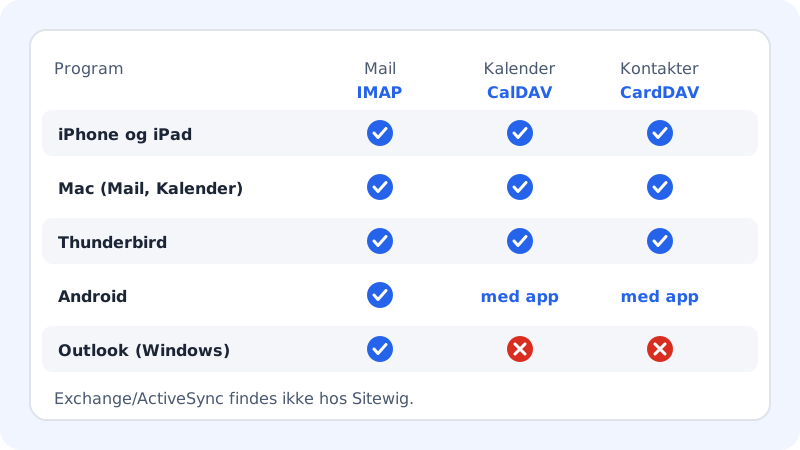
| Program | Calendar and contacts from Sitewig | Guide | |
|---|---|---|---|
| New Outlook for Windows | Yes | No | New Outlook |
| Classic Outlook (Microsoft 365, Office) | Yes | No | Classic Outlook |
| Thunderbird (free) | Yes | Yes | Thunderbird |
| Webmail in the browser | Yes | - | The Open Webmail link in the control panel |
Still using the old Mail app?
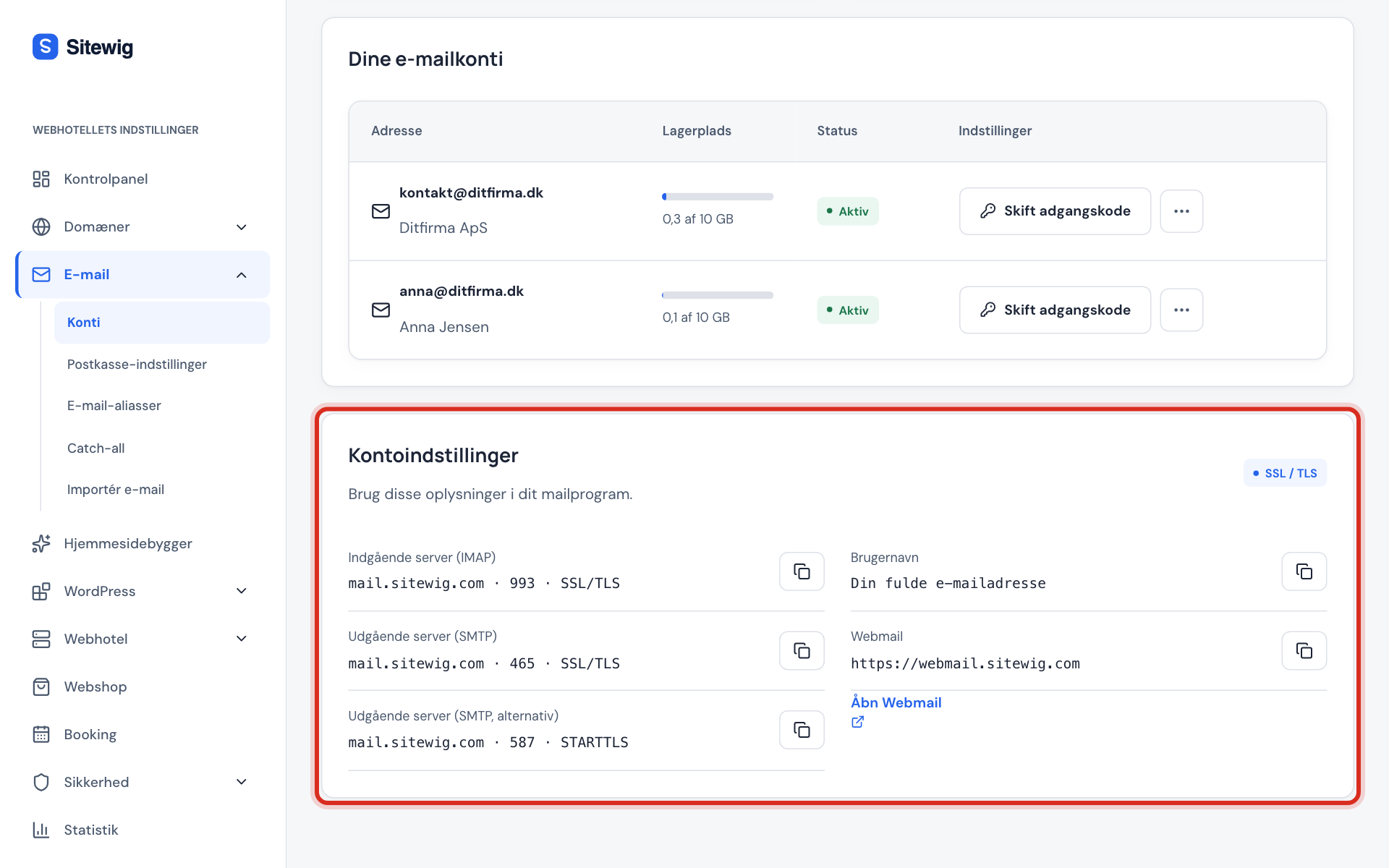
If you have the app and want to keep using it for now, you can add your Sitewig account like this. The settings are also shown in the control panel under Email → Mailboxes → Account settings.
Step 1: Open the account settings
Click the cog at the bottom left, choose Manage accounts and then Add account.
Step 2: Choose advanced setup
Scroll down the list, and choose Advanced setup and then Internet email.
Step 3: Fill in the account
Enter your email address as the Email address and User name (the whole address), the mailbox Password and an account name. Choose the account type IMAP4.
Step 4: Fill in the servers with the port
Enter
mail.sitewig.com:993as the Incoming email server andmail.sitewig.com:465as the Outgoing (SMTP) email server.Step 5: Turn on login and SSL
Tick all four boxes: Outgoing server requires authentication, Use the same user name and password for sending email, Require SSL for incoming email and Require SSL for outgoing email. Click Sign in.
Frequently asked questions
Will I lose my emails if I switch from the Mail app to Outlook?
No, not if the account is set up with IMAP. Then all emails and folders are on Sitewig's server, and the new program downloads them again.
How do I see my emails without installing anything?
Use webmail. In the control panel under Email → Mailboxes you will find the Open Webmail link.