Thunderbird is a free email program for Windows, Mac and Linux. It tries to find the right settings by itself when you enter your email address – and if that fails, the manual setup only takes a couple of minutes.
What you need
Incoming server
- Protocol
- IMAP
- Host name
mail.sitewig.com- Port
993- Connection security
- SSL/TLS
- Authentication method
- Normal password
- User name
- Your full email address
Outgoing server
- Protocol
- SMTP
- Host name
mail.sitewig.com- Port
465- Connection security
- SSL/TLS
- Authentication method
- Normal password
- User name
- Your full email address
Add the account
The menu names follow recent Thunderbird versions. In older versions they can be slightly different.
Step 1: Start a new account
Click the ≡ menu in the top right corner, and choose New → Existing Email Account. The first time you open Thunderbird, the window appears by itself.
Step 2: Enter name, address and password
Fill in your name (what recipients see), your full email address and the mailbox password. Tick Remember password, and click Continue.
Step 3: Check what Thunderbird suggests
Thunderbird looks for the settings. If it finds something, check that it says IMAP, the server
mail.sitewig.com, port993incoming and465outgoing with SSL/TLS. If that is correct, click Done.Step 4: Configure manually if something is wrong
If Thunderbird finds nothing, or suggests a different server name, click Configure manually. Fill in the fields as in the tables above, click Re-test and then Done.
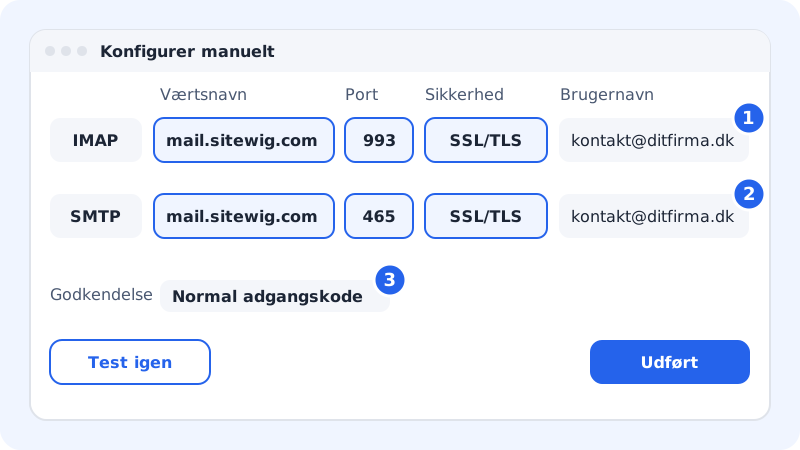
The manual setup in Thunderbird
When does the automatic setup work?
When your domain uses Sitewig's name servers, and email is set up for Sitewig Mail, Sitewig automatically creates a DNS record called autoconfig that points to mail.sitewig.com. Thunderbird uses it to find the setup.
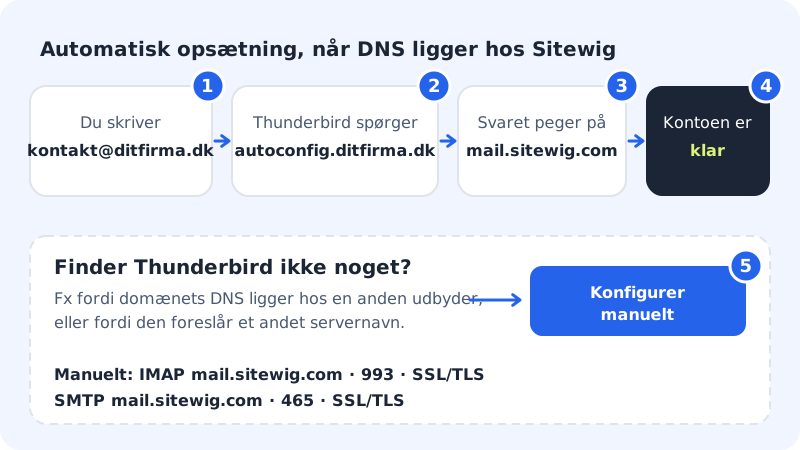
If the domain's DNS is with another provider, the record usually does not exist. You can then either create a CNAME record autoconfig → mail.sitewig.com at that provider, or simply use the manual setup. The result is the same.
Change the settings later
- Incoming: Click ≡ → Account Settings, and choose Server Settings under the account.
- Outgoing: Choose Outgoing Server (SMTP) at the bottom of the list on the left, select the server, and click Edit.
- Password: If you have changed the password in the control panel, Thunderbird asks for the new one next time. Otherwise you can find saved passwords under ≡ → Settings → Privacy & Security → Saved Passwords.
Frequently asked questions
Can I get my calendar and contacts in Thunderbird?
Yes. Thunderbird supports both CalDAV and CardDAV. See Sync your calendar and contacts.
Thunderbird says the login failed. What now?
Check that the user name is the full address, and that the authentication method is Normal password. Then follow troubleshooting login problems.
Can I use port 587 instead of 465?
Yes. Choose port 587 and connection security STARTTLS for the outgoing server. This is useful if your network blocks port 465.